A Roku soundbar is an excellent accessory that can help improve your streaming experience. However, it can be very frustrating to find that your Roku soundbar is not working when you are trying to watch something.
Several reasons can cause your soundbar not to work, from issues with the physical connections to incorrect audio settings on your TV. The good news, though, is that there are several tips you can use to fix a Roku soundbar that is not working.
Below is a look at them:
1. Check the physical connections
Physical connections are one of the first things you should check on if your Roku soundbar is not working.
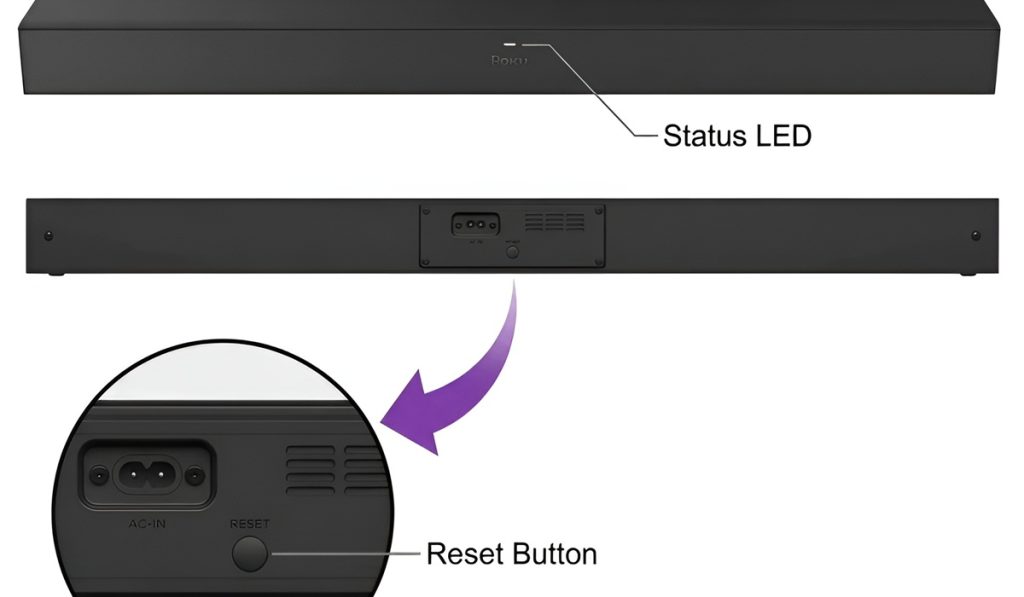
First, check that the power cable is securely attached to the soundbar and the electrical outlet. The LED status light on the soundbar should also be on and lighting solid; if the light is flashing, it means the soundbar is disconnected and in pairing mode.
Next, you should check on your HDMI cable connection (if you have connected your soundbar to your TV via HDMI).
To receive sound, ensure that you have connected your Roku soundbar to the HDMI port labeled ARC/eARC. Note: If you connect the soundbar to a standard HDMI port on your TV, it will not receive any audio.
If you are unable to connect your Roku soundbar via HDMI, you can switch to a digital optical cable.
2. Restart your Roku Soundbar and connected devices
Audio issues with your Roku soundbar can sometimes be caused by glitches, wrong settings, or even pairing problems. Luckily, you can resolve most of these issues by restarting your soundbar and other connected devices, such as your TV.
To restart the soundbar, you can briefly press and release the Reset button on the back panel. You can also power cycle your soundbar (unplug the power cord from the electrical outlet > wait 30-60 seconds > plug it back in).
Likewise, for your TV and other connected devices, you can restart using the system restart option or by power cycling.
If the issue with your Roku soundbar persists after a restart, you can perform a reset. For this, press and hold the Reset button on the back panel for about 10 seconds, then follow the audio instructions to pair the soundbar again.
3. Adjust the audio settings
The wrong audio settings could cause your Roku soundbar not to receive sound. In this case, you can try the following audio settings troubleshooting tips:
Check the input selection on your soundbar
Before tweaking other audio settings, you should first check that you have selected the right audio input on your Roku soundbar.
If you are connecting the soundbar to your Roku TV, you must switch to the HDMI input. If you select Bluetooth or auxiliary input, the soundbar will not receive audio from your TV.
Note: Bluetooth input works with wireless devices, like smartphones, tablets, or computers. On the other hand, the auxiliary input allows you to connect your soundbar to audio sources using a 3.5 mm audio jack.
Check the audio output on your TV
In addition to the input on your Roku soundbar, you also need to check that you have selected the right audio output on your TV.
To receive audio on your Roku soundbar, you should select either ARC or optical, depending on which physical connection you have used. You can also select Auto, in which case your TV will automatically detect the soundbar via HDMI ARC or optical cable connections.
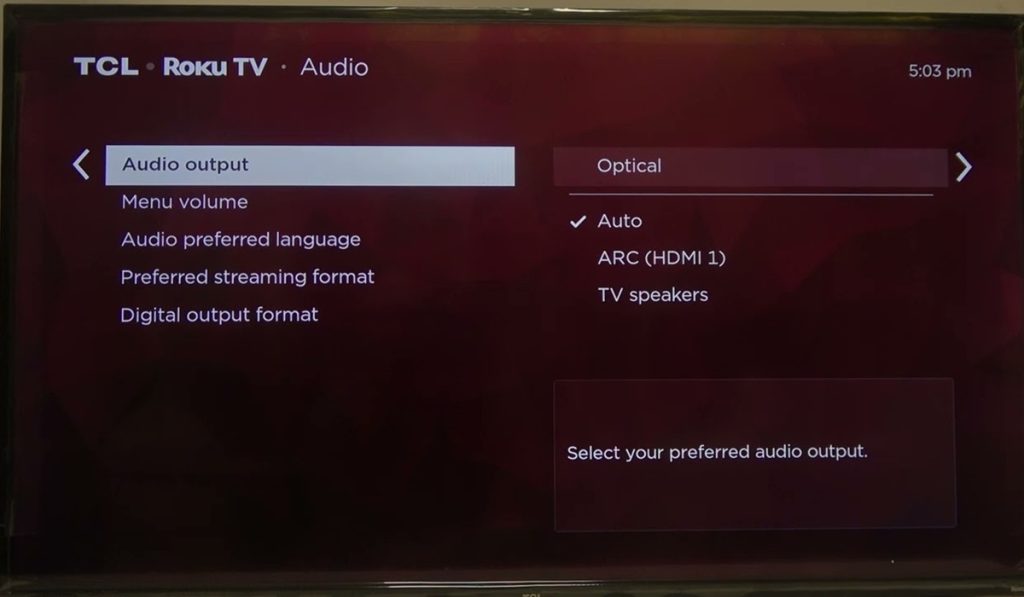
Note: If the audio output is set to TV speakers, you will only hear audio through the TV speakers.
Set your TV audio format to PCM
The audio format is another setting you can check if your Roku soundbar is still not working.
Some soundbars do not support Dolby or DTS audio formats. Therefore, to receive audio from your TV, you need to set the audio format to PCM (Pulse Code Modulation), which lets your TV downmix Dolby Audio and DTS sounds into a standard stereo sound signal.
To enable PCM format on your TV: go to Settings > Audio and select PCM/PCM-Stereo/Stereo.
4. Troubleshoot your wireless soundbar connection
Do you have a wireless Roku soundbar but cannot receive audio? Then the problem may be with the wireless connection.
You can troubleshoot the wireless connection using the following tips:
- Move the soundbar closer to your TV: A wireless soundbar may be affected by a weak wireless signal if it is too far away from your TV. To fix the issue, move the soundbar closer to your TV.
- Check if there is any wireless interference: Wireless interference from other devices like an internet router, baby monitors, microwave, and other wireless speakers can cause interference.
- Unpair and pair your soundbar again: The reason you may not be hearing audio could be as simple as that your Roku soundbar is paired to another device. To resolve this, press and hold (for 10 seconds) the reset button on the back panel to unpair the soundbar, then listen to the instructions to pair it with your TV.
With the above solutions, you can easily troubleshoot and fix a Roku soundbar that is not working. However, if the issue still persists, you should contact Roku Customer Support for more advanced troubleshooting solutions.