Picture this: you walk into your living room late at night. The house is dark, the TV screen is off, but suddenly you hear live TV audio or a talk show coming from the speakers.
You try pressing the power button, but nothing happens. Feeling frustrated, you unplug the TV. As soon as you plug it back in, the audio starts playing again.
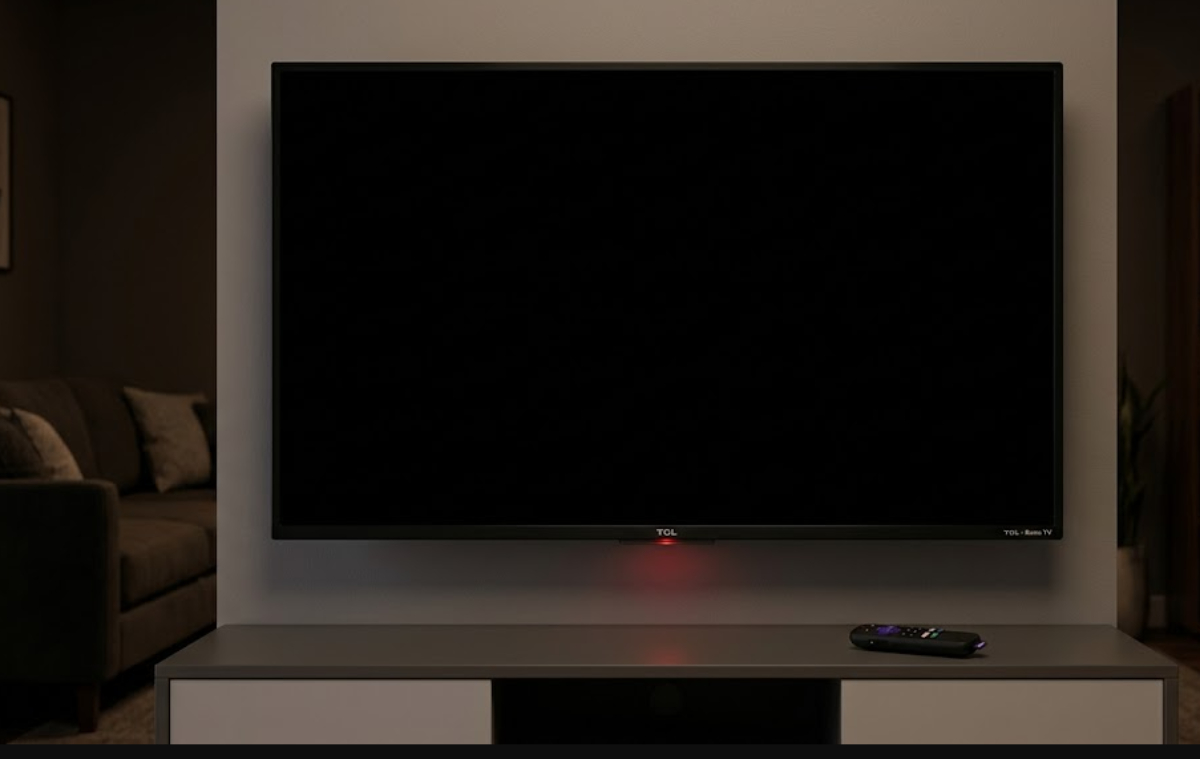
If this sounds familiar, your TV is stuck in a software loop.
Many people try fixing this by turning the TV on and deleting the Live TV app. This does stop the noise, but it also means you lose access to your favorite free channels.
Why does this live TV audio problem happen?
When you press the power button on a Roku remote, the TV does not fully turn off like older TVs. Instead, it goes into a low-power standby mode so it can start up quickly when you want to use it again.
This feature is called Fast TV Start, and it is meant to make movie nights more convenient. But it also means the TV’s computer and internet connection keep running in the background.
The problem usually happens if you turn off your TV while you are still watching something in the Live TV app. The app should pause and close as soon as the screen turns off.
But because of a software bug, the app sometimes gets stuck running. Since Fast TV Start keeps the system on, a quick internet glitch or system refresh can make the TV start playing audio again, even though the screen is still off.
How to fix the live TV audio problem on your TCL Roku TV
Here are three easy steps to reset your TV’s memory and stop the background audio from playing.
1. Turn off Fast TV Start
The best way to stop background apps from turning on is to make your TV fully shut down when you press the power button.
- Press the Home button on your remote control.
- Scroll down and select Settings, then choose System.
- Click on Power and look for Fast TV Start.
- Uncheck or choose to Disable this feature.
From now on, your TV will take a few more seconds to start up, but it will save energy and stop the background audio problem for good.
2. Clear your TV’s hidden cache
Unplugging the TV only cuts the power for a short time. To fix the memory loop that keeps starting the live audio, you need to clear the system cache with a special remote control code.
- Make sure your television is turned on and sitting on the main Home screen.
- Press the Home button exactly 5 times.
- Press the Up Arrow button exactly 1 time.
- Press the Rewind button exactly 2 times.
- Press the Fast Forward button exactly 2 times.
If you enter the code correctly, the TV screen will freeze for a moment, scroll a bit, and then fully restart. This clears out any temporary memory problems.
3. Check for system updates
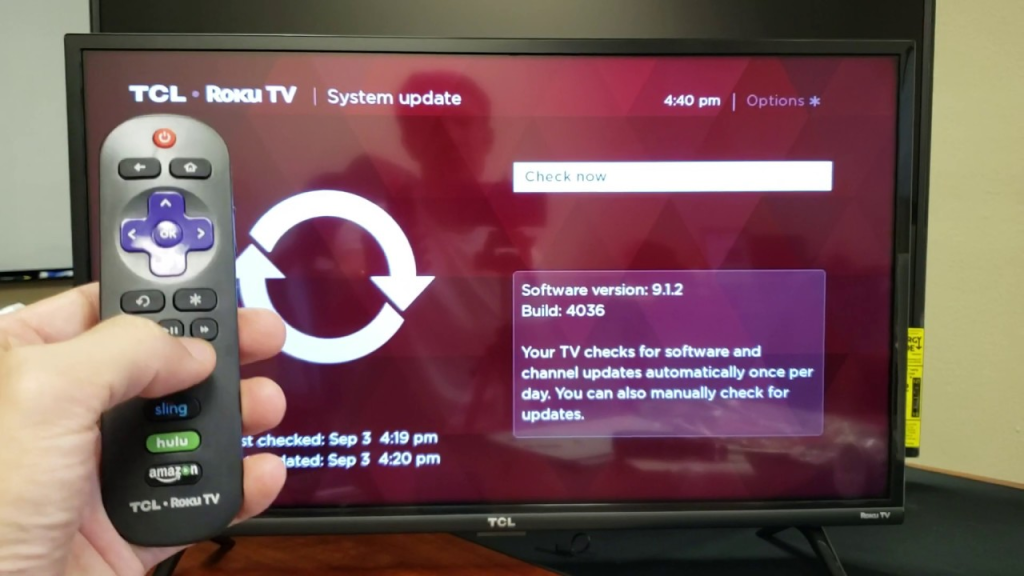
TCL and Roku often release software updates to fix these bugs. Make sure your TV is up to date.
- Navigate to Settings > System.
- Select System Update and click Check Now.
- Let your TV download and install any updates it finds.
After you have changed the power settings and cleared the cache, you can go to the Roku Streaming Channels store and reinstall the Live TV app.
To help prevent this problem in the future, try to get in the habit of pressing the Home button on your remote to return to the main menu before turning off the TV. This closes any active video streams and keeps your living room quiet at night.