Plugging a thumb drive into your Roku should be an easy way to watch movies, listen to music, or view photos on your TV. But when you insert your drive and nothing happens, or your TV displays an error, it means there is a problem.
If Roku does not recognize your USB drive, start by identifying the problem. Usually, it is the drive’s format, insufficient power, or a software glitch.
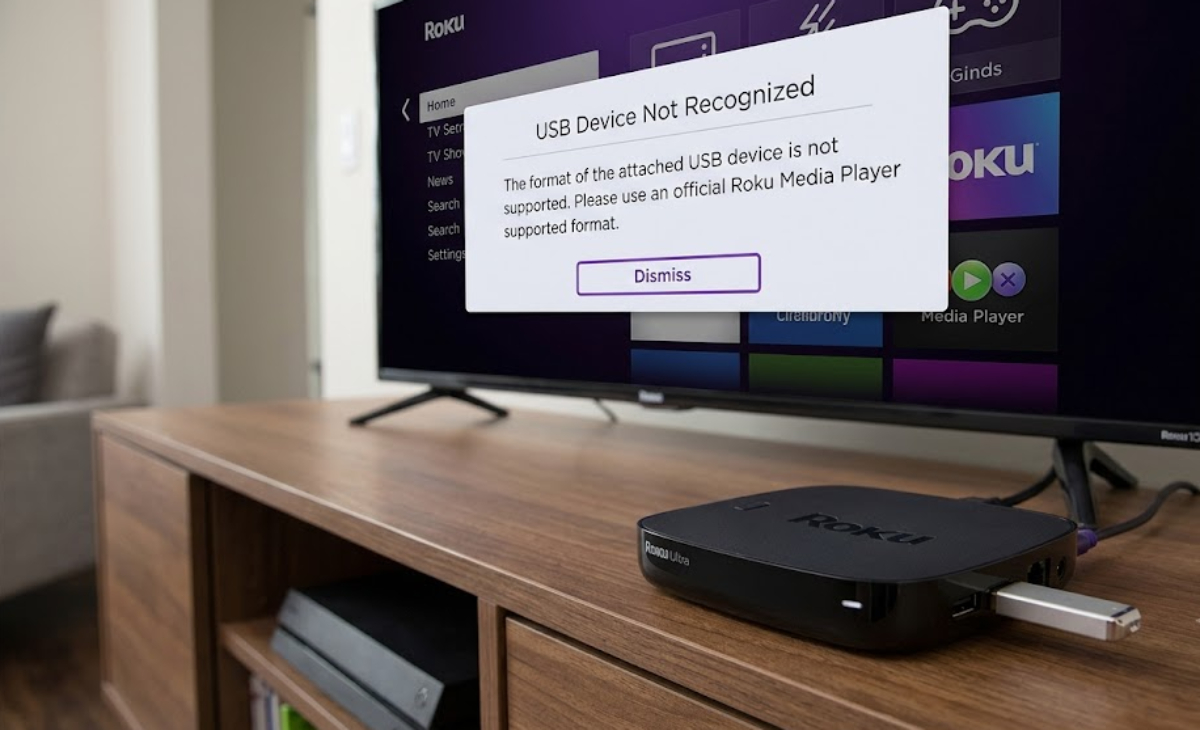
Here’s how to fix the problem and start playing your media in just a few minutes.
1. Check your USB drive’s file system format
The most common reason Roku can’t detect a thumb drive is the file system format. This is how your computer organizes data on the drive. If the format is not supported, Roku acts like nothing is plugged in.
Roku devices natively support these common formats:
- FAT16 and FAT32 (Best for standard thumb drives under 32GB)
- NTFS (Great for large drives and large video files)
- EXT2 and EXT3 (Linux formats)
Many new thumb drives come pre-formatted with exFAT or APFS (Apple’s default format). Most Roku models cannot read exFAT drives correctly.
How to fix it:
- Plug your thumb drive into a Windows PC or Mac.
- Open your computer’s file explorer, right-click the drive icon, and choose Properties (Windows) or Get Info (Mac).
- Check the format type listed.
- If it says exFAT, APFS, or HFS+, copy your personal files off the drive first.
- Reformat the drive to FAT32 or NTFS, copy your files back onto it, and try plugging it into your Roku again.
2. Make sure the USB port has enough power
Not all USB drives use the same amount of power. Small, standard thumb drives usually work fine, but bigger flash drives or portable hard drives often need more power than Roku can provide.
A Roku USB port gives about 5V and 0.5A of power. If your drive needs more, Roku might drop the connection, show a low-power warning, or ignore the drive.
How to fix it:
- Use a simple thumb drive
High-speed USB 3.0 drives or external SSDs use more power. Try a basic USB 2.0 thumb drive instead.
- Add a powered USB hub
If you want to use a large external drive, connect a powered USB hub (one that plugs into the wall) to your Roku. Then plug your drive into the hub.
This way, your drive gets enough power without overloading your Roku.
3. Install and open Roku Media Player
Roku does not have a desktop screen or file explorer like a computer. To see files on a USB drive, you need to use the Roku Media Player app.
Sometimes the drive is connected, but it looks broken because no menu appears on the screen.
How to fix it:
- Turn on your Roku and press the Home button on your remote.
- Look for the Roku Media Player app on your channel grid.
- If you do not have it, go to Search, type in “Roku Media Player,” and install it for free.
- Launch the app and select your media type (All, Video, Audio, or Photo). Your thumb drive icon should appear in the center of the screen.
4. Perform a simple system restart
Sometimes, devices have small software glitches that stop them from seeing new connections. If your drive worked before but not now, your Roku might just need a restart.
Do not just turn off your TV with the power button, since this usually puts Roku into sleep mode instead of restarting it.
How to fix it:
- Press Home on your Roku remote.
- Navigate to Settings > System.
- Select Power (if available on your menu) and then choose System restart.
- Select Restart and wait for the Roku logo to reappear on screen.
Once the system reboots, re-insert your thumb drive and open the media player.
5. Check your file types and video formats
If Roku sees your USB drive but your movies or songs do not show up, it is likely a file compatibility issue, not a hardware problem.
Roku Media Player hides files it cannot play. For example, if you have old .AVI or .WMV videos, Roku might skip them.
What Roku plays best:
- Video: MP4, MKV, and MOV (using standard H.264 or HEVC codecs)
- Audio: MP3, AAC, and WAV
- Photos: JPG, PNG, and GIF
If your drive looks empty in Roku Media Player, try converting your videos to MP4 format with a free tool on your computer, then copy them back to the drive.