Many users have experienced unexpected system instability after the Roku OS 15.2.4 firmware update, especially with builds 3442 and 3421.
Software updates are supposed to improve speed and security, but this version has caused a lot of bugs that disrupt daily viewing.
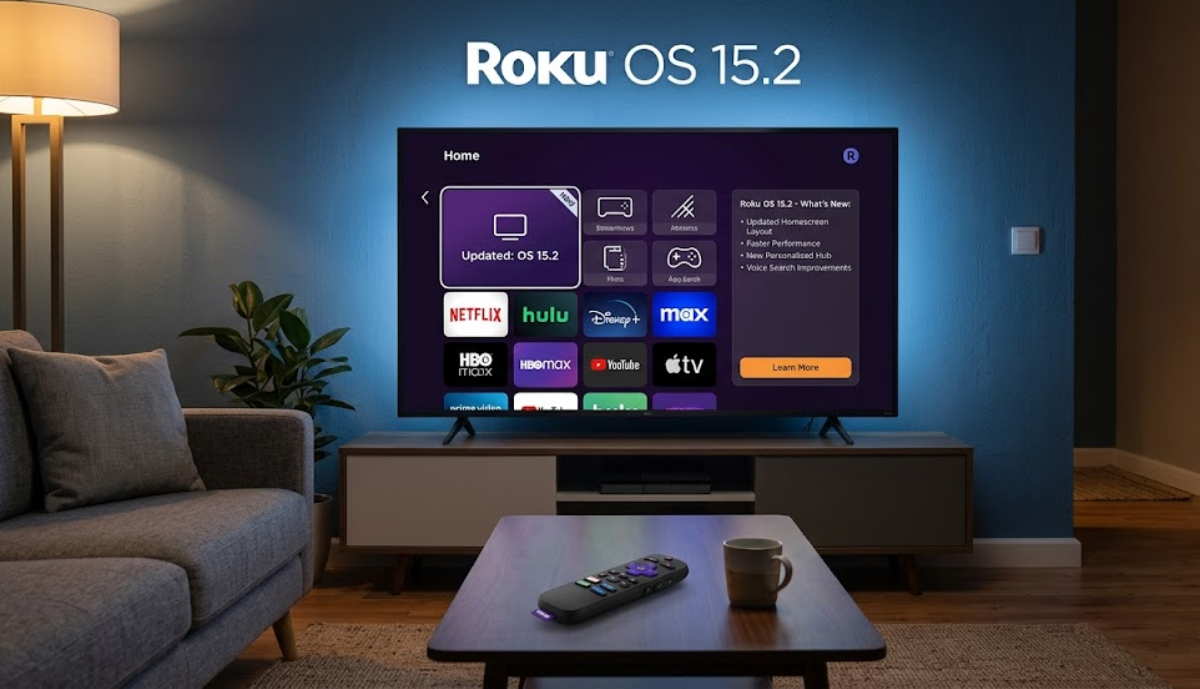
People online are searching for solutions as streaming boxes go silent and smart TVs turn off in the middle of shows.
If your device has been having problems since the update, you are not alone. This guide covers the main issues of the latest Roku OS 15.2.4 update and gives you clear steps to get your entertainment center working again.
1. App-induced TV power shutdowns
The most serious bug in this update causes Roku smart TVs, especially TCL, Hisense, and Insignia models, to crash and shut down without warning.
This problem is very specific. You can use the Roku home screen, browse settings, or let the screensaver run for hours without any issues.
But if you start watching a full video on apps like Netflix, Max, or Paramount+, the TV shuts off completely within a few minutes, as if it was unplugged.
Short video previews on app homepages work fine, but starting a full movie or show causes the TV to suddenly turn off.
This happens because the update added a new, graphic-heavy wallpaper feature called Backdrops, which uses a lot of memory and processing power.
When you switch from a menu preview to a 4K or HDR video, the system memory gets overloaded. To protect the hardware, the TV shuts down automatically.
How to fix
To fix this problem, try these steps:
- Highlight the newly added Backdrops app icon on your home screen.
- Press the Star (*) button on your remote.
- Select Remove app to instantly free up system memory.
You can also go to Settings > System > Power > Fast TV Start and turn it Off. This makes the TV clear out old app logs and refresh its cache every time you turn it off.
If your TV is stable enough, you can clear the temporary file cache with your remote. Press Home 5 times, Up once, Rewind twice, and Fast Forward twice. The screen will freeze for about 15 seconds, then the TV will restart.
2. No audio and 5.1 surround sound drops
People using standalone Roku devices, especially the Roku Ultra and premium Soundbars with Build 3421, often report losing all audio.
When playing local media files or certain multichannel videos, the picture works, but there is no sound from the speakers.
Sometimes, Roku changes a 5.1 surround sound track into basic 2.0 stereo, so center speakers and subwoofers do not work.
The update has a bug that stops Roku from detecting your audio system’s full capabilities over HDMI. Instead of recognizing advanced audio formats, it assumes you only have basic stereo speakers.
Also, the system struggles with multi-channel AAC audio in MKV files, which can make some media apps stop working.
Change the Digital Output Format by setting your audio layout manually instead of using the automatic detection.
- Go to Settings > Audio > Digital output format and switch it from Auto to Passthrough.
- If you still have no sound, switch to Custom and pick Dolby Digital or DTS, depending on what your sound system can handle.
If you use home servers like Plex or Emby, open the app’s settings on your Roku. In the audio section, turn off Convert Multi-channel AAC. This stops the app from conflicting with Roku’s audio decoder.
You can also try a hard HDMI reset:
- Turn off your TV, soundbar, and Roku.
- Unplug them from the wall outlet.
- Disconnect the HDMI cables from all ports and wait two minutes.
- Reconnect the HDMI cables tightly.
- Turn on your audio system and TV first.
Plug the Roku in last to force a fresh digital hardware handshake.
3. Black screens and HDMI-CEC failures
Many Roku streaming sticks and boxes start up with a black screen, even though the TV is on and you can hear menu sounds in the background.
This update also broke HDMI-CEC features. Many users say their Roku remotes can no longer control soundbar volume, switch TV inputs, or turn off the TV like before.
The firmware patch damages the HDCP security handshake needed to send video over HDMI.
Since the software cannot confirm the connection, it blocks the video but still lets you hear menu sounds.
The new Backdrops feature also interferes with how Roku sends power and volume commands to other devices through HDMI.
How to fix
Try switching back to the default Roku theme, since custom wallpapers and seasonal themes can cause the CEC command problem.
- Go to Settings > Theme > Wallpapers.
- Select the standard, static Roku Purple theme.
This should help your remote control work with your soundbar again.
If that does not help, try changing the HDMI inputs or resolution. You may need a second screen or to navigate by memory.
- Go to Settings > Display type.
- Change it from Auto-detect to a fixed resolution like 1080p or 4K TV.
You can also try plugging your streaming stick into a different HDMI port on your TV.
4. Broken themes and UI fluctuations
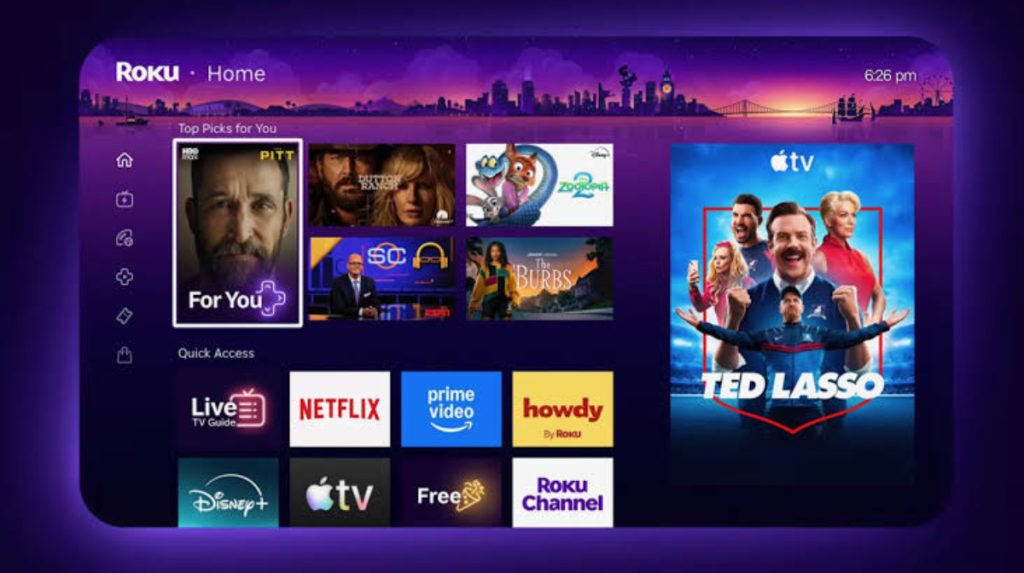
People who like to customize their Roku are running into errors when they try to change the look of their system.
Selecting a new wallpaper pack displays a warning message stating: “The selected theme could not be used.”
Some users have seen their home screen layout change by itself, switching between the old and new designs without warning.
This happens because Roku is testing new settings on their servers, which do not always work well with the updated software on your device.
When the TV checks for live data or ads, it can conflict with your theme settings and cause the interface to crash, so it switches back to an older layout.
How to fix
Try to limit how much live web data your home screen loads at once.
- Navigate to Settings > Home screen.
- Hide optional items like Live TV, Featured Free, or Sports.
Sometimes, a leftover configuration file can cause problems.
- Go to Settings > System > System update.
- Select Check now.
This can make Roku download a small repair patch to help stabilize your home screen.
5. Wireless disconnections and app crashes
After installing the update, many users found that their Roku devices lost their Wi-Fi connection.
When trying to reconnect, the device may not find any Wi-Fi networks or keep rejecting the correct password. Some apps, like Tablo OTA or YouTube TV, also crash to the home screen when you scroll through guides or recordings.
The update has a network bug that damages local IP logs, so Roku cannot talk to your home router correctly.
For app crashes, Roku changed some background coding rules. Apps that have not updated for these new rules are shut down by the system to prevent freezing.
How to fix
Reset your network connection logs to clear the bad wireless cache and start fresh.
- Navigate to Settings > Network > About to check your status.
- Then go to Settings > System > Advanced system settings > Network connection reset.
- Select Reset connection.
If this does not help, do a full clean app reinstall. If an app keeps crashing, just deleting it is not enough because some bad cache data stays. Follow these steps:
- Highlight the broken app icon on your home screen and press the Star (*) button to select Remove app.
- Right after, go to Settings > System > Power > System restart to fully clear the app from the system’s memory.
- When the system restarts, go to the Streaming Store and download the app again.
Can you revert to the old Roku OS 15.1?
Roku has blocked the ability to manually roll back to older software versions using the platform’s hidden developer menus.
If these steps do not fully fix your device, try to keep your settings simple. Use the default purple theme and turn off Fast TV Start while you wait for the next software update.