Is your Apple TV remote not working? Apple TV users often face several issues, from the remote control glitching to the remote buttons not working, signal interference, and more.
These remote issues are annoying, but they are easy to fix with simple troubleshooting tips like charging your remote, resetting it, or re-pairing it with your Apple TV.
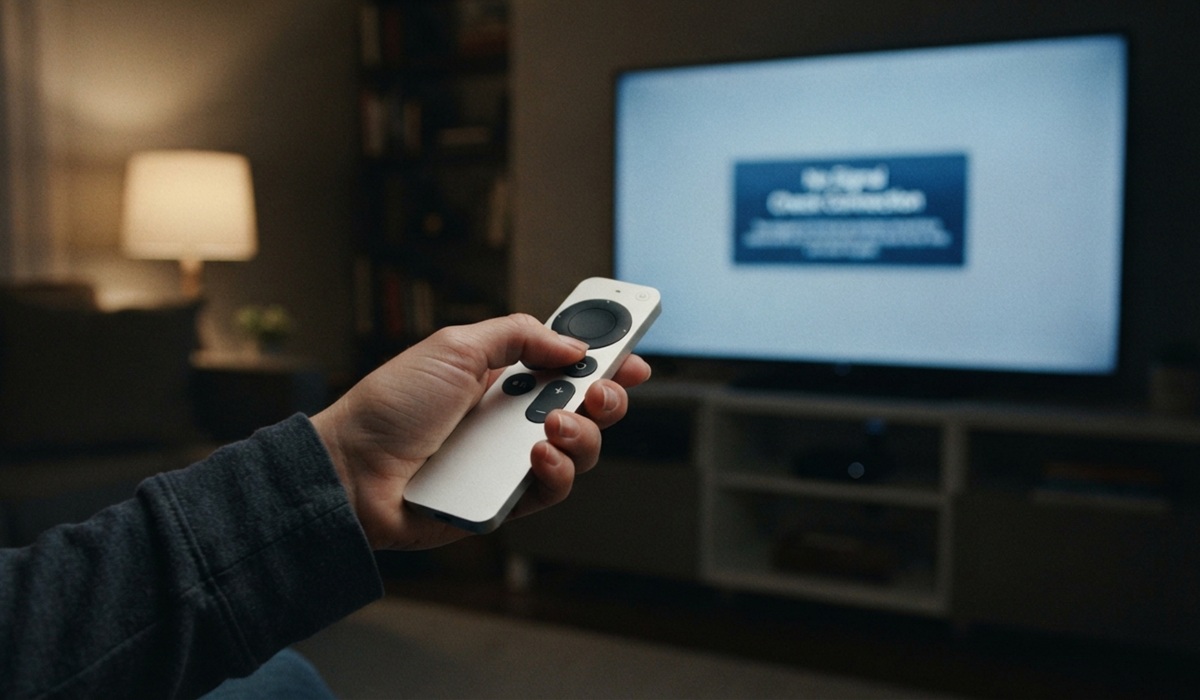
If you are having trouble with your Apple TV remote, try the following solutions:
1. Check the remote battery
A dead battery is one of the most common causes of your Apple TV remote not working. If your remote is completely unresponsive, start by charging it via a USB-C or Lightning cable.
If the remote battery was completely drained, it might take a while, 10-15 minutes, before it becomes responsive.
2. Clean your remote control
Dirt, dust, and grime are another common reason your Apple TV remote might not work. This is especially the case if you often place it in a dusty area or if kids regularly use it while they are eating.
To fix the issue, wipe down the remote’s surface and the click pad/touch surface with rubbing alcohol and a microfiber cloth. You can also use a toothpick or a clean brush to dislodge any debris that may be trapped in the crevices around the remote buttons.
Note: When cleaning the remote, avoid using too much moisture, spraying it with compressed air, removing the buttons, or disassembling it, as this can damage the internal components.
3. Try re-pairing your Apple TV remote
If your Apple TV remote is not working, it may have unpaired from your Apple TV, or it could be experiencing pairing glitches. You can fix this problem through a manual re-pairing.
To do this:
- Move your remote closer to your Apple TV device (about 3 inches from the Apple TV)
- Press and hold the Back (or the Menu) button and the Volume Up button for 5 seconds.
- If prompted, place your remote on top of the Apple TV device to complete the pairing process.
If you are unable to pair your remote, try power cycling your Apple TV (unplug it from the electrical outlet, wait 6 seconds, and plug it back in), then try pairing the remote again.
4. Restart your remote
Your Apple TV remote could be experiencing software glitches that could be causing it not to work. Most of the time, such glitches are temporary, and you can clear them up by restarting your remote.
To restart:
- Press and hold the TV/Control Centre button and the Volume Down button simultaneously for 5 seconds, or until the status light on your Apple TV device flashes off and then on again.
- Release the buttons and wait for 5-10 seconds.
- Press any button on your remote control to check if the issue is resolved; if your remote is working properly, a “Remote Connected” notification will appear on your Apple TV screen, meaning you can start using it.
5. Check for signal interference
Signal issues are another reason your Apple TV remote may not be working.
Signal interference can occur if you are operating the remote control too far away from the Apple TV device. It can also be caused by physical objects blocking the remote’s line of sight to the TV.
To check for signal issues, go to Settings on your Apple TV, then Remote and Devices > Remote and check the signal strength under Bluetooth RSSI.
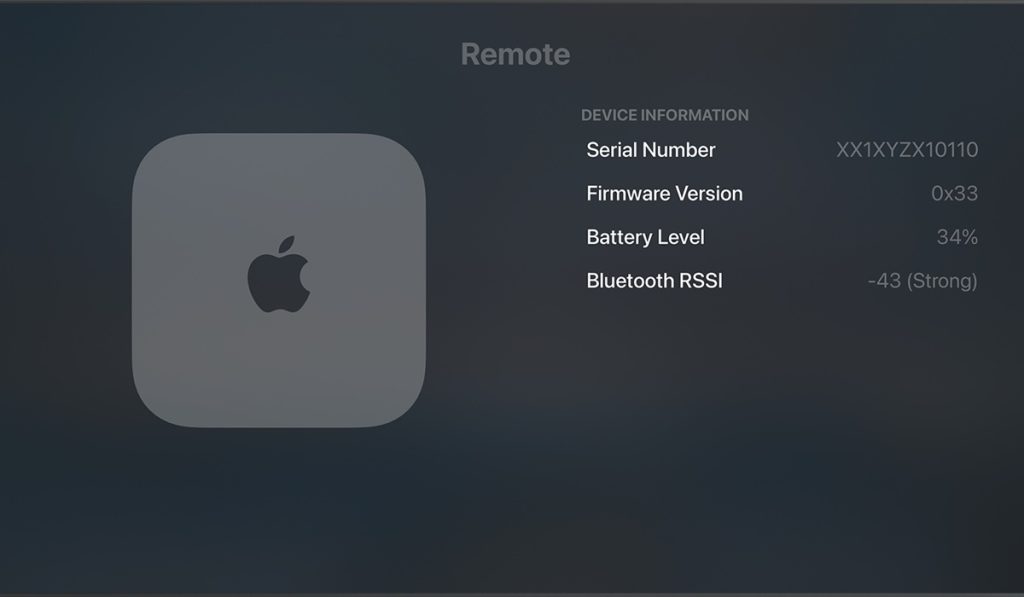
If the signal indicator is showing weak, try moving the remote control closer to your TV (within 20 feet). You should also check and ensure there is nothing between your remote and the Apple TV device.
If you are still having problems with your Apple TV remote, it may be damaged or malfunctioning. In that case, you may want to consider buying a replacement remote, which you can get on the Apple Store.
In the meantime, you can use a universal remote, your iPhone, or iPad to control your Apple TV device.