Disney Plus error code 50 usually appears when you try to log in or activate your account on a smart TV, gaming console, or streaming device. Luckily, this error almost never means your account is banned or broken.
What does error code 50 mean?
Error Code 50 occurs when there is a problem with authentication or your location connection. When you open Disney Plus, your device checks with Disney’s servers to confirm your account, IP address, and location.
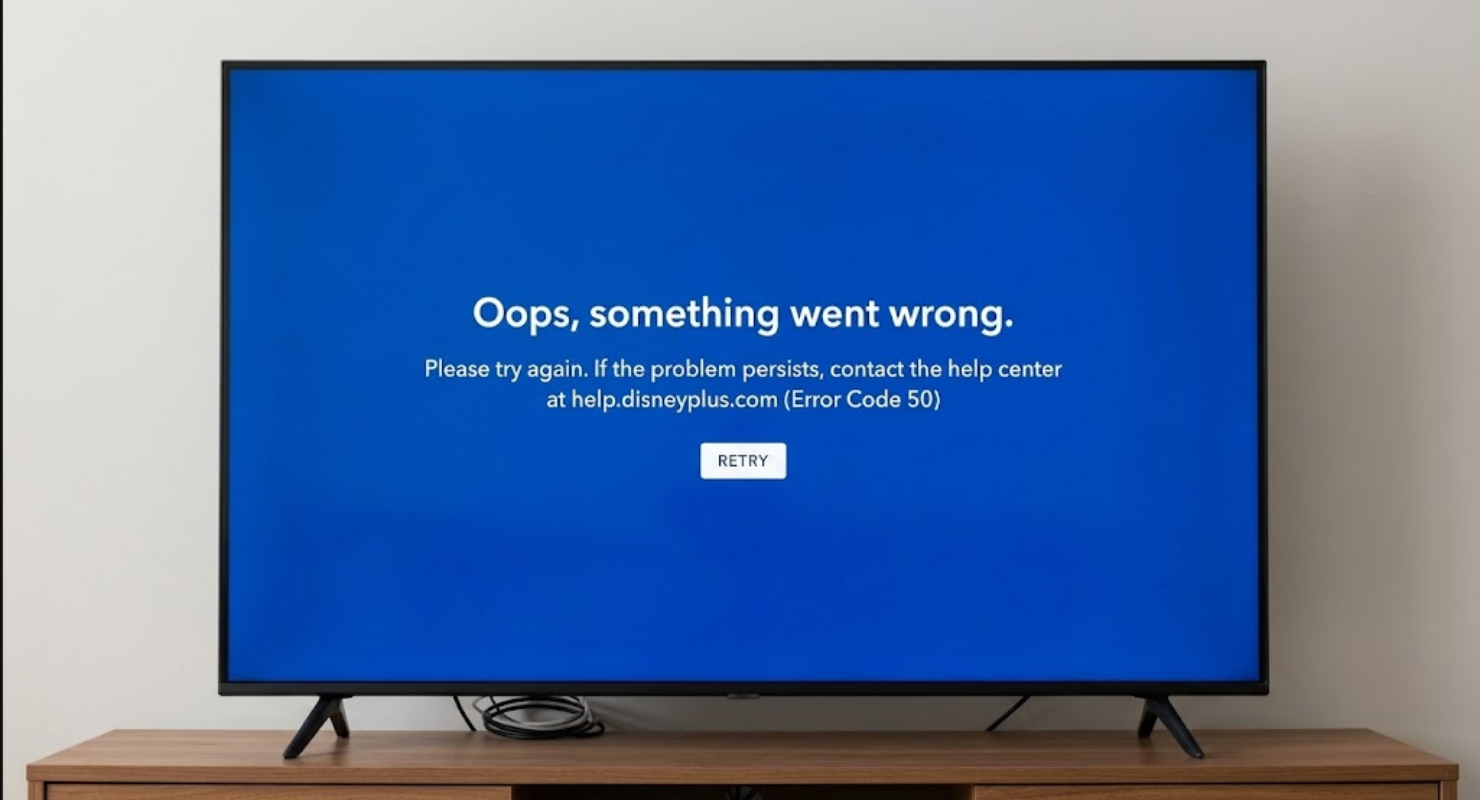
If this connection fails due to corrupted cache files, temporary server issues, or mismatched IP location data, Disney Plus will block access and show Error Code 50.
Common triggers include:
- The 6-digit code on your TV screen expired before you typed it into your phone or web browser.
- Temporary files saved in your app cache are interfering with your login credentials.
- Your internet provider assigned an IP address that Disney’s system incorrectly flags as a VPN or an out-of-region location.
- Background maintenance or temporary server overloads.
How to fix Disney Plus error code 50
Here are some easy steps you can try to fix the error.
1. Sign in on a secondary device first
One of the best ways to fix Error Code 50 is to use a second device such as your phone, tablet, or laptop:
- Open a browser on your mobile phone or computer and log into Disney Plus.
- Open the Disney Plus app on your TV or console.
- When the activation code appears on your TV screen, quickly enter it into your secondary device.
- If the code does not work immediately, refresh the TV app to get a new 6-digit code and enter it as soon as you see it.
Signing in this way helps you avoid the TV keyboard glitch that often causes Error Code 50.
2. Check the service status
Before changing your home network, check if Disney Plus is down for everyone. Look for updates in the Disney+ Help Center or on sites like DownDetector. If there is a widespread outage, wait for Disney to fix it.
3. Clear app cache and data
Sometimes saved data on your device gets corrupted. Clearing the cache can remove these temporary bugs:
- On Smart TVs / Fire TV / Android TV: Go to Settings > Apps > Disney+ > Clear Cache and Clear Data.
- On Web Browsers: Clear your browser cache and cookies, or try opening Disney+ in an Incognito window.
- On mobile devices or consoles, close the app completely and restart your device. If the error persists, uninstall the Disney+ app, restart your device, and reinstall it from your app store.
4. Restart your home router and devices
Network problems can sometimes confuse the authentication servers. Try a full power cycle:
- Turn off your streaming device or TV.
- Unplug your internet router and modem from the wall outlet.
- Wait 60 seconds.
- Plug the router back in and let it reconnect fully.
Turn your streaming device back on and launch Disney Plus.
5. Disable VPNs and proxies
Disney Plus has strict regional licensing rules. If you use a VPN or proxy on your device or router, turn it off completely. VPN connections often cause authentication errors like Error Code 50.
6. Resolve IP location conflicts
Sometimes your internet service provider (ISP) changes your home IP address. This can make Disney’s system think you are in a different location or using a VPN.
If you suspect an IP location issue:
- Visit an IP checker site, such as WhatIsMyIPAddress, to record your public IP address and zip code.
- Reach out to Disney Customer Support.
- Explain that you are receiving a location/activation error code.
Request that support update or clear the location flag associated with your IP address.