You open Disney Plus, hit play on your favorite movie, and then a black screen appears with this message:
“We’re sorry; we’re having trouble connecting you to the service. Please check to see that you are still connected to the Internet and try again (Error Code 142).”
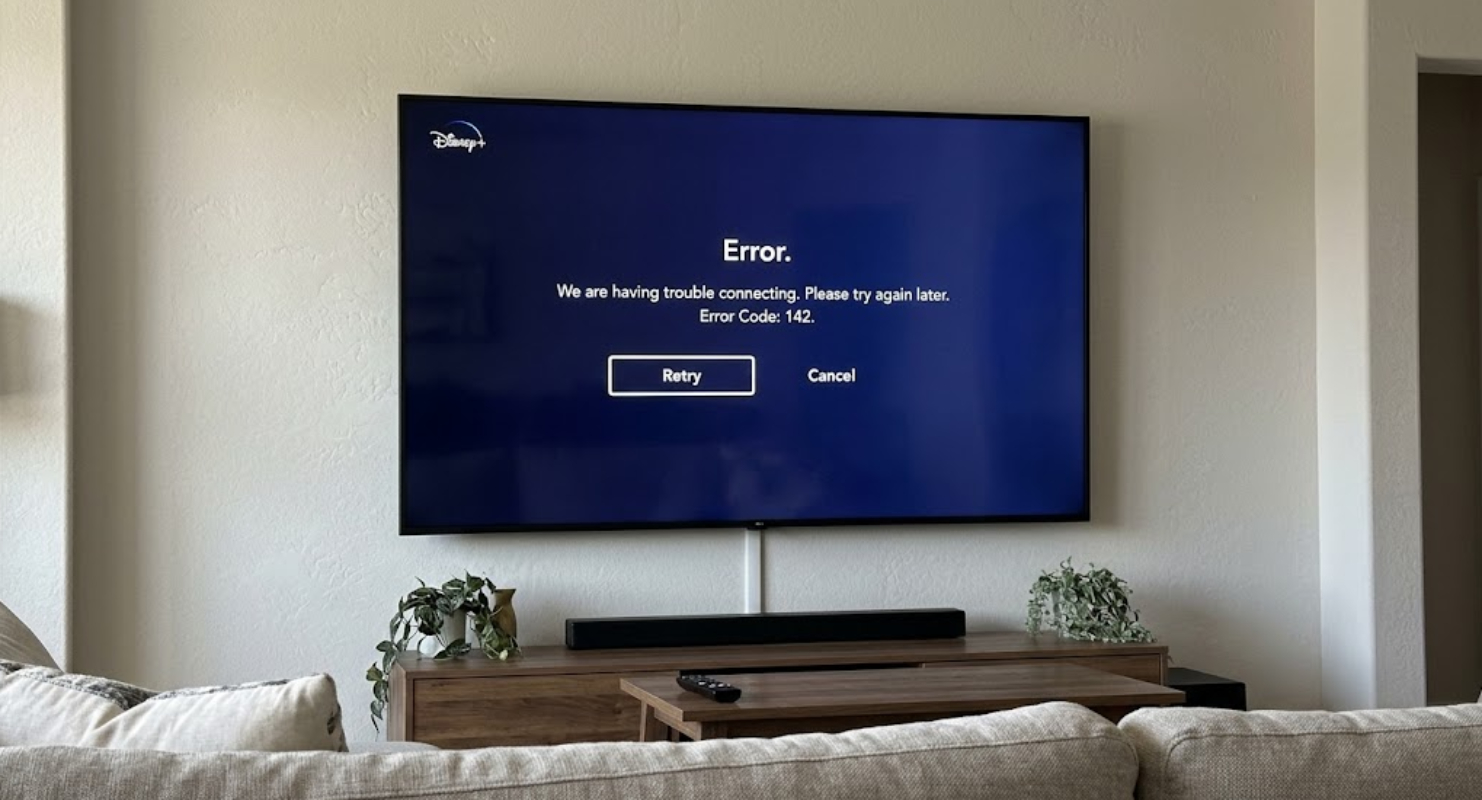
Disney Plus error code 142 is a common connection problem for many subscribers. Here is what it means, why it happens, and how you can fix it.
What is Disney Plus error code 142?
Error code 142 is a network issue. It shows up when the Disney Plus app on your TV, phone, tablet, or streaming device can’t connect to the Disney server.
If your device loses connection briefly or the app runs into a glitch, playback stops and this error appears.
What causes error code 142?
This error usually happens for a few common reasons:
- Unstable Wi-Fi or internet connection
- Outdated Disney Plus app
- Temporary glitches in your device
- VPN or proxy conflicts
- Temporary outages
How to fix Disney Plus error code 142
Try these steps in order. Most people find the first few steps fix the problem.
1. Close and relaunch the Disney Plus app
The quickest fix is often the easiest. Close the Disney Plus app on your TV, phone, or computer. Make sure it’s not running in the background. Wait 10 seconds, then open it again. This refreshes the connection.
2. Check your internet connection
Because error code 142 often relates to your network, check that your home internet is working well:
- Open another app (like YouTube or a web browser) on the same device to see if it loads smoothly.
- Run a quick internet speed test. Disney Plus suggests at least 5 Mbps for HD streaming and 25 Mbps for 4K Ultra HD.
- If your Wi-Fi signal is weak, move your device closer to the router or switch to a wired Ethernet cable connection.
3. Restart your modem and router
If your internet is sluggish, performing a power cycle on your home network equipment can help:
- Unplug the power cords from both your modem and your Wi-Fi router.
- Wait 60 seconds to let the network reset.
- Plug the power cords back in and wait until all connection lights turn solid green.
- Open Disney Plus and try streaming again.
4. Restart your streaming device or TV
Streaming devices like Roku, Amazon Fire TV, Apple TV, smart TVs, and smartphones can sometimes retain small software bugs in memory.
- For Smart TVs and streaming sticks: Unplug the power cable from the wall. Don’t just turn off the device with the remote. Leave it unplugged for one minute, then plug it back in.
- For mobile devices or consoles: Fully restart your phone, tablet, or gaming console.
5. Turn off your VPN
Are you using a VPN on your device or network? Disney Plus often blocks known VPN servers to protect content rights. Turn off your VPN completely and try Disney Plus again.
6. Update or reinstall the Disney Plus app
An outdated app can cause problems connecting to the server:
- Go to your device’s app store (e.g., Google Play Store, Apple App Store, Roku Channel Store).
- Search for Disney Plus and check if an Update button is available.
- If the app is already updated and the error persists, uninstall the app, restart your device, and reinstall a fresh copy of Disney Plus.
Check for Disney Plus outages
If you’ve tried all these steps and still see error code 142, the problem might be on Disney Plus’s end. Sometimes, Disney Plus has temporary server outages.
You can see if Disney+ is down for everyone by checking sites like Downdetector or looking at updates on the Disney+ Help Center. If there is a major outage, you’ll need to wait until Disney restores service.