You are ready to watch a movie on your Apple TV, but the screen suddenly flashes, flickers, or briefly goes black. This is more confusing because it only happens with high-quality movies in Apple’s TV app.
If you switch over to standard apps like YouTube, the picture is perfectly fine.
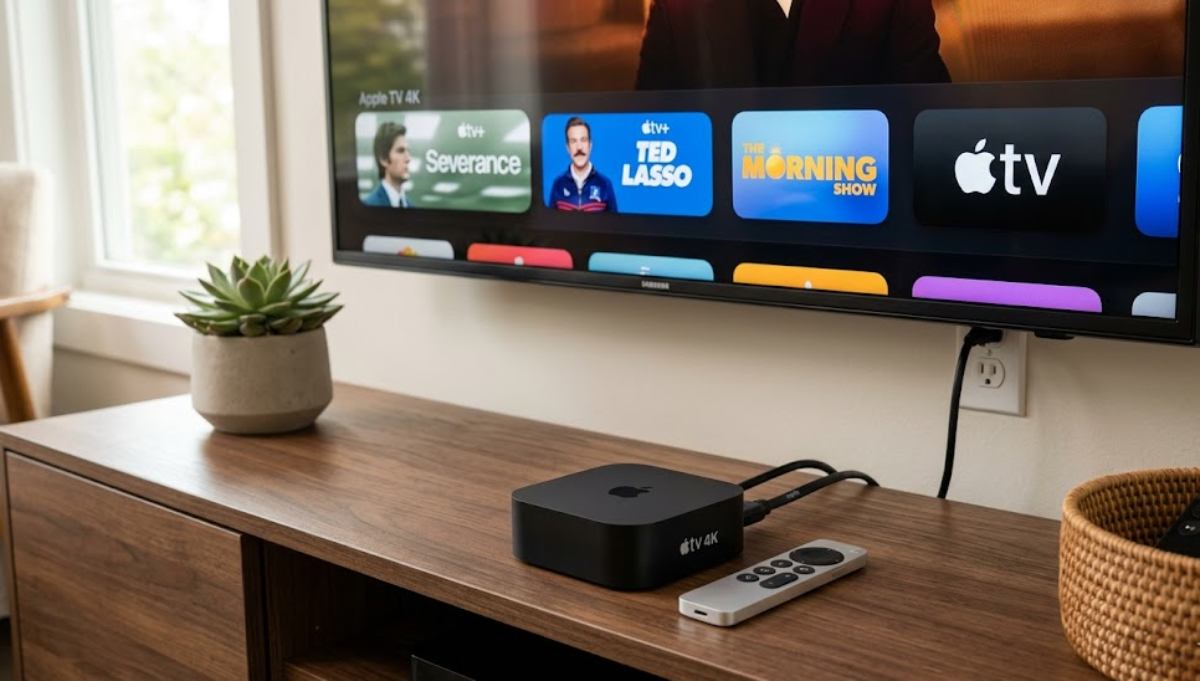
The good news is your Apple TV and television are not broken. The problem is a communication issue between them, often caused by high-quality movie files using advanced video settings like HDR and frame rates.
Why does this only happen in the Apple TV app?
Most streaming apps use standard video formats that require relatively low bandwidth to send picture data from your Apple TV through your HDMI cable to the screen.
Movies you buy or rent in the Apple TV app are made to be the highest quality. They use a lot of data to give you sharp 4K resolution, rich Dolby Vision or HDR colors, and smooth cinema frame rates (usually 24 frames per second).
When you start playing a movie, your Apple TV forces your television to instantly switch its display mode to match the movie’s premium format. If your HDMI cable or TV port cannot handle this sudden flood of data, the connection temporarily fails.
This is known as an “HDMI handshake” issue. It causes a quick flicker, a change in brightness, or a flash of static before the picture returns to normal.
1. Adjust your video settings
To stop your TV from struggling with sudden format changes, change your Apple TV’s default output settings. This keeps things stable, and your movies still look great.
- Navigate to Settings > Video and Audio on your Apple TV.
- Under Format, change your default setting to 4K SDR instead of 4K HDR or Dolby Vision.
Choosing 4K SDR as your default ensures your Apple TV menus, screensavers, and regular apps run smoothly and reliably.
If you want HDR quality for movies, go to Match Content and turn Match Dynamic Range ON. This way, your Apple TV will use SDR most of the time, but switch to HDR for premium movies in the TV app.
While you are in the Match Content menu, turn Match Frame Rate OFF. If this is ON, your Apple TV makes your TV change its refresh rate to match the movie’s speed.
Many modern TVs have trouble with this switch, causing flickers and dropouts. Turning it off makes your Apple TV use a steady, standard rate your TV can handle.
2. Reduce the bandwidth load
If your screen still flickers during HDR movies, you can lower the data load on your HDMI cable without losing your 4K picture quality.
In your Apple TV’s Video and Audio settings, locate the Chroma option. If it is set to 4:4:4, change it to 4:2:0.
High chroma settings send extra color data that TVs do not need to show movies correctly. Changing to 4:2:0 reduces the data load and usually stops signal dropouts.
3. Power cycle and physical hardware
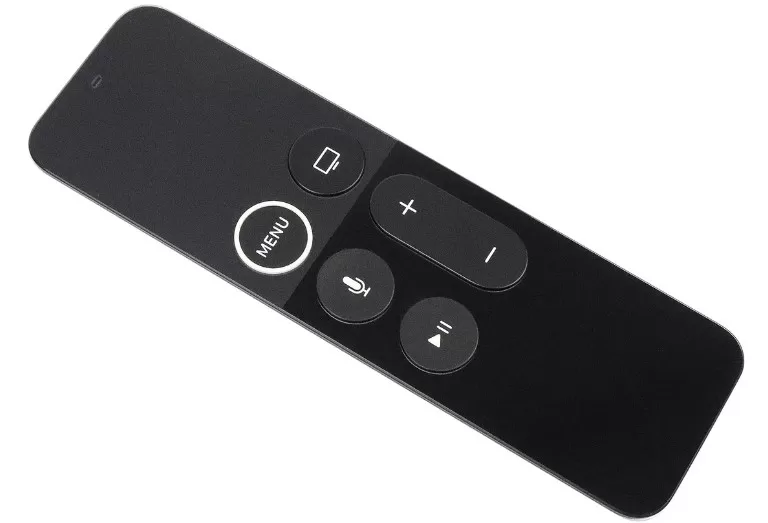
Premium movies use a lot of your hardware’s power, so a weak connection can cause flickering.
- Turn off your television and unplug the power cable to your Apple TV.
- Unplug both ends of your HDMI cable.
- Make sure there is no dust in the ports.
- Plug them back in firmly.
If the problem persists, try plugging your Apple TV into a different port on your television, preferably HDMI 1. On many TV models, only specific HDMI ports support high-bandwidth signals.
Finally, open your TV’s settings and look for HDMI Link, HDMI Deep Color, or HDMI Enhanced. Make sure this setting is turned on for the port your Apple TV uses.
By creating a stable video format baseline, allowing dynamic range matching only when necessary, and reducing unnecessary chroma data, you can banish movie-only flickering and enjoy uninterrupted cinematic nights.