Many people find their Nintendo Switch, laptop, or cable box shows video fine on their Roku TV, but there is no sound from the speakers. If your Roku TV loses HDMI audio every morning, resetting it repeatedly probably will not help.
This issue is confusing because a factory reset usually restores sound immediately. But if the audio disappears again the next day, you need a lasting fix instead of resetting your TV each time.
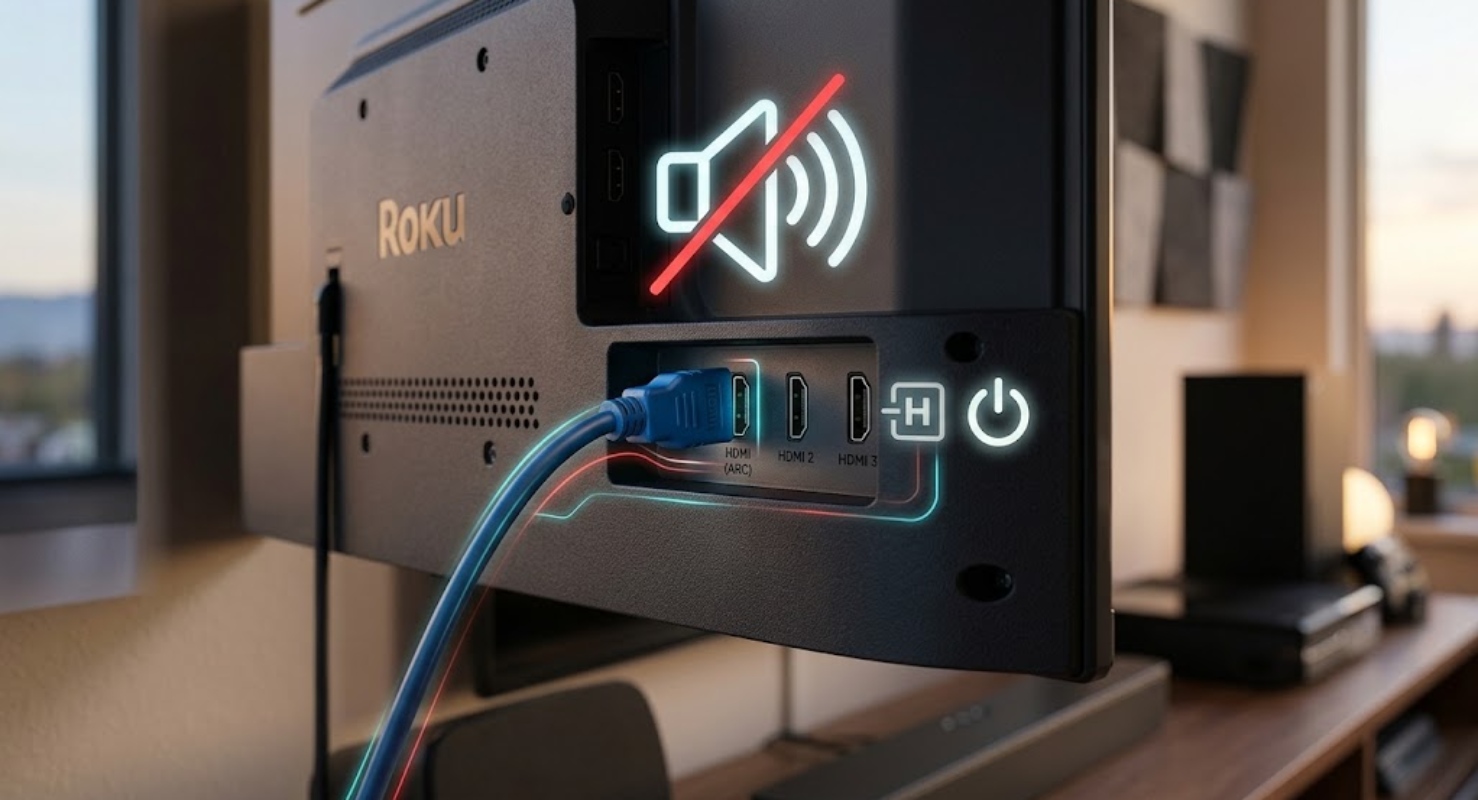
Why does Roku TV HDMI audio stop working?
When you turn off a Roku TV with the remote, it does not fully power down. Instead, it goes into a low-power sleep mode so the screen can turn on quickly next time.
While the TV is in sleep mode overnight, it keeps its memory active. During this time, the HDMI software can lose connection with your devices.
When you turn the TV back on in the morning, the picture comes back, but the sound driver does not start up.
A factory reset clears out the problem for now, but it comes back as soon as the TV goes into sleep mode again overnight.
1. Turn OFF Fast TV Start
The best way to fix this is to make sure your TV shuts down completely instead of just going to sleep. This clears the memory each time you turn it off.
- Grab your remote and press the Home button.
- Open Settings and select System.
- Go to Power and look for Fast TV Start.
- Set this feature to Disabled or uncheck the selection box.
Now, when you turn off the TV, it will fully reboot the next time you turn it on. It might take a few extra seconds to start, but your HDMI sound should work every time.
2. Change the digital audio output format
Roku TVs usually select the right sound settings automatically. But if your TV tries to play surround sound from a device that only sends basic stereo, the sound might stop working.
Setting your audio output to standard stereo can prevent this problem:
- Press Home on your remote control.
- Choose Settings and scroll to Audio.
- Select Digital output format (or Audio mode on some models).
- Change the setting from Auto to Stereo or PCM.
This allows the TV to use simple audio signals that work with any HDMI input without issues.
3. Adjust the HDMI compatibility mode
Most new TVs use the latest HDMI standards on every port. But older devices or basic laptops may not keep up after the TV wakes from sleep mode.
- Go to Settings on your home screen.
- Choose TV inputs and select the HDMI port you are using (like HDMI 1).
- Look for HDMI Mode.
- Change it from Auto to HDMI 1.4 or Compatibility Mode.
Repeat this for any other port giving you trouble.
4. Quick temporary fixes
If you need sound right away, do not bother with a full factory reset. Try these quick fixes instead:
- Menu restart: Go to Settings > System > Power > System restart. Pressing Restart will reboot the system and restore sound in about a minute without erasing your passwords or channels.
- Clear the system cache with your remote: Press Home 5 times, Up once, Rewind twice, and Fast Forward twice. The screen will navigate menus, pause, then restart to clear temporary files.
- Check for software updates: Sometimes new updates fix sound problems. Go to Settings > System > System update and select Check now.
5. Check for hardware damage
If turning off Fast TV Start and setting audio to Stereo does not fix the issue, the problem might be hardware-related. Check the HDMI ports on your TV for dust or loose connections. Try a new high-speed HDMI cable to see if the old one is damaged.
If none of the software fixes work, your TV’s mainboard or HDMI sound receiver might be faulty. Check with the manufacturer to see if you can get a free repair or replacement under your warranty.