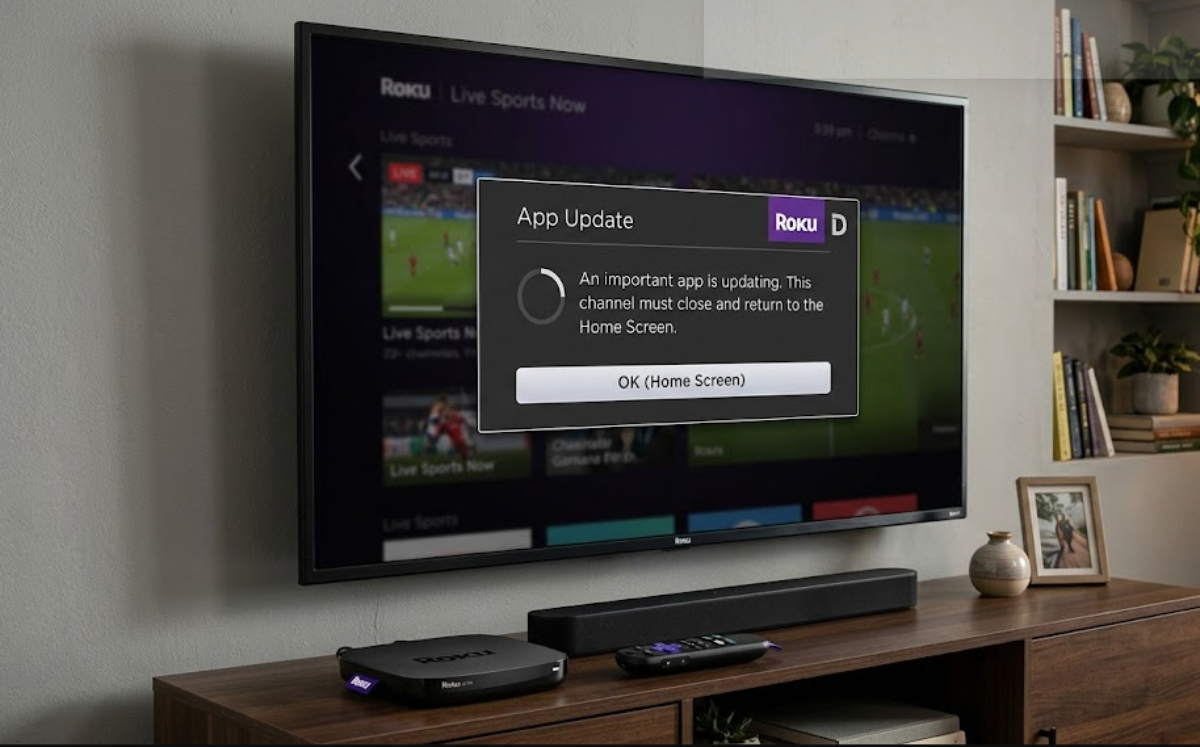
You turn on your TV, start a live sports stream or your favorite channel, and get comfortable. After a minute or two, a small pop-up appears on the screen that says “App Update.” It stays for a few seconds, then closes your app and sends you back to the main Roku home screen.
After Roku’s big Home Screen software update in mid-2026, many users started seeing this problem. The glitch interrupts live broadcasts and forces you to reopen your app each time.
Why is this happening on your Roku?
When you turn on your TV, your Roku connects to Wi-Fi and checks for system updates, new channels, and bug fixes. Usually, these checks happen quietly in the background and do not interrupt your viewing.
But major software updates can disrupt this process in two main ways:
- Stuck update queues
When a major OS update installs, it often leaves some background apps or components waiting to finish. If you open an app right after turning on the TV, Roku tries to finish those updates simultaneously. Once the update is done, the system quickly reloads the interface, closing your stream.

- Low system memory (RAM) crashing
Older and mid-range Roku devices have less memory. If you are streaming live video while the device is downloading app data in the background, it can overload the processor. To prevent freezing, Roku closes the active channel and returns to the Home Screen.
This problem usually happens within the first two to five minutes after you turn on the TV.
How to fix the “App Update” glitch
You do not need to buy a new device or do a full factory reset. You can clear the stuck update queue and fix memory crashes with these steps.
1. Force a manual software and app update
Rather than letting your Roku download updates in the background while you watch TV, you can make it finish all pending updates at once.
- Press the Home button on your Roku remote.
- Scroll down and select Settings.
- Go to System > System update (or Software update).
- Select Check now.
Let the device download and install all pending app updates.
2. Perform a system restart
Turning off your TV with the remote does not shut down your Roku. It puts the device in low-power standby, keeping temporary files and memory errors active. A real system restart clears these temporary files.
- Go to Settings on your Roku.
- Select System.
- Select Power (if available on your menu) and click System restart.
- If you do not see a Power menu, select System restart directly under System.
Alternatively, unplug the power cable from your Roku or the wall outlet, wait 60 seconds, and then plug it back in.
3. Turn off “Fast TV Start” (for Roku Smart TVs)
If you have a Roku Smart TV, turn off the Fast TV Start setting. Fast TV Start keeps your TV connected to Wi-Fi when it is off, which can cause app update notifications to pile up and appear as soon as the screen turns on.
- Go to Settings > System.
- Select Power > Fast TV start.
- Switch the setting to Off.
Turning this off means your TV will take a few extra seconds to start up, but it forces a fresh system start each time and helps prevent update pop-ups.
4. Remove and reinstall problem channels
If the pop-up only appears when you open a specific app (like YouTube TV, Hulu, or Netflix), the app’s local cached data might be corrupted.
- Highlight the problem app on your Home Screen.
- Press the Star (*) button on your remote.
- Select Remove channel (or Remove app) and confirm.
- Important: Restart your Roku before reinstalling the app (Settings > System > System restart).
Re-add the channel from the Streaming Store and sign back into your account.
The “App Update” pop-up that sends you back to the home screen is usually caused by background update conflicts or temporary memory overload. Doing a manual system update and a full power restart clears out pending files and stops these interruptions.