The Roku app keyboard makes searching for movies on your TV easy. But if it stops working while you search on Netflix, YouTube, or Hulu, finding something to watch can get challenging.
You might still be able to change channels using the arrows on your phone, but the text box won’t respond at all. This problem often happens when a background update interrupts the network connection between your phone and TV.
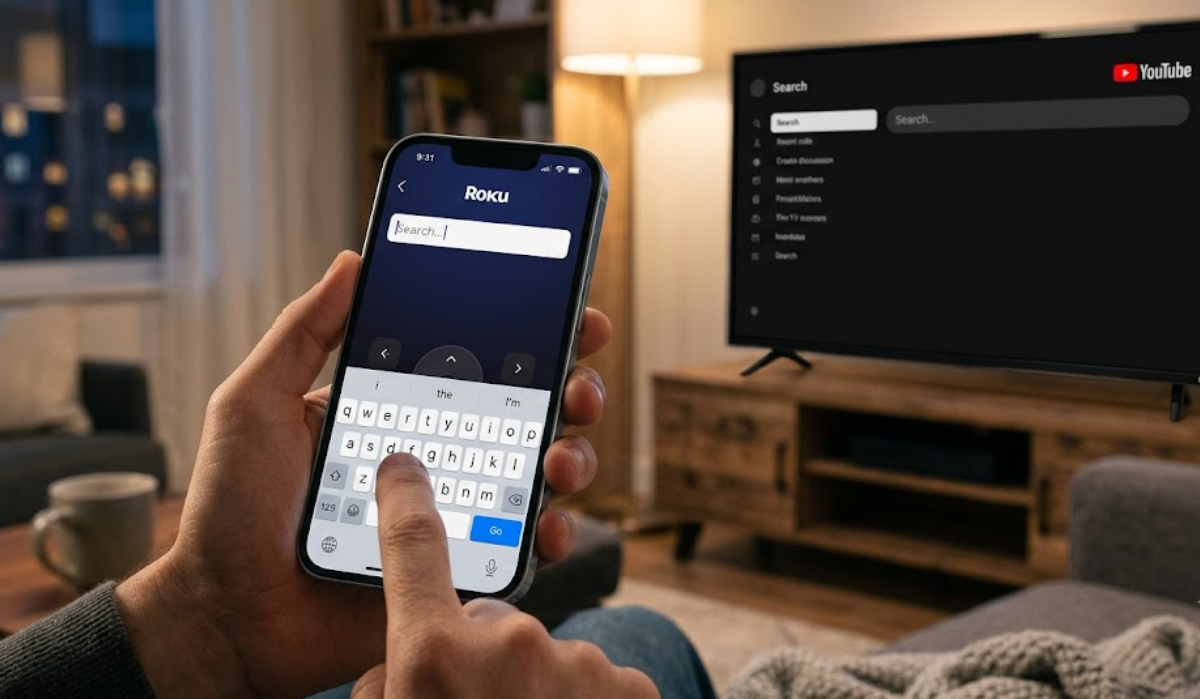
Why does the Roku remote app keyboard stop responding?
Roku devices use a background software connection called the External Control Protocol. This system allows your phone to send commands to your television over your home Wi-Fi network.
Simple commands like Volume Up or Select usually work without any issues. But opening a virtual text box needs a stronger connection between your phone’s system and the streaming app on your TV.
If a software update changes your network permissions or power settings, the connection for the keyboard can break. Basic controls might still work, but the keyboard will stop responding. So, how do you fix it?
1. Check local network permissions on your phone
The most common reason the keyboard stops working is a privacy setting on your phone. Sometimes, your phone updates its security rules and quietly blocks the Roku app from finding devices on your network.
- For iPhone users: Go to Settings, then Privacy & Security, and tap Local Network. Make sure Roku is turned ON. If it’s already on, turn it off and then back on to refresh the connection.
- For Android users: Open Settings, tap Apps, find Roku, and go to Permissions. Make sure Nearby Devices and Location Services are allowed. Android needs these permissions to let your phone’s keyboard connect with your TV.
2. Refresh mobile app access on your TV
Sometimes, your TV settings can get stuck after a software update. Resetting the mobile control connection helps your TV rebuild its link with your phone.
- Grab your physical Roku remote and go to Settings on your TV screen.
- Select System, then choose Advanced system settings.
- Click on Control by mobile apps.
- Set the access level to Permitted or Default.
If it’s already set to Permitted, switch it to Disabled, wait about ten seconds, then turn it back to Permitted. This quick step restarts the control service but won’t erase your channels or logins.
3. Turn off Fast TV Start
Roku TVs have a setting called Fast TV Start, which lets your TV turn on instantly and accept wireless commands over Wi-Fi. While this is handy, it keeps background connections running that can become unstable after a while.
If these background connections freeze, the Roku remote app can no longer open text boxes.
To turn this off:
- Navigate to Settings > System > Power > Fast TV Start on your television menu.
- Toggle it to Off.
- Once disabled, restart your TV by going to Settings > System > Power > System restart.
Turning off this feature clears up network errors and helps your keyboard work again.
4. Use the app search workaround

If you need to search for a title quickly, you can skip the streaming app’s text boxes and use the Roku app’s main search instead.
Instead of opening Netflix or Max and using their search bars, tap the Search icon (the magnifying glass) at the bottom of the Roku app. Type the title right into your phone.
The Roku app will show you which streaming services have that movie or show. Tap your preferred service, and the video will start on your TV- no need to use the broken keyboard.
How to keep your streaming smooth
If your keyboard still doesn’t work, try reinstalling the app or restarting your router. But the real fixes usually come from checking your network permissions and mobile app control settings.
Changing these settings should get your phone’s keyboard working again, so you can get back to watching your favorite shows.