If your monthly home internet bill suddenly jumped due to extra fees, Sling TV high data usage on Roku TV models is often the hidden cause. Many households discover that their data consumption doubles or triples within weeks of switching to live streaming TV.
Internet service providers like Xfinity enforce a monthly data cap (typically 1.2 TB in most regional plans), and going over that cap results in automatic $10 charges for every extra 50 GB block of data used.
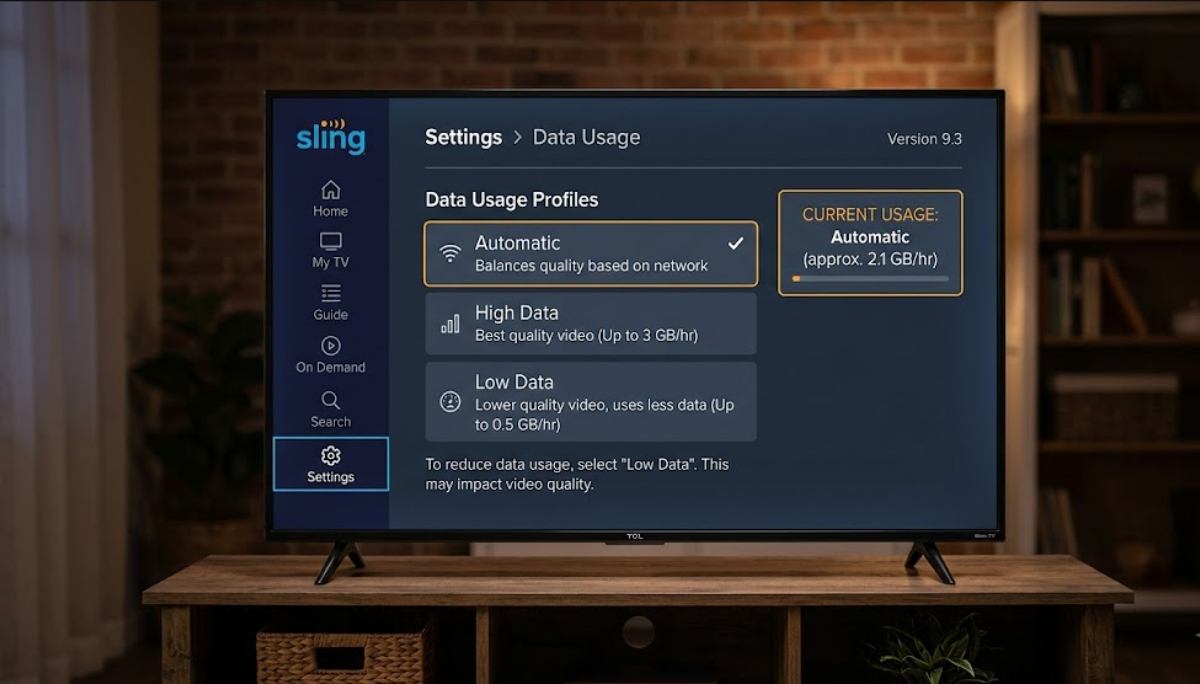
Live TV apps stream high-definition video all the time, so a TCL Roku TV can use 3 GB to 7 GB of data every hour if left running. If you see that the old quality settings menu is missing from your Roku’s Sling app, there’s no need to worry.
You can still control your data usage with easy settings in the app, some changes on your TV, and quick adjustments on your home router.
Step-by-step fixes to throttle Sling TV data
Here are some ways to fix high data usage from Sling TV on your Roku TV.
1. Change bandwidth settings via web or mobile
If the Connection setting is missing from your Roku TV app menu, log into your account settings using a phone or web browser.
- Open a browser on your phone or computer and log into Sling TV Account Settings.
- Select Settings (gear icon) and click on Connection or Data Usage.
- Change your maximum bandwidth setting from Best Quality to Medium (1.5 Mbps) or Low (0.8 Mbps).
- Save your changes.
These bandwidth settings apply to all devices signed into your account, so your TCL Roku TV will automatically use lower-bitrate video streams.
2. Lower your TCL Roku TV’s display resolution
Setting your Roku to a lower resolution stops streaming apps from using the highest data video streams.
- Press the Home button on your Roku remote.
- Scroll down and select Settings.
- Go to Display type.
- Change the setting from Auto-detect down to 720p TV (or 1080p HD if it was set to 4K).
This system setting makes apps use smaller video files, which can cut your data use by up to 50% without making the picture look much worse on most TVs.
3. Turn ON Roku bandwidth saver
Roku has a built-in feature that stops streams from running if no one is watching.
- Go to Settings on your Roku home screen.
- Select Network > Bandwidth saver.
- Set this feature to On.
When this feature is on, Roku will ask if you’re still watching after 4 hours of no remote activity. If you don’t respond, it stops the stream and goes back to the main menu.
4. Always press “Home” before turning off the TV
To make sure Sling TV stops streaming when you’re done, always press the Home button on your remote before turning off the TV. Going to the Roku home screen closes the video player and stops any background streaming right away.
5. Set router-level bandwidth limits (QoS)
If changing settings does not stop extra data use, you can limit the internet speed for your TCL Roku TV right from your Wi-Fi router.
- Open your internet provider app or type your router’s admin IP address into a web browser.
- Look for Quality of Service (QoS), Bandwidth Control, or Device Rules.
- Locate your TCL Roku TV in the device list using its MAC address or IP address.
- Set a hard download limit of 3.0 Mbps to 4.0 Mbps for that specific TV.
This way, you can still watch in standard HD, but your TV will not use as much data.
Monitoring your monthly data usage
Sling TV usually tries to give you the best picture quality your internet can handle. Standard HD (1080p) streams use about 3 GB of data per hour for each TV.
If you turn off your TCL Roku TV with the remote, the screen goes black, but the TV might still be running in standby mode. If Sling TV is still playing, it can keep streaming video in the background all night, using up to 50 GB in one evening.
To avoid surprise fees, check your data usage in your provider’s account portal. On the Xfinity Internet Data Portal, you can see your monthly usage in real time and set up alerts.
Set up text or email alerts at 75% and 90% of your monthly data limit. This gives you time to adjust before you get charged extra.