You are watching Plex on your TV when suddenly a bright blue screen appears with the message: “Playback Error: Http request failed… status: timeout of 30000ms exceeded.”
This problem seems worse than it is. Here is what the error means, why it happens, and how you can fix it in a few easy steps.
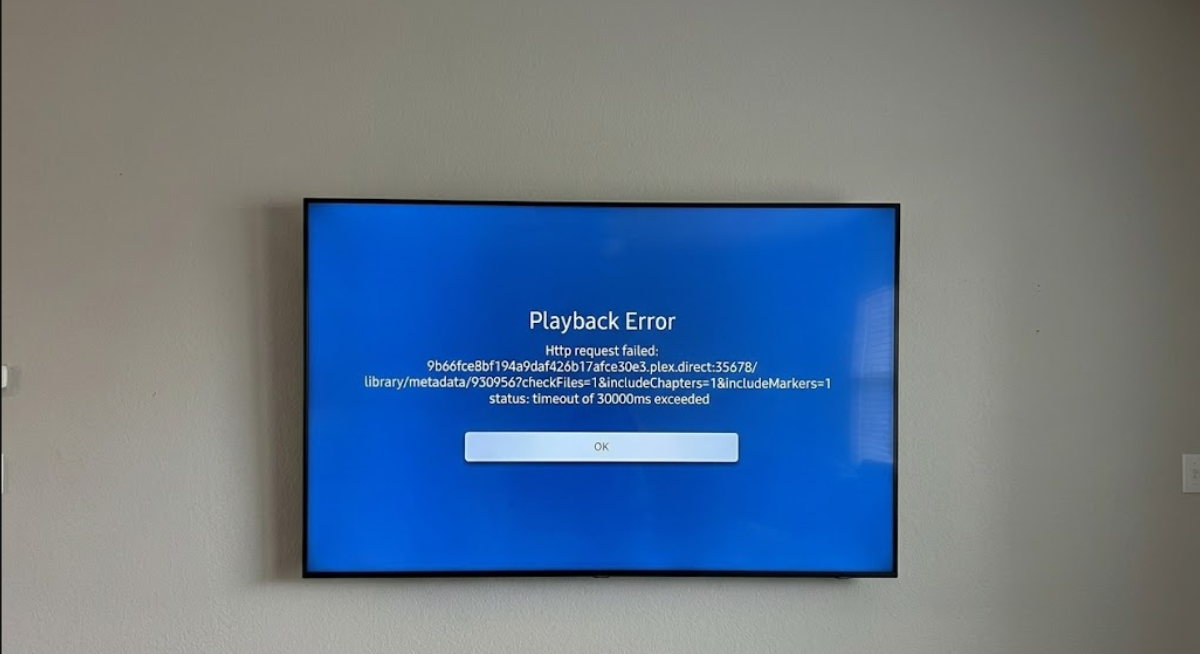
What is this http request failed: status: timeout of 30000ms exceeded error?
This error means your Plex streaming device (like your smart TV, Roku, or Apple TV) tried to talk to your Plex Media Server, but the server took too long to answer.
The number 30000ms means 30,000 milliseconds, or 30 seconds. Plex apps have a safety rule: if they do not get a response within 30 seconds, they stop trying and show this error instead of loading forever.
The error screen shows what your device was trying to do when it timed out:
- plex.direct: This is the secure network routing system Plex uses to connect your device to your server.
- library/metadata: Your app was trying to fetch information about the video file, such as its poster image, summary, or background details.
- checkFiles=1&includeChapters=1: The app was trying to verify that the video file actually exists on your hard drive and was attempting to load the chapter markers so you could skip through the video.
What causes the 30-second timeout?
Usually, this error happens because your Plex Media Server is slow to respond, or there is a problem with your local network. Common causes include:
- Overloaded hard drives
If your media is on external hard drives or a NAS that has gone to sleep, the server must wait for the drives to wake up. If this takes more than 30 seconds, the app times out.
- Database congestion
If your Plex server is busy with deep media analysis, downloading lots of metadata, or running a backup, its database can get slow or locked up.
- Local network or DNS issues
Sometimes, your router does not direct local secure connections through the plex.direct address correctly. This can cause data to get lost on the way to your TV.
How to Plex http request failed: status: timeout of 30000ms exceeded error
Follow this checklist to fix the issue and get your stream working again.
1. Power cycle (reboot everything)
Before changing any settings, restart your devices. Turn off your streaming device and restart your Plex Media Server or NAS. Also, reboot your internet router.
A simple restart can clear network caches and free up stuck server processes.
2. Optimize your Plex database
If your server’s database is too large, it will not respond to metadata requests quickly. Here’s what to do:
- Open the Plex Web App on your computer.
- Click the three dots next to your server’s name on the left sidebar.
- Go to Manage Server > Optimize Database.
- Confirm the action.
This cleans up the database and makes file checking much faster.
3. Disable hard drive sleep settings
If your files are on an external drive or NAS, make sure the drives do not go to sleep to save power.
On Windows:
- Go to your Power Options.
- Click Change Plan Settings > Change Advanced Power Settings.
- Set “Turn off hard disk after” to Never.
On a NAS:
Make sure your HDD hibernation settings are off or set to a longer time, so the drives stay awake during your main viewing hours.
4. Turn off massive media analysis
If you see this error often when opening new movies or TV shows, your server might be struggling with deep file analysis.
- Turn off Perform extensive media analysis during maintenance under Settings > Library > Scheduled Tasks.
- Go to your Library’s Advanced Settings and switch Generate video preview thumbnails to Never.
- Under Settings > Library, change Marker detection (Intros and Credits) to Never or As a background task so it never triggers the moment a file is added.
If your files are on a NAS, running heavy analysis over the network can use up your router’s bandwidth.
When Plex tries to stream a video, network packets can get dropped or delayed past the 30-second limit.
5. Check for double NAT or local network blocks
If your server is working but your TV still times out, your router might have trouble with Plex’s secure network certificates. If you use advanced firewalls or custom DNS setups like Pi-hole or AdGuard, make sure they aren’t blocking domains ending in .plex.direct.
You can review the Plex Remote Access Guide to ensure your local network routing is completely clear.
6. Change your DNS servers
If your ISP’s default DNS cannot resolve Plex addresses, change your router’s DNS to a reliable public provider:
- Cloudflare: 1.1.1.1 and 1.0.0.1
- Google: 8.8.8.8 and 8.8.4.4
7. Adjust subtitle settings

Subtitles often cause playback crashes. If your TV app tries to read complex subtitle formats like ASS or PGS while checking video files, the device’s processor can freeze, making the 30-second window run out.
- In the device’s Plex Settings, look for the Video or Subtitles section.
- Find the setting labeled Burn Subtitles.
- Change it from Automatic to Only Image Formats or turn it off entirely.
If you are using subtitles during playback, try switching the subtitle track from a graphical format (PGS/ASS) to a simple text format like SRT.