If your Onn 4K Pro is stuck in Dolby Vision mode, you might see a Dolby Vision badge as soon as your TV starts. Even the home screen, menus, and regular SDR (Standard Dynamic Range) videos will look as if they have a high-dynamic-range filter applied.
Colors can look too dark, too bright, or have a strange red tint. Sometimes the opposite happens and Dolby Vision disappears completely, leaving only regular 1080p or 4K picture quality.
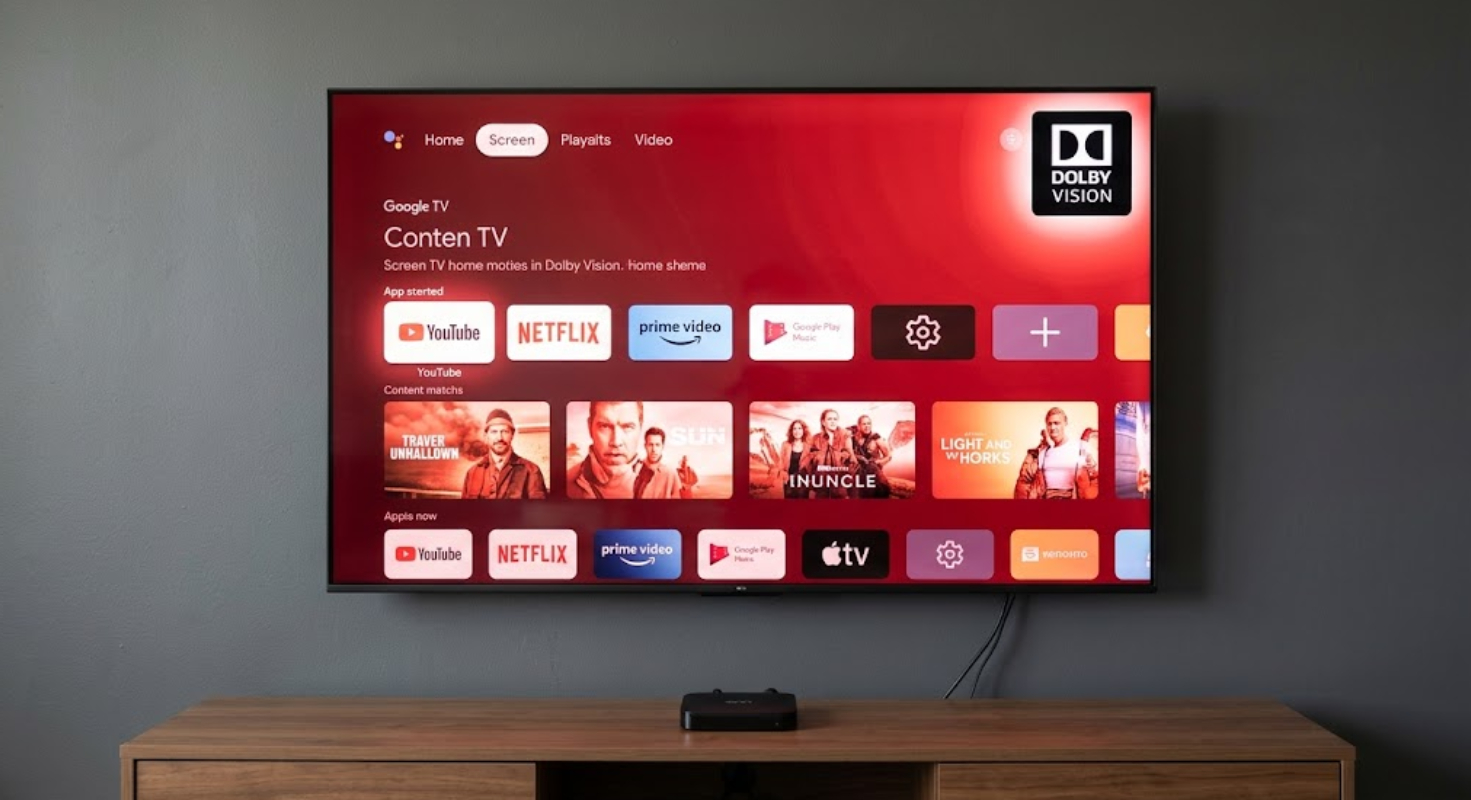
This problem is not caused by broken hardware. It happens because the Onn 4K Pro software and your TV’s display system are not communicating properly.
Why is Onn 4K Pro stuck in Dolby Vision?
The Onn 4K Pro runs on Google TV. By default, Google TV tries to use the best picture format your TV supports. If your TV says it supports Dolby Vision, the Onn box might try to show everything, even menus and SDR apps, in Dolby Vision.
When the box keeps using this setting, non-HDR content looks wrong because the colors are forced into a format they were not meant for.
When you play real Dolby Vision content, the HDMI connection might not tell the TV to switch display modes. The device then stays in the mode it started with.
Fortunately, you can fix this problem without buying new equipment or waiting for a software update.
1. Turn on match content mode
The main reason for a constant Dolby Vision signal is a setting called dynamic range conversion.
- Take your Onn remote and click the Gear icon in the top right corner to open Settings.
- Select Display & Sound, then click on Advanced display settings.
- Locate Match content dynamic range.
- If this is set to Always ON or System-preferred conversion, change it to Match Content.
When you set this option to Match Content, the Onn box will use standard video for menus and YouTube. It will turn on Dolby Vision only for movies or shows made for it.
2. Adjust Dolby Vision processing (Sink-led vs. Source-led)
If your screen is still stuck or keeps flashing black, try changing which device handles color processing.
Within the same Advanced display settings menu, locate Dolby Vision mode. You will generally see two choices: Standard (Sink-led) and Low Latency / LLDV (Source-led / Player-led).
- Standard (Sink-led): The Onn box sends raw visual data, and your TV handles the color conversion.
- Low Latency (Source-led): The Onn box does the color processing internally before sending the finished signal to the TV.
Many Sony, TCL, and Hisense TVs have trouble with low-latency signals from cheaper streaming boxes. Try switching this setting from Sink-Led to Source-Led or vice versa.
Changing this setting refreshes the HDMI connection and usually gets the box out of its stuck mode.
3. Enable Enhanced HDMI ports on your TV
If Dolby Vision disappears after you change the settings, your TV’s HDMI port might be in an older mode. Most smart TVs disable high-bandwidth features by default to avoid issues with older cable boxes.
You will need to turn on full HDMI 2.0 or 2.1 bandwidth for the port your Onn box is using:
- Sony TVs: Open TV Settings > Channels & Inputs > External Inputs > HDMI Signal Format. Change the input port from Standard to Enhanced format (Dolby Vision).
- LG TVs: Open TV Settings > Picture > HDMI ULTRA HD Deep Color. Turn the toggle ON for your Onn player’s input port.
- TCL & Hisense TVs: Open TV Settings > Inputs > HDMI Mode. Change the setting from Auto to Standard / Enhanced Mode (HDMI 2.0).
- Samsung TVs: Open TV Settings > General > External Device Manager > Input Signal Plus. Turn it ON for the active port.
4. Clear the HDMI handshake cache
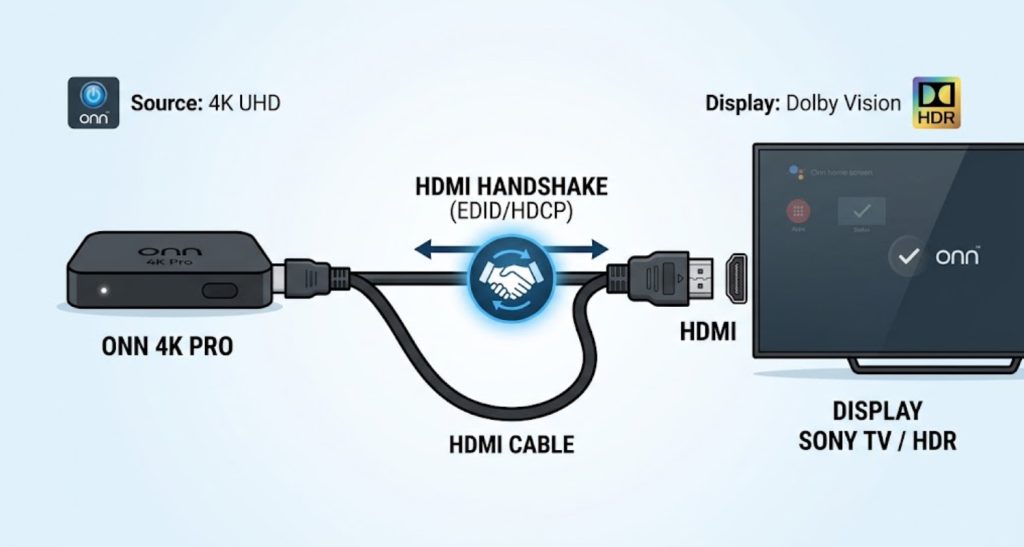
HDMI cables do more than send picture signals. They also send encrypted data back and forth. If this data gets corrupted during an update or resolution change, the display can freeze.
To clear this cached data:
- Unplug the Onn 4K Pro from its wall outlet.
- Unplug your TV power cord from the wall.
- Disconnect the HDMI cable from both the TV and the Onn streaming box.
- Wait 60 seconds to allow all power reserves to drain.
- Plug the HDMI cable tightly back into both devices.
- Reconnect the power cords and turn everything back on.
This full restart makes both devices establish a new HDMI connection from the start.
If you still have display problems, make sure your Onn 4K Pro is plugged straight into your TV, not through an old soundbar or audio receiver.
Older soundbars or receivers often cannot properly handle Dolby Vision, which can cause errors with streaming devices.
To make sure you have the latest display fixes, keep your Onn box updated by going to Settings, then System, About, and System Update.