Many sports fans have trouble pausing, rewinding, or skipping through live broadcasts. If you miss a key moment during a big game and cannot rewind on ESPN Unlimited with YouTube TV, you are not the only one.
This problem often happens when you watch an ESPN stream using your YouTube TV login in the ESPN app, or when you use digital feeds that do not support regular DVR features.
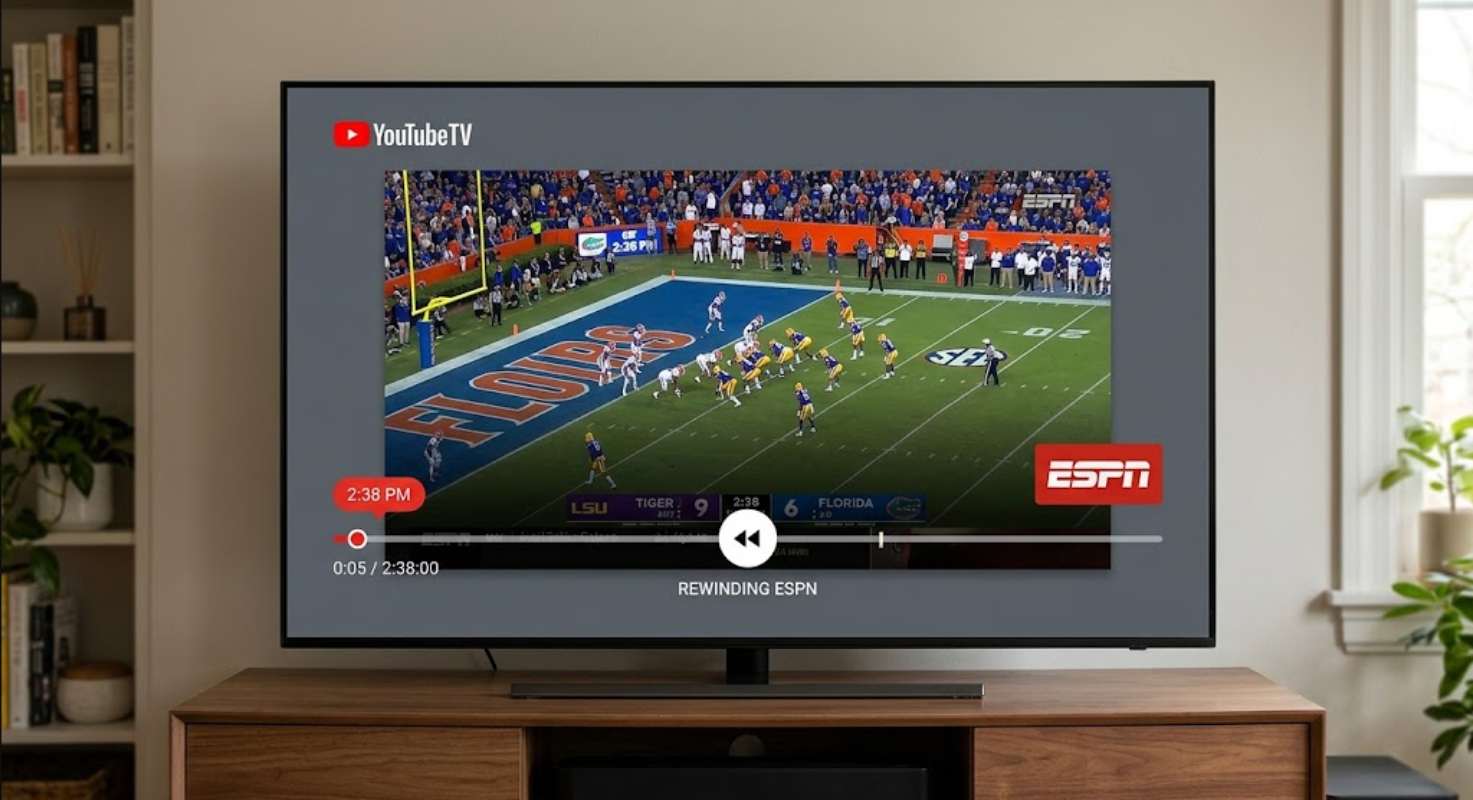
Why does the rewind feature stop working?
The ESPN app handles live broadcasts differently from YouTube TV. YouTube TV keeps buffering live content, but the ESPN app usually treats streams as live only, so you cannot go back using the scrubber bar.
Also, when you sign in to ESPN with your YouTube TV account, you can watch live content, but you might not get full DVR controls in the ESPN app.
On devices like Roku, Amazon Fire TV, and Google TV, using the remote to jump back 10 seconds may not work during live streams in the ESPN app.
How to fix rewind issues on ESPN Unlimited
Here are some ways to fix this problem.
1. Switch directly to the YouTube TV app
The simplest and most reliable fix is to skip the ESPN app and use YouTube TV for live games.
- Open the YouTube TV app on your smart TV or streaming media player.
- Go to the Live tab or search for the ESPN channel you want, like ESPN, ESPN2, or SEC Network.
- Watch the game directly on YouTube TV instead of starting it through the ESPN app.
When you stream inside YouTube TV, the app keeps buffering, so you can pause, rewind, or choose Watch from Beginning right from the menu.
2. Add the event to your YouTube TV Library
If you think you will join a game late or want to be sure you can rewind, record it before it starts.
- Open YouTube TV on your device or mobile phone.
- Look up the upcoming game or your favorite team.
- Click the + Add to Library button.
When you add the game to your Cloud DVR, it becomes an active recording. This lets you rewind or fast-forward as much as you want when you watch.
3. Re-authenticate your TV Provider credentials
If you need to use the ESPN app for special camera angles or multi-view feeds, try refreshing your login. This can sometimes fix playback problems.
- Open the ESPN app on your streaming device.
- Navigate to Settings (gear icon) and choose TV Provider.
- Select Log Out.
- Unplug your streaming device from power for 30 seconds, then plug it back in to restart.
- Reopen the ESPN app, select TV Provider, choose YouTube TV, and complete the activation prompt on your phone or in your web browser.
4. Clear app cache and check for updates
Old app files can make navigation freeze during live playback.
- On Android TV / Google TV: Go to Settings > Apps > See all apps > ESPN > Clear Cache, then select Force Stop.
- On Roku: Highlight the ESPN channel icon, press the Star (*) button on your remote, select Remove channel, restart your device, and reinstall the channel from the Roku Store.
- On Amazon Fire TV: Navigate to Settings > Applications > Manage Installed Applications > ESPN, then clear both cache and data.
Check that your device’s software and the ESPN app are both updated to the latest versions in your app store.
5. Access event replays after live coverage finishes
- If you still cannot rewind during a live broadcast in the ESPN app, full rewind and fast-forward features will work once the live stream ends.
- Wait for the event stream to officially wrap up.
- Go to the Replays tab inside the ESPN app interface.
- Choose the finished game from the archive. With recorded replays, you can easily fast-forward, pause, and rewind on any supported TV device.