If you have an Amazon Fire TV Stick, Fire TV Cube, or an Amazon Smart TV, your home screen will soon look very different. Amazon just finished rolling out its biggest Fire TV interface update in years.
This is not a minor cosmetic tweak. Amazon completely tore down the old, heavily criticized layout and rebuilt both the visuals and the underlying code from scratch.
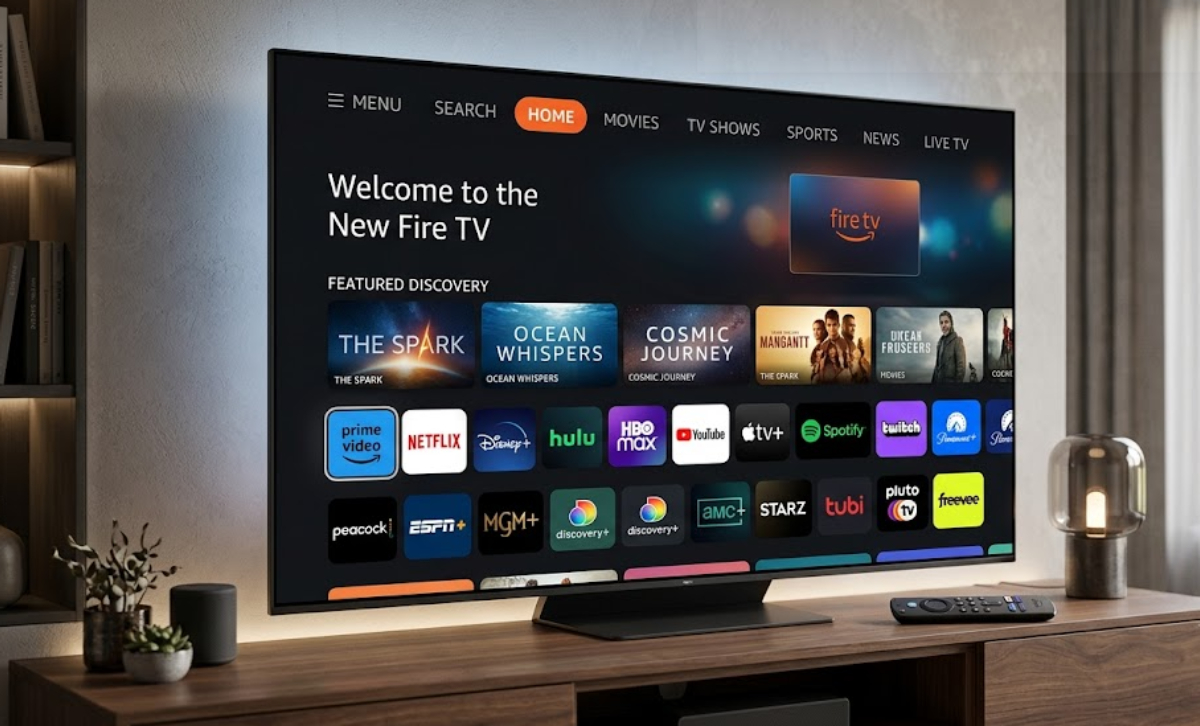
The update is free and will install automatically on your current device.
Here is what is new, what’s changed, and how it affects your daily streaming.
A cleaner, Google TV-style layout
The first thing you will notice is that the cluttered, ad-filled middle rows are gone. Now, the main navigation is at the top of the screen.
The new top navigation bar organizes your TV into eight clear tabs:
- Menu (for switching user profiles and inputs)
- Search
- Home
- Movies
- TV Shows
- Sports
- News
- Live TV
When you pick a category like “Movies” or “Sports,” the interface gathers content from all your active subscriptions, such as Netflix, Disney+, Hulu, and Prime Video, into one place.
You do not need to open several different apps just to see what is available to stream.
Pinned apps multiplied (from 6 to 20)
For a long time, Fire TV users were frustrated by the six-app limit on the main home screen. If you used more than six streaming services, you had to dig through extra menus to open them.
The update solves this problem. Now, you can pin up to 20 of your favorite apps right on the home screen.
The app tiles now have softer corners, clearer text, and better spacing to make the screen look cleaner and more modern.
A 20% to 30% speed boost on existing hardware
Amazon’s engineers rebuilt the main software to give devices a big performance boost.
Since the new code is lighter and more efficient, even older or budget Fire TV Sticks will feel faster right away. Moving between menus, waking your device, and opening apps now feels 20% to 30% quicker and more responsive.
Smarter voice searches with Alexa+
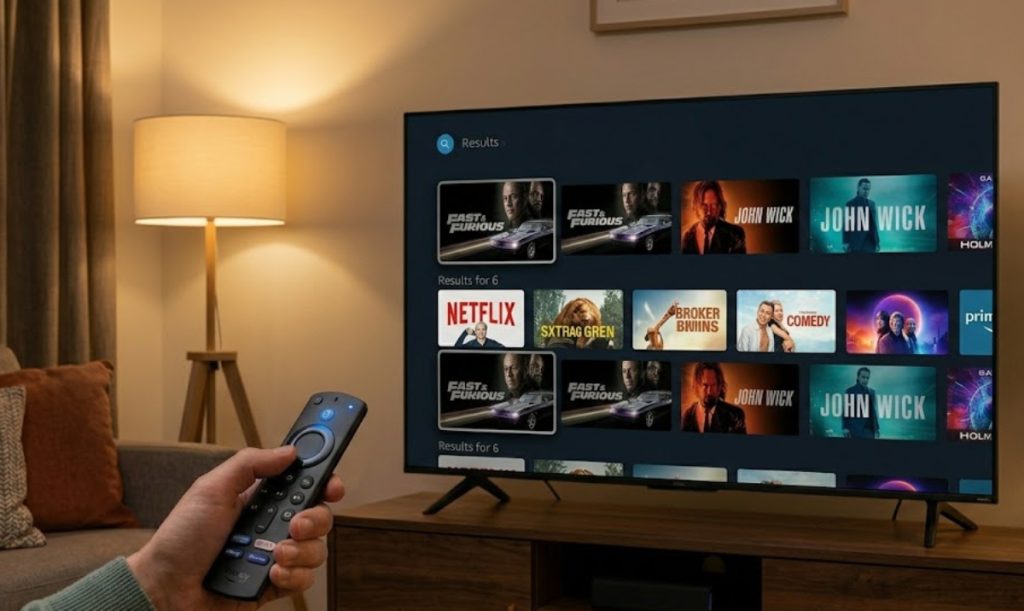
The old basic voice search is gone. Now, Alexa+, a new AI assistant, handles your searches.
You do not have to search for exact movie titles anymore. Just talk to your remote in regular, everyday sentences.
You can ask things like, “Show me tense conspiracy thrillers available on my apps without extra rental fees,” or even say, “Skip to the beach scene in this movie.”
The long-press Quick Settings Panel
If you want to change audio settings, adjust brightness, or check your security cameras, you don’t have to leave your movie or search through the main settings menu.
Now, if you hold down the Home button on your remote, a Quick Settings panel appears on the side of your screen. You can use it to change display modes, set sleep timers, or see live Ring camera feeds without stopping your show.
Personal art and ambient mode
When your TV is idle, the update adds a new Art & Photos feature. Press the Menu button on your remote to turn your TV into an ambient display, showing art or your personal photos from your Amazon Photos account.
How to get the Amazon Fire TV interface update
The update will install automatically over Wi-Fi, but you can get it right away by following these steps:
- Open the Settings menu on your Fire TV.
- Click on My Fire TV (or Device & Software on some smart TVs).
- Select About.
- Click Check for Updates and confirm the installation.
Your device will restart and show the new interface.