If you have ever squinted at small movie titles or had trouble reading menu text from your couch, you are not alone. Amazon is now rolling out a major software update called Adaptive Display for its Fire TV devices and smart displays to solve this problem.
This new technology automatically adjusts the size of menus, system text, and other interface elements, making them easier to read. At the same time, it keeps video posters, album art, and movie trailers looking just right.
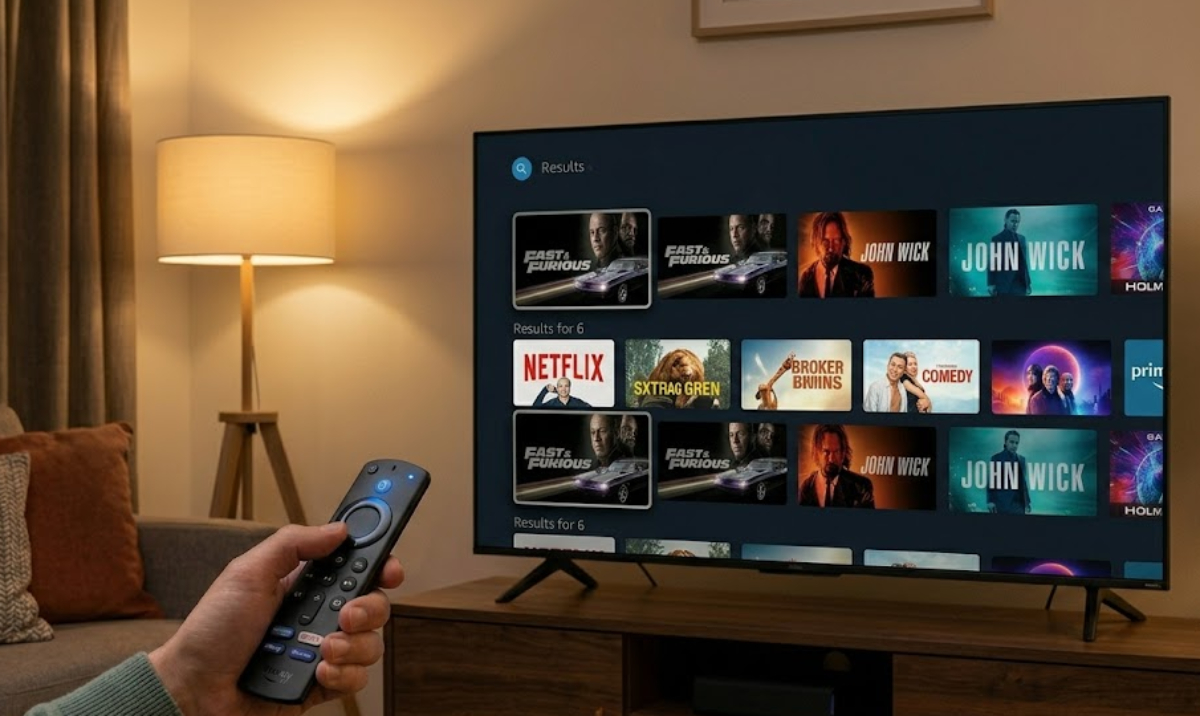
How does Amazon Adaptive Display work?
Traditional screen-zoom features often stretch or distort everything on the screen. In contrast, Amazon Adaptive Display only enlarges text and navigation buttons based on your viewing setup, while photos, show thumbnails, and media previews stay the same.
The goal is simple: give viewers a clear, easy-to-use interface without affecting the look of their favorite streaming apps.
What are the benefits of Amazon Adaptive Display?

This update tackles a common frustration with modern living room entertainment. TVs have gotten bigger, but streaming apps often use small fonts that make people lean forward or strain their eyes.
With Amazon Adaptive Display, Fire TV users can choose from different text sizes to match their room setup and vision needs. This makes streaming from the couch much more comfortable and accessible.
This feature is especially helpful for families with older members, people with low vision, or anyone using smaller screens in bedrooms. Before, using strong accessibility settings or zoom often made navigation awkward and difficult.
Amazon Adaptive Display finds a better balance by keeping text separate from background art. This way, accessibility is improved without sacrificing good design.
When will Amazon Adaptive Display be available?
The rollout starts with popular Fire TV streaming devices and is also being added to Amazon’s smart home displays, including the Echo Show 8 and Echo Show 11.
On Echo Show smart displays, the feature works with ambient sensors and Visual ID technology. If you walk closer to your display in the kitchen, the screen automatically makes menus and widgets bigger, so you can check recipes or calendar events from across the room without touching the screen.
How to set up Amazon Adaptive Display
Setting up the feature on supported hardware requires only a quick trip to your device settings menu. Users navigate to Display Settings, turn on Adaptive Display, and choose their preferred baseline text scaling level.
After that, Fire TV will automatically use your chosen text size across supported streaming channels and home screens.
As smart TVs become the main hub for gaming, streaming, and home control, updates like Amazon Adaptive Display show a move toward user-friendly design. Now, instead of making people adjust to the software, the software adjusts to the person using it.