Nobody wants to start a movie and see everyone’s face turn green, dark scenes look washed out, or the whole screen appear bright purple.
If your Roku TV shows odd or distorted colors while streaming, it might be a hardware or software problem. These color issues are common on smart TVs, especially with newer video formats like 4K and HDR.
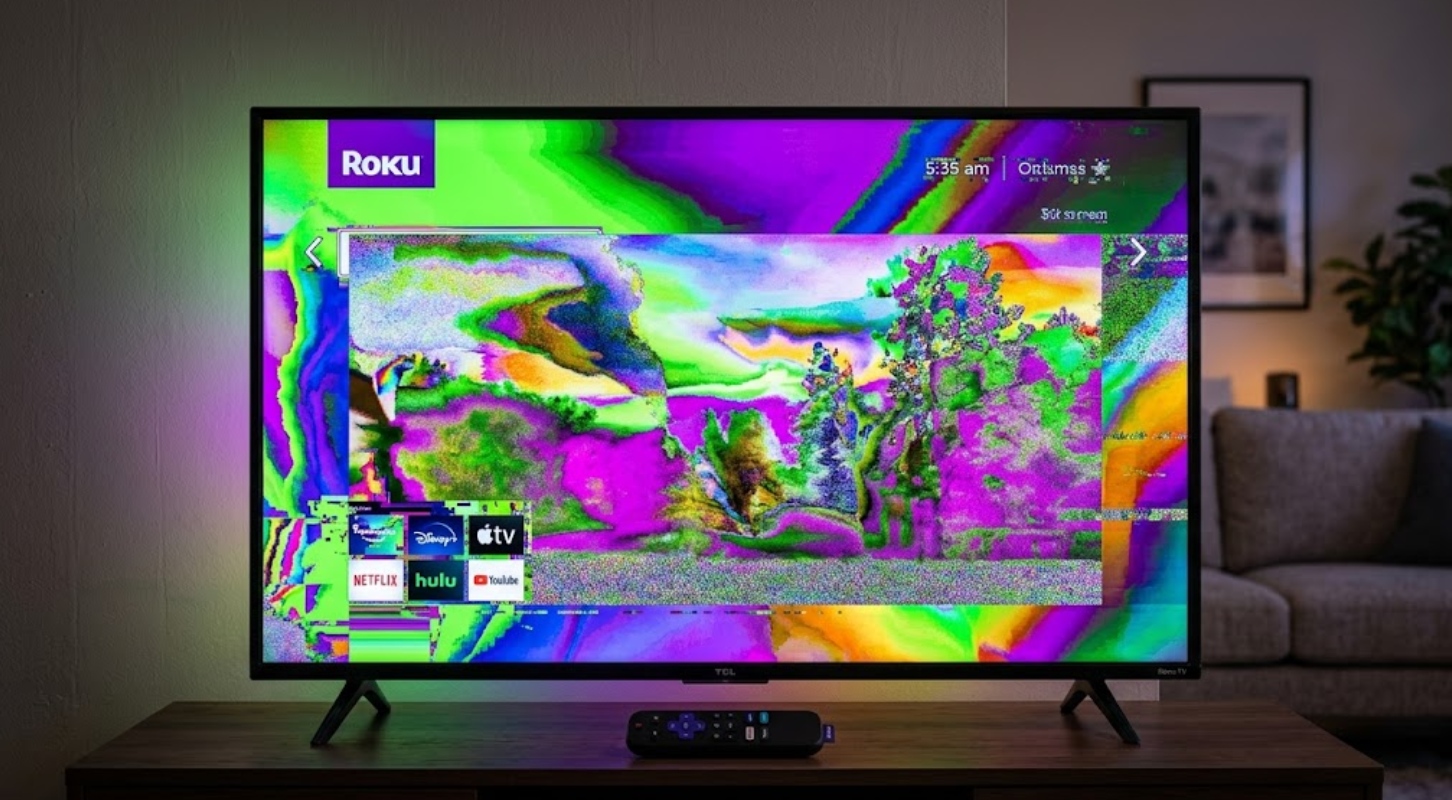
The good news is that hardware problems are rare in these cases. Most color issues come from software glitches, wrong settings, or cable problems, and they are usually easy to fix.
Here’s why your Roku TV’s colors might look off while streaming, and how you can fix them step by step.
What causes distorted colors on Roku TV?
When you stream video, your TV needs the app, the video’s color settings, and your screen’s backlight to work together. If something goes wrong in this process, the colors can look wrong.
- HDR processing glitches: High Dynamic Range (HDR) helps colors look richer. But if your TV has trouble switching HDR signals to normal screen modes, the picture can look dull, gray, or too dark.
- Color space mismatches: If you use an external device like an Apple TV, game console, or cable box, both the device and TV need to match how they read color data (RGB or YUV). If they do not, your screen might turn green or purple.
- Temporary cache bugs: Sometimes, software updates or app crashes leave behind temporary files that mess up your screen settings.
- Loose or outdated cables: Old or damaged HDMI cables may not handle 4K HDR signals well, which can cause flickering or unusual colors on your screen.
How to fix Roku TV color distortion
Try these quick fixes to get your picture looking normal again.
1. Perform a full system restart
Turning off your TV with the remote just puts it to sleep and does not clear the system cache. Doing a full restart is like rebooting a computer and can fix stuck color settings.
- Grab your remote and press Home.
- Go to Settings > System.
- Select Power (or System on some models) and click System restart.
- Choose Restart and let the TV turn completely off and on again.
You can also unplug the TV’s power cord from the wall for 60 seconds, then plug it back in.
2. Reset picture settings for the streaming app
If colors only look off in one app, try resetting the picture settings while you are streaming something from that app.
- Open the app where colors look weird and play any video.
- Press the Star (*) button on your Roku remote while the video plays.
- Select Picture settings.
- Scroll down and choose Reset picture settings.
This will set the brightness, contrast, and color back to factory defaults for that video mode, but you will not lose your apps or accounts.
3. Change your picture mode
Picture modes like “Vivid” make colors look extra bright and saturated, which can make skin tones look orange or red.
While streaming a video:
- Press the Star (*) button on your remote.
- Go to Picture settings > Picture mode.
- Switch the mode to Movie, Cinema, or Standard.
Modes like “Movie” show colors more like what the filmmaker wanted and avoid making colors look too fake.
4. Adjust HDMI input settings (for external streamers)

If you use an external streaming box or game console with your Roku TV and see green or purple colors, it’s usually an input format problem.
- Go to Settings on your Roku home screen.
- Select TV inputs and pick the HDMI port you are using.
- Select HDMI mode and change it from Auto to Standard or Enhanced (HDMI 2.0/2.1).
- Restart both the Roku TV and your connected box.
5. Check for software updates
If your system is missing an update, it can cause display problems in streaming apps. Make sure your TV has the latest software installed.
- Go to Settings > System.
- Select System update.
- Click Check now to download and install available updates.
When to contact support
If you have tried all these steps and your screen still looks distorted, or if the weird colors show up on every menu and the home screen, you might have a hardware problem, such as a loose cable inside or a faulty display panel.
Check if your TV is still under warranty (for brands like TCL, Hisense, or Roku TV), or contact Roku Official Support for help with repairs.