Roku Streaming Sticks can make any regular TV smart. But sometimes, your TV just won’t recognize the stick, even when it is plugged in. Maybe you’ve tried both HDMI ports and reset the device, but still nothing shows up on the screen.
Most of the time, there is an easy fix. The problem usually relates to power, HDMI connection issues, the wrong input, or a minor connection problem.
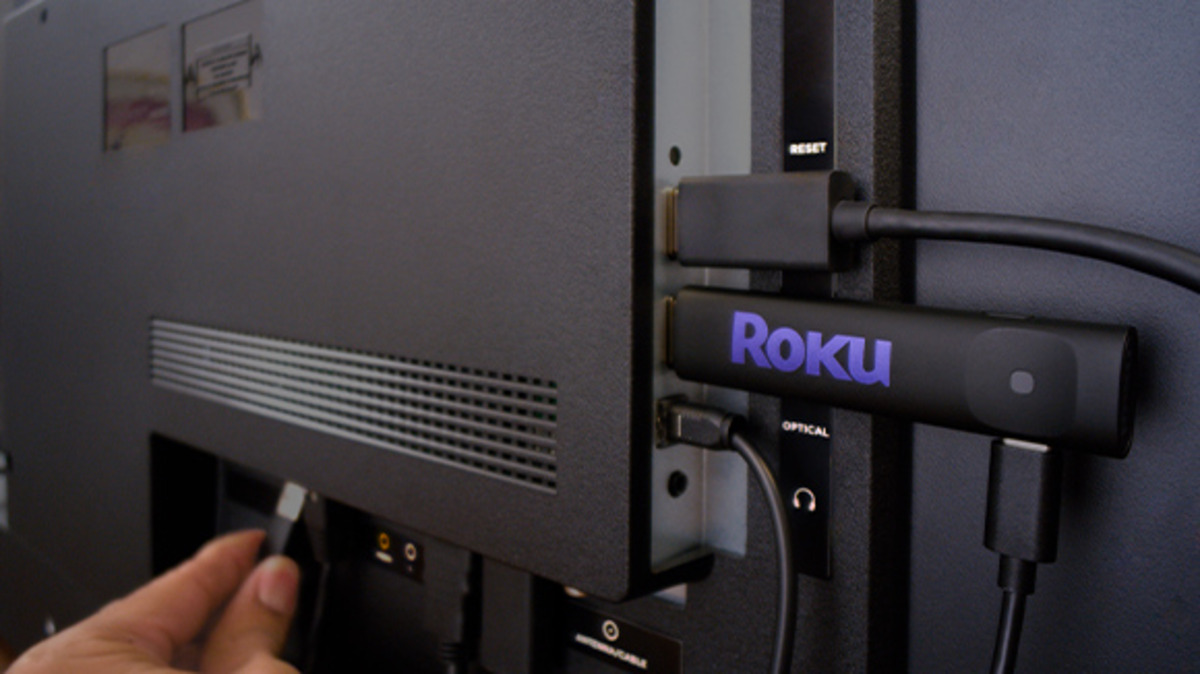
1. Start with power
Roku Sticks need a steady power source. Many people use the TV’s USB port for convenience.
TV USB ports often do not provide enough power. This can leave the stick partly powered, so it cannot connect properly with the TV.
- Try using the original wall adapter that came with your Roku instead.
- Plug the adapter directly into a wall outlet.
- If you can, avoid using power strips.
- Once powered correctly, unplug the stick for 30 seconds, then plug it back in.
For many people, the Roku home screen shows up after just this one change.
Check the light on your stick. A flashing red light means low power. A solid red light indicates overheating. If that happens, unplug it and let it cool down.
2. Do a full power cycle and HDMI reset

A quick reset does not always work. Try this full sequence:
- Unplug the Roku stick from the TV and its power source.
- Unplug your TV from the wall outlet.
- Wait at least 60 seconds.
- Plug the TV back in and let it boot fully.
- Plug the Roku stick firmly into the HDMI port.
- Use your TV remote to select the right input. Wait about 10 seconds on each input to let your TV find the signal.
This process resets the HDMI connection between your devices. It fixes most “no signal” or “not recognized” problems.
3. Check ports, cables, and placement
Even if you tried both HDMI ports, try again after the power cycle. Some ports on newer TVs support features like 4K or HDR. Use one labeled HDMI 2.0 or higher if possible.
Dust or debris in the port can block the connection. Check inside with a flashlight and clean with compressed air if needed. Make sure the stick fits snugly without wiggle room.
If your Roku came with a short HDMI extender cable, go ahead and use it. Plugging the stick straight into the TV can put stress on the connection and loosen it over time.
The extender lets the stick hang freely, which can help improve both the signal and Wi-Fi.
4. Input selection and basic checks
Double-check you are on the right input. HDMI 1 on the back of your TV might have a different name in the menu. Go through each input option slowly using your TV remote, not the Roku remote.
Try the stick on another TV if possible. This helps determine if the problem is with the Roku or your main TV. You can also test another HDMI device, like a game console, in the same TV ports.
Other troubleshooting options
If you still do not see a picture:
- Once you get a signal, try setting the display type manually: Home > Settings > Display type. If 4K gives you trouble, pick a safe option like 1080p.
- Update your Roku software by going to Settings > System > System update > Check now.
- If you see HDCP errors (content protection issues), repeat the full unplug sequence.
As a last resort, you can factory reset the device. Use the reset button or the menu option, but remember you will have to set it up again afterward.
If nothing works, your stick might be faulty. Contact Roku support or check your warranty options. Older models sometimes lose support, so check your model number in Settings > System > About.
This problem is common, especially with newer TVs and updated Roku software. Most people can fix it with the steps above without needing new hardware. Try each solution one at a time, starting with the power check and full reset.