Lately, many people have run into a frustrating problem. ONN Roku TVs are turning on by themselves, going into Recovery Mode, and getting stuck there. An ONN Roku TV stuck in recovery mode means you cannot access your apps.
At first, unplugging the TV might help once or twice. But after a while, the screen stays frozen and the remote stops working.
If your ONN Roku TV is stuck in this endless boot cycle, you are not alone. This guide explains why it happens and shares practical hardware fixes that can help.
Understanding the error message
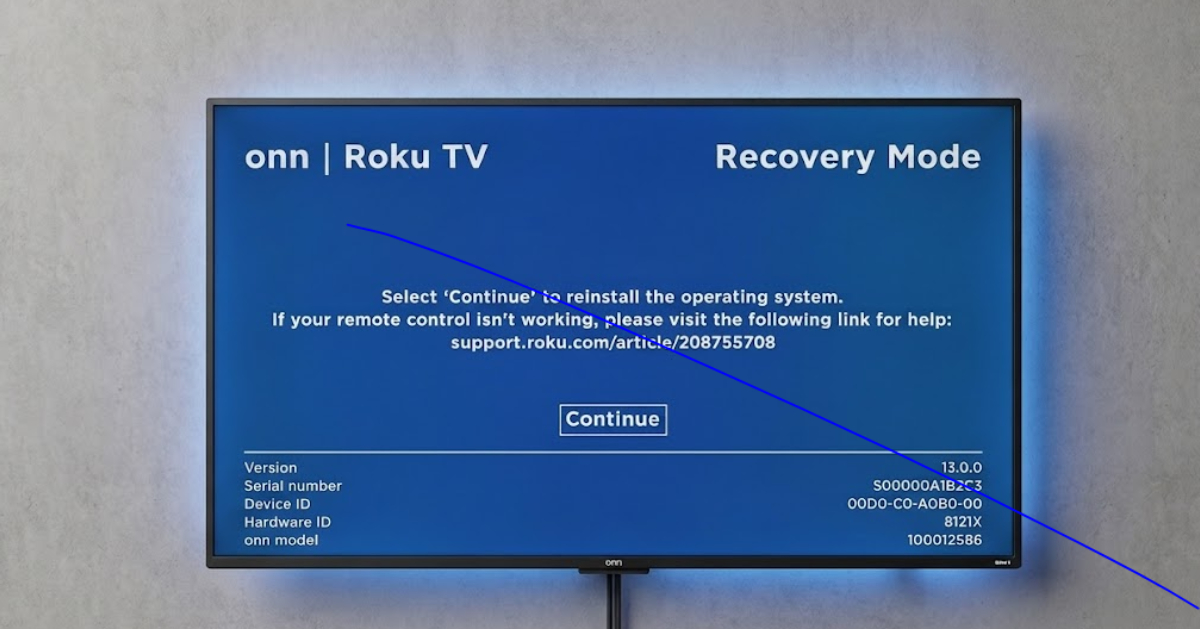
When this glitch happens, your TV screen changes from the usual home layout to a simple, low-resolution Roku Recovery Mode menu.
The background turns flat blue and the usual Roku channel grid disappears. At the top, you’ll see bold text like “Recovery Mode” or “Select Continue to reinstall the operating system. If your remote control is not working, please visit the following link for help.” That link leads to a Roku support page.
Why is your ONN Roku TV stuck in recovery mode?
When a Roku TV starts in Recovery Mode, it means the system has found a serious problem. It is like a safety net. In other words, the TV cannot load the normal home screen because something went wrong inside.
The two most common culprits are:
- A corrupted firmware update
Roku sends automatic software updates in the background. If your TV loses power or your Wi-Fi cuts out right when it is installing an update, the system files can get scrambled.
- HDMI voltage feedback
Loose or faulty HDMI cables connected to soundbars, streaming sticks, or game consoles can send a small, unexpected electrical signal. This can make the TV turn on by itself and confuse it into loading the recovery menu.
How to fix the issue
Before you give up, try these steps.
1. Clear the HDMI ports
Many people on tech forums say that connected devices can keep the recovery loop going. An unstable HDMI device can prevent the TV from clearing its cache.
- Unplug absolutely every cable from the back of your TV. This includes all HDMI inputs, audio optical cables, and USB drives.
- Unplug the TV’s main power cord from the wall.
- Go to the TV and press and hold the physical Power button for 30 seconds. Don’t use the remote. This helps drain any leftover electricity inside the TV.
- Leave the TV completely empty and unplugged for 5 minutes.
- Plug the power cord straight into a wall outlet. For this test, avoid using power strips or surge protectors.
Turn it on and check if it boots past the recovery prompt.
2. Use a mobile hotspot for the on-screen update
If your recovery screen is stable and you can use your remote, the TV is trying to download a fresh copy of Roku OS. Sometimes, home Wi-Fi networks block or drop the large recovery file.
Some routers have trouble with a forced reinstall if security settings block the recovery file. Using a mobile hotspot can solve this problem:
- Turn on the Mobile Hotspot feature on your smartphone.
- On the TV recovery screen, select your language and choose to connect to a wireless network.
- Select your phone’s hotspot from the list and enter the password.
- Click Update Now.
The TV will download a new, uncorrupted version of the operating system from Roku’s servers, finish installing, and then reboot to your normal home screen.
3. The “Rapid-Fire” reset tap
If your recovery screen is glitched, flashing, or frozen, and your remote will not work, the TV’s interface is locked up. You will need to use a physical override to fix it.
This method makes the main chip pause its boot cycle:
- Leave the TV turned on so the frozen recovery screen is visible.
- Locate the physical Reset button on the back or side panel of your TV (usually a small pinhole or a tiny button near the HDMI ports).
- Start tapping the button quickly, about two or three times per second.
- Keep tapping and watch the small LED status light on the bottom front of the TV.
- If successful, the flashing light will suddenly turn solid.
- As soon as the light stays solid, stop tapping.
Immediately press and hold the physical Power button on the bottom of the TV until the screen goes black and the television reboots.
4. The button combo
If tapping the button does not work, you can try a special timing sequence to trigger a factory reset that skips the broken software menu.
- Pull the power cord out of the wall.
- Press and hold the physical Power button on the TV for 20 seconds, then release it.
- Press and hold down the physical Reset button on the back of the TV.
- While you are still holding that Reset button down, plug the power cord back into the wall.
- Keep holding the Reset button, and now press and hold the Power button too.
- Keep both clamped down for roughly 30 seconds.
Let go of both buttons at the same time and wait a minute to see if the factory setup screen appears.
5. Drain the capacitor overnight
If the TV’s memory chip keeps holding onto the bad boot command, it needs to be fully cleared of any leftover electricity.
- Unplug the TV from the wall and hold the physical power button down for 30 seconds.
- Leave the TV entirely unplugged overnight.
Leaving the TV unplugged for 8 to 12 hours lets the internal parts reset, which can erase the bad boot data.
When to use your warranty
If you have tried draining the power, unplugging HDMI devices, and using the reset buttons, but the TV still flashes black or stays stuck, the internal storage chip may have failed.
When a storage chip corrupts at a hardware level, it can no longer write or hold the code required to run the television.
If there is a hardware failure, returning the TV is your safest option. If you bought it recently, you’re fully covered.
ONN TVs come with a manufacturer’s warranty. If you are within the standard store return window, do not stress yourself out trying to fix a defective circuit board.
Pack up your TV, take your receipt, and go to the customer service desk for a quick, hassle-free exchange.