Roku was known for having one of the simplest and most predictable TV layouts. Instead of busy graphics and moving menus, you just saw a clear grid of your streaming apps.
This changed when Roku released a big system update. The Official Roku Blog says the new Roku home screen is meant to help you find content faster by adding suggestions and shortcuts right on the main page.
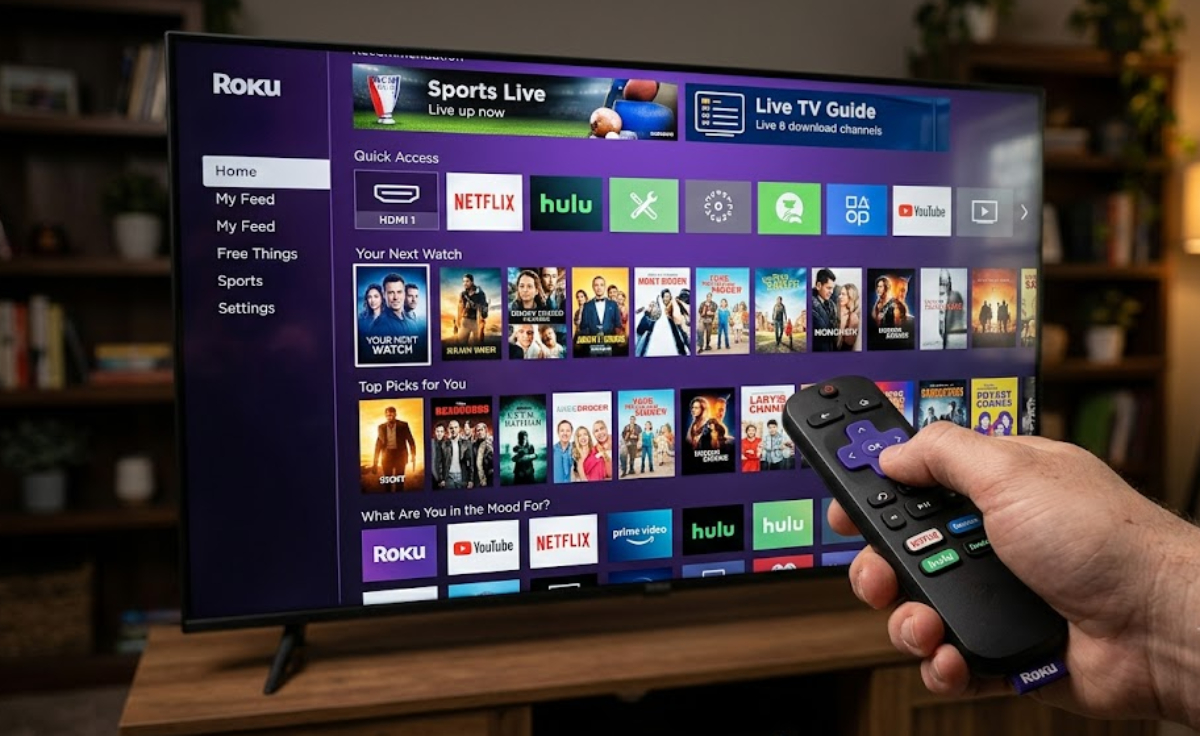
But the update has made things harder to use, changed how you get around the menus, and caused problems on many devices.
If your TV updated on its own and you find the new setup confusing, you do not have to put up with it.
Below, you will find the main problems caused by the update and step-by-step instructions to fix each one.
1. The cluttered “Recommendation” rows
Now, when you turn on your TV, your chosen apps are no longer at the top. Roku moved your app grid lower to show big new categories like “Top Picks for You,” “Your Next Watch,” and “What Are You in the Mood For?”
These rows are based on what you have watched before. For many people, this just adds clutter, making you scroll past lots of suggestions before you can open a regular app.
2. The unpredictable Quick Access row
The update also adds a new row near the top called “Quick Access.” It tries to guess what you want to open by moving tiles around based on what you have used recently.
This means you cannot keep your favorite apps in the same order, which can be frustrating. The system also adds extra shortcuts you did not choose, making things feel messy.
3. Sidelined and laggy physical inputs
If you have a Roku TV instead of a streaming stick, your connected devices like Blu-ray players, cable boxes, or game consoles are now handled differently.
Instead of always having easy-to-find tiles on the main screen, these inputs are now often put in the Quick Access row or hidden in another menu.
If your internet goes out, getting to these inputs can be very slow, and you need an internet connection to rename your HDMI ports.
4. Locked sidebar categories
In older versions, you could go into settings and turn off side menu categories you did not use, like the Live TV guide or Sports tab.
After the update, many users have found that they can no longer hide these items. Categories like “Sports,” “Live TV,” and “Subscriptions” are permanently locked into the navigation menu for many device models, filling the screen with sections you may have no interest in using.
5. Severe interface lag and glitches
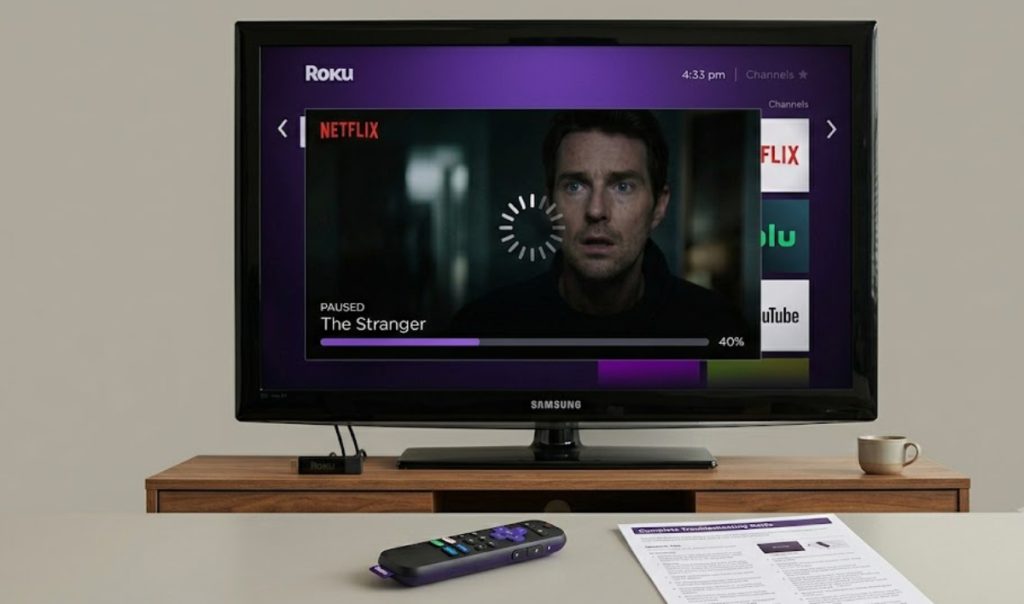
The new layout constantly loads artwork, live data, and previews for all recommendation tiles in the background. This takes a heavy toll on the device’s processing power.
Users on multiple device models have experienced severe interface stuttering, white-out menu text, and freezing. Waking a TV from its screensaver often causes an extended “Please Wait” loading prompt.
The removal of older features like Photostreams has caused some TVs to freeze on a black screen. Users also report random UI glitches, such as corrupted menus, white text over white backgrounds, and failing to save custom theme settings.
6. Excessive, unstoppable ads
A common complaint is that screen space for advertisements has ballooned. Instead of a small side-panel ad, sponsored content and large promotional banners take up much more space.
Network ad-blockers struggle to block these new formats without breaking parts of the home screen UI.
How to fix the new Roku home screen layout
Roku does not offer a button to downgrade to the old software version. However, you can manually toggle several built-in options to clean up the screen.
Spend a few minutes changing these settings, and your home screen will look and work almost like the classic, simple version.
1. Hide the recommendation rows
This will quickly get rid of the big suggestion boxes above your streaming channels.
- Press the Home button on your remote.
- Scroll down the left sidebar menu and click on Settings.
- Select Home Screen.
- Click on Recommendation Rows (or Suggestions, depending on your model).
- Change the setting from Show to Hide.
2. Turn off Quick Access
Turning this off stops your TV from moving your top row around and adding shortcuts you did not choose.
- While still inside the Settings > Home Screen menu, scroll down to find Quick Access.
- Select it and change the toggle to Hide.
When you hide Quick Access, your regular app grid moves back to the top of the screen.
3. Change your app tile size
The update uses smaller tiles to fit four columns on your screen, which can be hard to read. You can switch back to the classic three-column layout.
- Under Settings > Home Screen, click on Tile Size.
- Change the selection from Smaller or Medium to Larger.
This makes your app icons bigger and easier to see, like before.
4. Manage your left sidebar menu
The new menu locks some sections on certain devices, but you can still turn off any menu categories you don’t need if your TV lets you.
- Navigate to Settings > Home Screen > Menu Items.
- Go down the list of items (such as Sports, Live TV, or What to Watch).
- Change any category you do not use to Hide.
5. Stop wallpapers from changing automatically
If your TV keeps changing your background to ads or promotional themes, you can stop this from happening.
- Go to Settings > Theme.
- Select Seasonal Themes or Featured Themes.
Set this to OFF to keep your custom background in place.
What to do if your device is still slow
If you changed your settings but your Roku is still slow, freezing, or crashing, you probably need to refresh the system cache.
To fix background glitches without losing your apps, do a manual system restart.
- Go to Settings > System > Power > System Restart
If your screen is totally frozen or black, unplug the power cord from the wall, wait 60 seconds, then plug it back in to restart your device.
This makes your device start fresh, which can fix stuttering and loading errors from the update.