Many Roku TV users see thick black bars on both sides of Fox and other local channels when watching with an antenna.
The picture can look squeezed or only fill part of the screen. This usually happens because the broadcast signal’s shape doesn’t match your TV’s widescreen format.
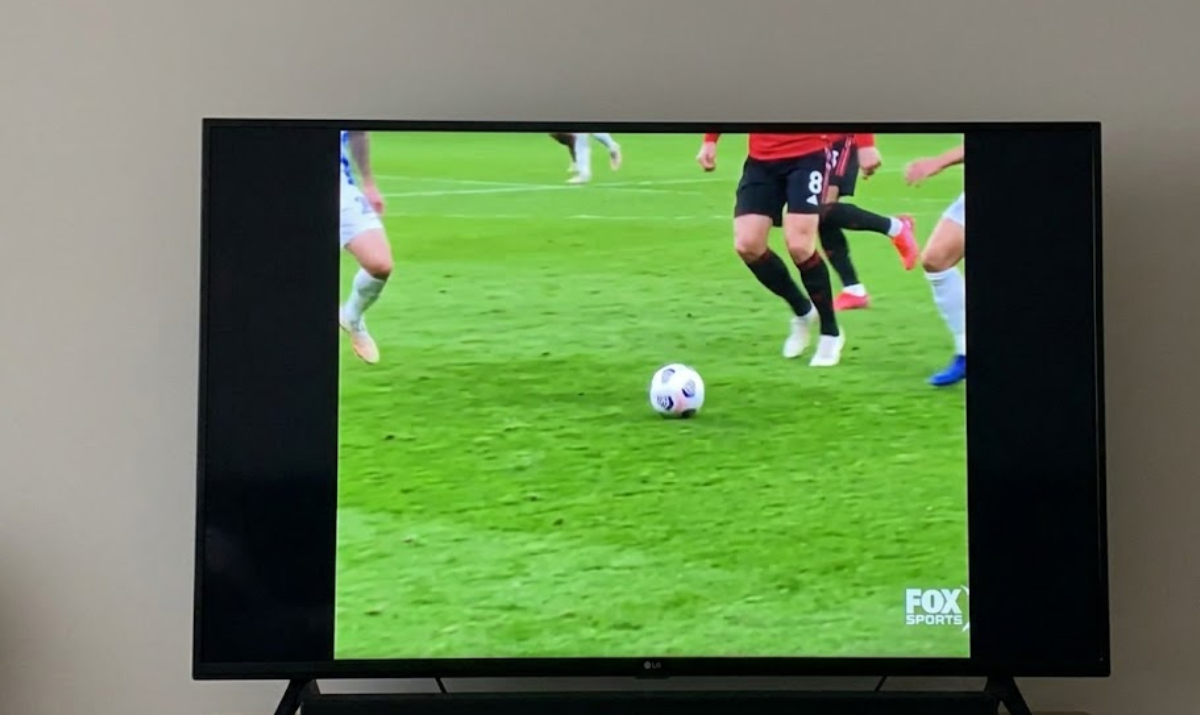
Why do black bars occur on Roku TV with an antenna?
Most Roku TVs have a 16:9 widescreen display. But local stations, including Fox, sometimes use a 4:3 format or send signals that add vertical black bars.
This keeps the original shape of the show, but it leaves empty space on your widescreen TV. Weak signals or old settings can make the problem worse.
Roku has fixed old antenna bugs that needed internet for Live TV, so now you can watch over-the-air channels offline. If you still see aspect ratio problems, you can fix them in the settings for each channel.
How to fix black bars on Roku TV with an antenna
You can solve this problem with a few easy steps.
1. Adjust picture size while watching Fox
- Tune to the Fox channel.
- Press the asterisk (*) button on your Roku remote. This opens the options menu.
- Choose Picture settings or Advanced picture settings.
- Scroll to Picture size. It might also be called Aspect ratio or Screen size.
Now, try out these options:
- Auto: This is usually the best place to start. It finds and uses the right format for you.
- Direct or Normal: Shows the channel as it is, without changes. This works well for clear HD signals.
- Stretch: Fills the whole screen, but it can make people or graphics look too wide.
- Zoom: Makes the picture bigger to fill the screen, but it might cut off the edges, like news tickers.
Try each of these options while watching Fox or any channel with black bars. You’ll see the changes happen right away.
Most people find that choosing Auto or Direct fixes the half-picture problem right away.
2. Set global TV picture preferences
Here is another way to fix the problem:
- Press Home on the remote.
- Go to Settings > TV picture settings.
- Check the display type or aspect settings and make sure 16:9 is chosen.
- In Settings per input, pick Live TV or Antenna TV and adjust the picture size there.
If you see the problem on other inputs, apply these settings to all of them.
3. Improve signal and rescan channels

If your TV signal is weak, the tuner might not handle the picture format correctly. Try moving your antenna higher, near a window, and away from walls or electronics. Aim it toward the broadcast towers.
Go to Settings, then TV inputs, then Live TV, and choose Scan for channels. Do a new scan after moving the antenna. This updates the channel info and often fixes display problems.
You can also check the signal strength for Fox in the Live TV menu. Strong signals (above 70-80%) usually give you proper HD in 16:9. Weak signals might make the TV switch to 4:3.
When to accept black bars
Some older shows or certain Fox segments were made in 4:3. You cannot stretch these without distorting the picture, and zooming will cut off parts of the content.
In these cases, the black bars are meant to be there. Most broadcasters now use HD, but some older content still shows up.
Other tips worth considering
You can also consider the following troubleshooting steps to see if it fixes your problem.
- If the problem will not go away, try a factory reset as a last resort. Go to Settings, then System, then Advanced system settings, and choose Factory reset. After that, set up your antenna again.
- Do not stretch sports or news channels, since that can make tickers hard to read.
- If you use an amplified antenna, try it without the amplifier. Sometimes strong signals can overload your TV’s tuner.
Black bars are a common problem for antenna users on Roku, TCL, and similar TVs, but you usually do not need professional help. For most people, pressing the asterisk (*) button and adjusting the settings solves it in seconds.