If you want to speed up Android TV, adjusting a few simple settings can immediately transform a sluggish television into a fast, responsive streaming device.
Smart TVs and streaming sticks usually have limited memory and basic processors. Over time, automatic app updates and background video previews can overload your TV.
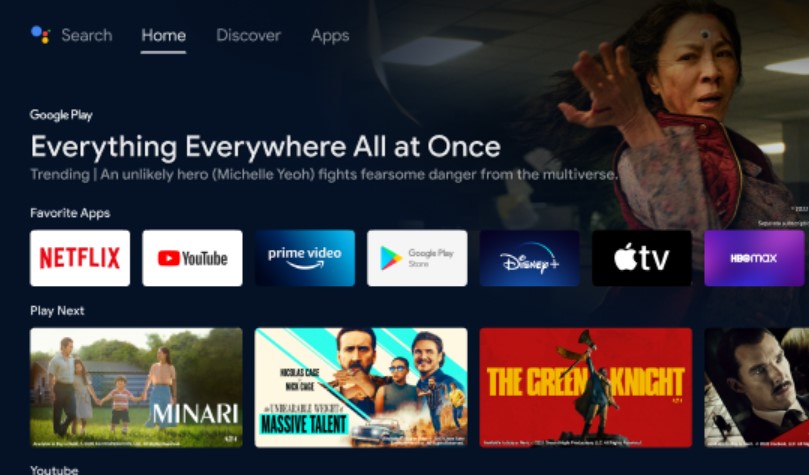
Menus can start to lag, and opening apps like Netflix or YouTube may take longer than expected.
With a few quick changes, you can clear out digital clutter, free up memory, and enjoy smoother TV performance.
1. Turn off UI menu animations
When you switch between apps with your remote, your TV shows small transition animations to make menus look smoother. These animations make your TV work harder and can slow down each button press.
You can turn off these animations by turning on Developer Options:
- Go to your TV Settings, select System (or Device Preferences), and open About.
- Scroll down to Android TV OS Build, then press the center button on your remote 7 times until a pop-up says you are a developer.
- Return to the main settings menu and open the newly unlocked Developer Options.
- Scroll down to the Drawing category.
- Find Window animation scale, Transition animation scale, and Animator duration scale.
- Change each setting from 1x to 0.5x or turn them off entirely.
After you turn them off, menus will switch instantly from one screen to the next without waiting for extra graphics.
2. Limit hidden background processes
By default, Android TV keeps several apps open in the background. If you switch from a sports app to a movie app, the first stays in memory. This uses resources and can slow video loading.
To fix this issue:
- Re-open Developer Options from your main settings menu.
- Scroll down until you see the Apps section.
- Select Background process limit.
- Change the setting from Standard limit to At most 2 or 3 processes.
This setting makes your TV close old apps you are not using, so more memory is available for the video you want to watch.
3. Turn ON “Apps Only” mode
Modern TV home screens use many resources to load live video previews, ads, and recommendations each time you press the home button. This constant loading can cause freezes and delays.
If your device uses the updated Google TV layout, you can turn off these heavy recommendations:
- Open Settings and select Accounts & Sign-In.
- Choose your primary user profile.
- Scroll down the menu and toggle on Apps only mode.
Your home screen will change right away. Instead of video ads and auto-playing trailers, you will see a simple row with just your app icons.
The home screen loads faster because it does not need to download recommendations from the internet.
4. Turn OFF background data collection
Your TV regularly sends small reports to the manufacturer about app usage and system stability. These are harmless but can cause random stutters when you use the menus.
- Open Settings and choose Privacy (or Device Preferences).
- Click on Usage & Diagnostics.
- Flip the switch to Off.
Turning off these reports frees your network and processor so your TV can focus on streaming your shows.
5. Take advantage of modern 64-bit app updates
Google requires app developers to offer 64-bit versions for Android TV. This upgrade helps apps start faster, handle data better, and use memory efficiently.
To ensure you are getting these speed benefits:
- Open the Google Play Store app directly on your TV.
- Select your Profile Icon in the top corner.
- Select Manage apps and games, then check for Updates.
Updating your main video apps ensures you have the latest versions designed for smoother TV performance.
6. Clean out stored cache files regularly

Each time you watch something, your TV saves temporary images and data files. Over time, these files accumulate and consume a lot of storage space.
- Go to Settings and select Apps.
- Click on See all apps.
- Choose heavy streaming apps like YouTube, Netflix, or Prime Video.
- Click Clear cache. Be careful not to click “Clear data” or you will have to log in again.
Clearing cache files every few months keeps your storage clean and helps prevent your TV from freezing up.