For a long time, one of YouTube TV’s best features was seamless multitasking. You could watch your favorite show or a live sports game while scrolling through the live guide to see what else was on.
The video would drop into the background, letting you browse without missing any action.
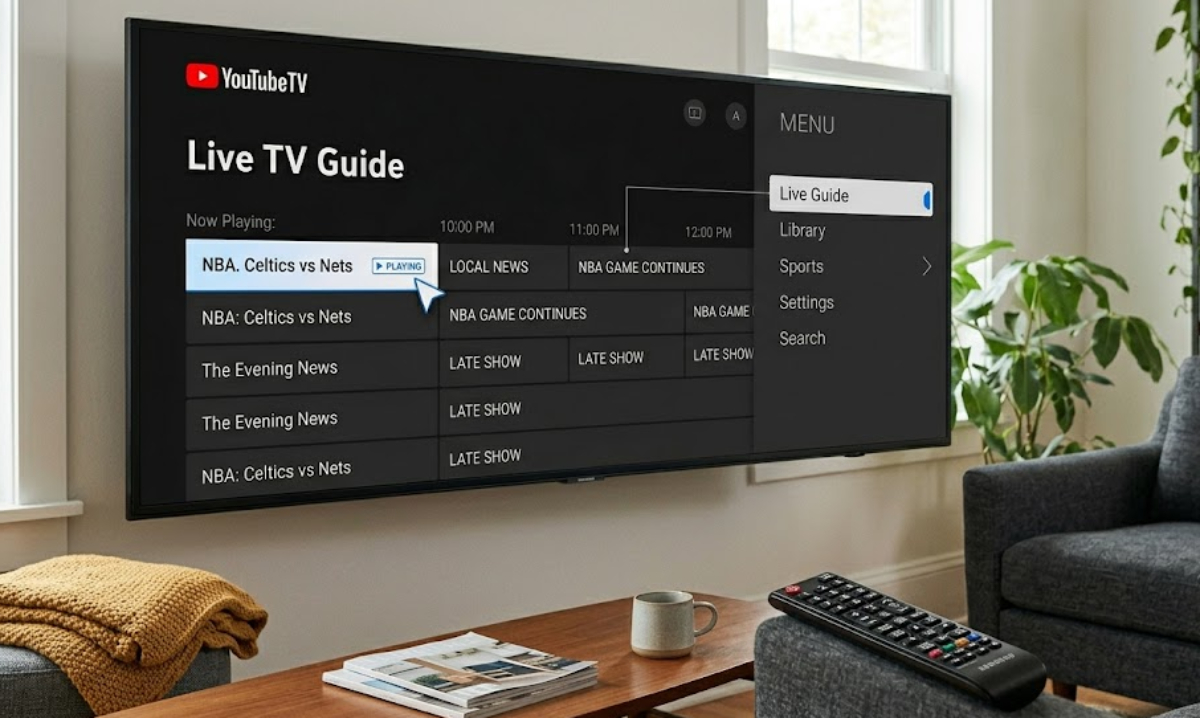
Recently, many users noticed a frustrating change. When you hit the back button or open the live menu, the program stops playing instead of continuing in the background.
If you have tried standard troubleshooting like clearing your app cache, resetting your router, or reinstalling the app without luck, you are not alone.
This is not a random glitch or a bug in your internet connection. It is the result of an intentional system update.
The real reason background play disappeared
As YouTube TV rolls out higher video quality protocols (like 1080p Enhanced) and more complex features, the app requires more processing power and RAM to run smoothly.
To prevent freezing or lagging, YouTube TV developers adjusted how the app runs on older or less powerful hardware. If your device has limited RAM, the app now shuts off background video whenever you open a menu.
This frees up resources so the live guide can load quickly and smoothly without crashing your device.
The drawback is that users on older hardware lose the live background preview and the ability to pause a show, browse the guide, and jump back into their paused stream.
Is your device affected?
This feature limitation mainly targets older smart TVs and budget streaming sticks. Most built-in smart TV platforms, even newer ones, use lower-end processors and minimal RAM to save costs.
User reports across the YouTube TV Community and tech forums indicate that this restriction heavily impacts:
- Older Roku streaming sticks and Roku-powered smart TVs.
- Legacy Amazon Fire TV sticks.
- Older Android TV and smart TV systems (2022 and older).
If you have two identical streaming sticks and one supports background play while the other does not, it means the update has reached one device but not the other.
How to fix the YouTube TV Live Guide problem
Because this change is hardcoded into the app’s performance rules for specific hardware, changing app settings will not restore background playback. Standard troubleshooting will not override it either.
The only way to restore background play is to upgrade the hardware powering your screen.
Adding a modern streaming device to your TV’s HDMI port bypasses the weak internal processor of an older TV. A more powerful device provides enough RAM to handle background video and menu scrolling simultaneously.
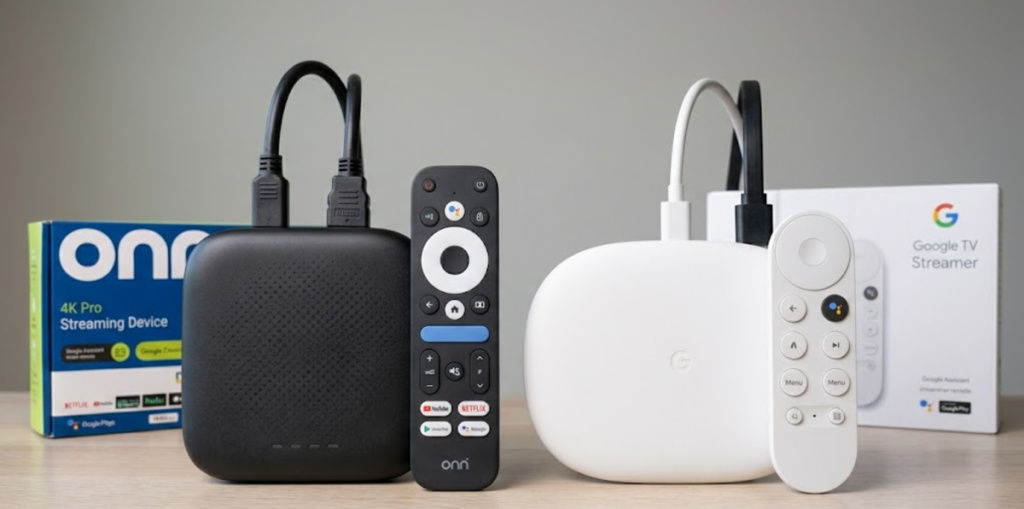
Here are the top hardware recommendations for an optimal, uninterrupted YouTube TV experience:
- If you prefer the Google ecosystem, the Chromecast with Google TV or the newer Google TV Streamer provide robust performance and integrates perfectly with YouTube TV.
- If you prefer Roku, the Roku Ultra is a high-performance standalone box with plenty of memory. If you prefer a hidden stick design, the Roku Streaming Stick 4K offers a great balance of speed and affordability.
- If you use Apple products, the Apple TV 4K (2nd or 3rd generation) is arguably the most powerful streaming box on the market. It easily handles background playback and offers live channel previews directly inside the guide.
- If you want a traditional TV feel, the ONN 4K Pro is an affordable, platform-agnostic alternative that features remote control options well-suited for classic channel surfing.
- If you prefer Amazon, the Fire TV Cube or the Fire TV Stick 4K Max offer the high processing speeds required to keep up with the latest app updates.
Losing features to an app update is frustrating, but understanding why it happened can save you hours of unnecessary troubleshooting.
If your YouTube TV program won’t continue playing behind the live menu scroll, your current device simply lacks the processing power to handle both tasks safely.
Investing in a modern, external streaming device will quickly bring back background playback and make your entire television feel brand new.