If you have a Hisense smart TV, you might sometimes see a frustrating glitch where a system update notification keeps appearing on your screen.
You choose “Remind Me Later,” but then another box pops up asking, “Are you sure?” After clicking through that, you think the problem is solved.
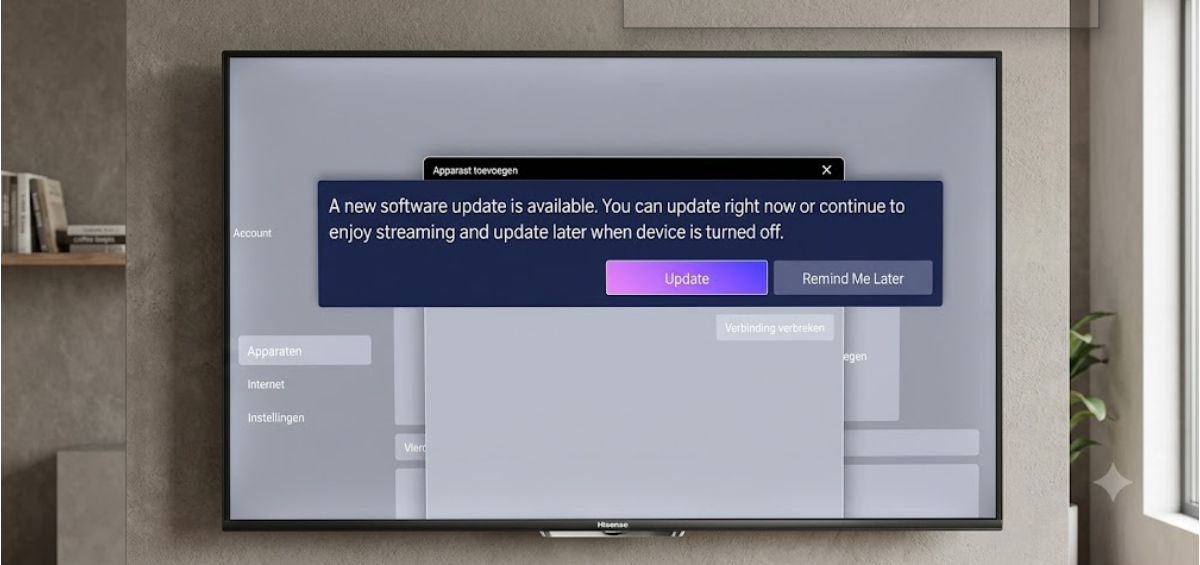
But less than a minute later, the same update pop-up appears again and takes over your screen. This loop makes it nearly impossible to watch anything.
Why does this Hisense TV update notification loop happen?
This problem usually happens for one of two reasons:
- The TV’s operating system might have a small data conflict.
- Or, the update file was downloaded in the background, but there was not enough storage space to install it.
Luckily, you can fix this loop and get your TV working again with some simple troubleshooting steps.
1. Perform a cold boot
Turning your Hisense TV off and on with the remote does not fully reset the software.
Most modern TVs go into a low-power standby mode so they can turn on quickly. If a program gets stuck, standby mode keeps the error. You need to do a full system reboot.
- Unplug the main power cable directly from the wall outlet.
- Locate the physical power button on the actual TV chassis, usually hidden underneath the bottom bezel or on the lower back panel.
- Press and hold this physical button down for 15 to 20 seconds.
This step helps clear out any leftover electrical energy inside the TV.
Leave the TV unplugged for another two minutes. Then, plug it back in and turn it on.
This gives the TV a fresh restart and often removes stuck notifications.
2. Disconnect the TV from the internet
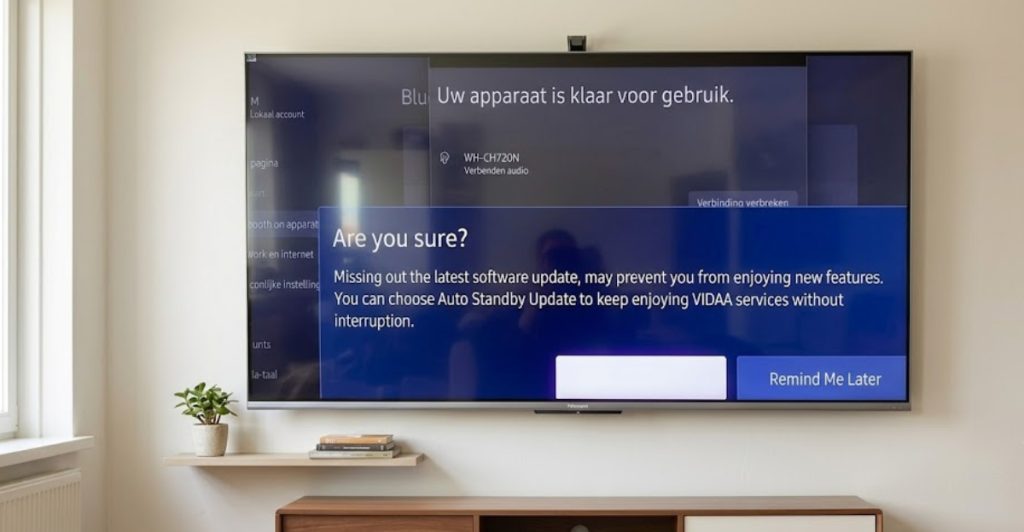
If the pop-up keeps coming back every few seconds, you might not be able to use the menus. To give yourself time to change settings, disconnect the TV from the internet.
- If your TV uses a wired network setup, unplug the Ethernet cable from the back panel.
- If you use a wireless connection, go to your home internet router and turn it off completely.
Without the internet, the TV cannot check for updates with its servers. This should stop the pop-up right away.
Once the screen is clear, you can open the menus and apply a long-term fix before reconnecting to the internet.
3. Clear the internal system cache
Smart TVs work a lot like smartphones. Over time, apps and updates create temporary files that can fill up the storage.
Hisense TVs are efficient, but some models have limited storage. If the storage is full, the update file cannot be installed.
This makes the update app crash, reset, and start the notification pop-up all over again.
To clean this out on a Hisense model running Google TV or Android TV:
- Head into the Settings menu.
- Select Device Preferences.
- Click on Storage.
- Look for Internal Shared Storage.
- Scroll down to find Cached Data and select it.
- Confirm that you want to wipe it clean.
If your television uses the Hisense proprietary VIDAA OS platform:
- Go to Settings.
- Open System.
- Choose Application Settings.
- Select Clear Cache.
Clearing this temporary data frees up space and stops the crash loop.
4. Turn off automatic updates

If you want to skip the update, you can tell the TV to stop checking for new updates. Turn your internet back on and go to the firmware settings menu.
On most Hisense layouts, this is found by doing the following:
- Open Settings.
- Select Support or System.
- Open the System Update section.
- Inside this sub-menu, locate the line item labeled Auto Firmware Upgrade or Automatic Updates.
- Switch the toggle switch to Off.
Turning this setting off stops the TV from checking for updates in the background, so you will not get more notifications.
5. Install the update manually via USB
If you want the new software features but the pop-up keeps glitching, you can skip the on-screen update and install it manually with a flash drive.
Using a computer:
- Visit the official Hisense Support Platform.
- Type in your exact television model number to locate the newest firmware file.
- Download the package and copy the raw update file onto a blank USB flash drive formatted to FAT32.
- Turn off your TV.
- Insert the flash drive into the top USB port on the back of the set.
- Turn the TV back on.
The TV will automatically find the USB file and install the update without causing any more pop-up loops.