Since the August update, many users have experienced Roku connectivity problems. The limited release of Roku OS 15.3, which started rolling out to some devices around August 7, has caused issues like Wi-Fi dropping, casting failures, and trouble connecting phones or speakers.
These problems are happening on TCL, Sharp, and other Roku TVs and streaming sticks too.
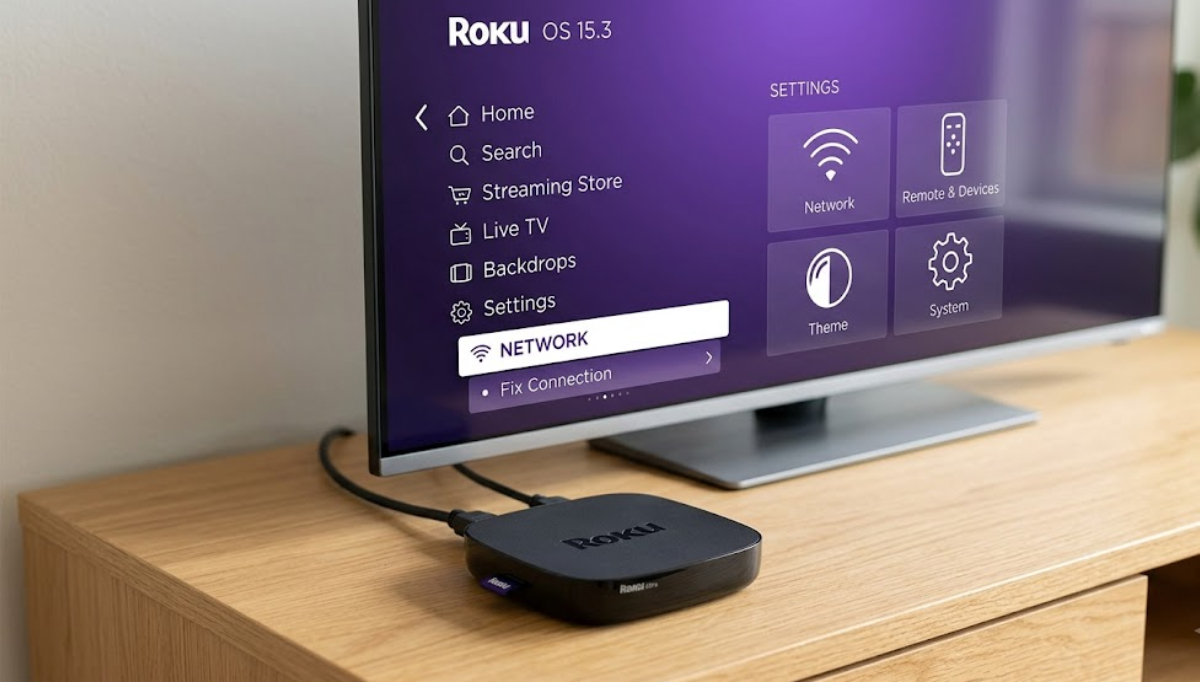
Below are the most common errors people are seeing, along with easy steps that usually solve them.
1. Roku keeps disconnecting from Wi-Fi
Your Roku might connect for a bit, then lose the signal, even though your other devices stay online. This is one of the most common problems after the recent update.
- Unplug the Roku (or the TV if it is a Roku TV) from the wall for 30 seconds.
- Unplug your modem and router too.
- Plug the modem in first, wait until it is fully ready, then the router, then the Roku.
- After it restarts, go to Settings > Network > Check connection.
- If the signal is Fair or Poor, move the Roku closer to the router.
Many people have fixed these dropouts by splitting the 2.4 GHz and 5 GHz bands on their router, then connecting the Roku only to the 2.4 GHz network.
2. Roku cannot connect to Wi-Fi or see the network
Sometimes the Roku sees other networks or shows your network’s signal, but never finishes connecting. Other times, it can’t find your network at all.
- First try the full power cycle described above.
- Then go to Settings > Advanced system settings > Network connection reset.
- Confirm the reset and set up the wireless connection again from scratch.
If it still does not work, try turning off any “smart connect” or band-steering feature on your router for a while. Some users have also fixed the problem by turning off the 5 GHz band for a few minutes, so the Roku connects to 2.4 GHz.
3. Casting or screen mirroring does not work
Your phone or Windows laptop may have cast to Roku before, but now Roku does not show up as an option, or the connection drops partway through.
- Make sure the phone or laptop and the Roku are on the same Wi-Fi network.
- Restart both devices.
- On a Windows laptop, press Win + K and look for the Roku again.
- Screen sharing usually needs a direct connection, so try to stay close to the TV.
- On a phone, open the Roku app, force-close it, reopen it, and try casting once more.
Update the Roku app in the app store if an update is available.
4. Roku mobile app will not connect to your device
The official Roku app on your phone might not find any of your devices, even ones that worked before.
- Confirm the phone is on the same Wi-Fi as the Roku.
- Force-close the app completely, restart the phone, and reopen the app.
- Restart the Roku as well.
- If it still fails, check that the Roku itself has a solid internet connection under Settings > Network.
Some people needed to remove the device from the app and add it again.
5. Bluetooth speakers or Soundbars stop pairing
After the update, a Bluetooth speaker or Soundbar that worked for months might suddenly stop staying connected. Sometimes it needs a factory reset every time it goes to sleep.
- Power-cycle both the Roku and the speaker.
- Put the speaker into pairing mode while the Roku is fully awake, then pair them again from the Roku’s audio settings.
- Make sure no other device is trying to connect to the same speaker at the same time.
If the problem returns after the speaker sleeps, turn off any auto-sleep feature on the speaker if it has one.
Other connectivity glitches after the update
Some users have also noticed HDMI devices acting up, like showing black screens or strange colors, when Wi-Fi is unstable. Sometimes the remote stops working too. Restarting the Roku, TV, and any connected devices usually fixes these problems.
If your remote stops responding, try changing the batteries and holding the pairing button, or the Home and Back buttons, to pair it again. Follow the steps for your specific problem.
Most people get their Roku working again with a full restart and a network reset. If you’ve tried everything and it still does not work, write down your device ID from Settings > System > About and contact Roku support.