Nothing spoils a movie night like video stuttering. You settle in to watch a film or show on your Apple TV, but the picture starts skipping, lagging, or dropping frames, especially during action scenes or slow camera pans.
If your Apple TV stutters, it is usually because of a problem with your device settings, your TV, or your internet connection. The good news is you do not need to be a tech expert to fix it.
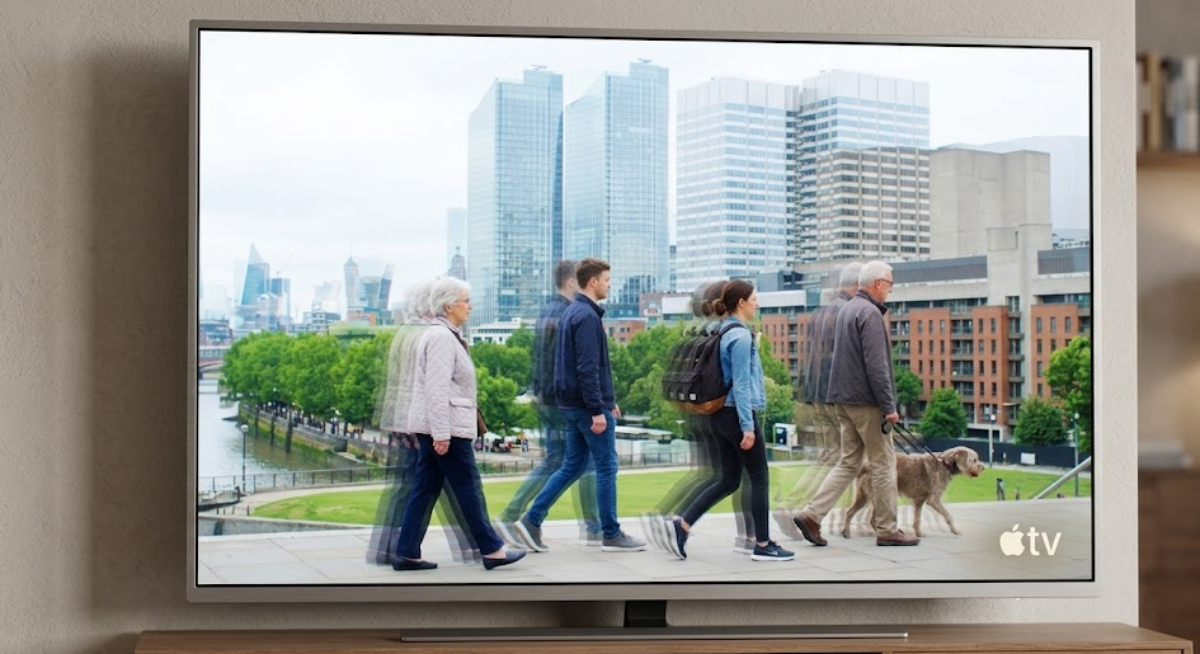
Here are some ways to fix Apple TV stuttering.
Close heavy apps and restart the system
Like your phone or computer, Apple TV keeps several apps running in the background. If too many are open, they can use up memory and cause video glitches like hitching or jumping.
Before you change any major settings, try refreshing your system first:
- Double-click the TV/Home button on your Siri Remote to bring up the app switcher.
- Swipe left or right to find your streaming apps.
- Then swipe up on each one to close it completely.
Alternatively:
- Go to Settings > System > Restart.
You can also unplug the Apple TV power cord from the wall for 30 seconds and plug it back in.
Turn on Match Frame Rate
A common reason for a steady, mechanical stutter on Apple TV is when the video’s frame rate does not match your TV’s refresh rate. Most movies are shot at 24 frames per second (fps), but Apple TV usually sends video at 60Hz.
If these rates do not match, your TV repeats frames unevenly, which causes a visible micro-stutter.
To let Apple TV adjust its output to match the original video, change this setting:
- Open Settings on your Apple TV.
- Select Video and Audio.
- Click on Match Content.
- Turn Match Frame Rate to ON.
When you turn this setting on, your TV screen might go black for a second or two when you start or stop a video. This is normal and just means the hardware is adjusting to match the film’s original speed.
Switch to 4K SDR as the default format
It might seem odd, but making your Apple TV run in 4K HDR or Dolby Vision all the time can put extra strain on the processor and HDMI cable. This can make menus lag and cause video to stutter.
For the most stable setup, keep the main interface simple and let Apple TV switch to HDR only when a video needs it:
- Go to Settings > Video and Audio.
- Set the default Format to 4K SDR 60Hz (or 50Hz if you live in Europe or the UK).
- Go back to Match Content and ensure Match Dynamic Range is set to ON.
With this setup, your Apple TV menus stay fast and responsive, but your TV will still switch to high-quality HDR mode as soon as you play a high-definition movie.
Check your HDMI cable

High-resolution 4K streams use a lot of data. If your HDMI cable is old, damaged, or low-quality, it might not keep up with the bandwidth needed.
This kind of bottleneck can look just like network buffering or software stuttering. Make sure your cable is firmly plugged into both the Apple TV and your TV’s main HDMI port.
If you think the cable is the problem, try replacing it with a certified Ultra High Speed HDMI cable that can handle 18Gbps or 48Gbps.
Strengthen your internet connection
If you see stuttering along with a blurry picture or spinning loading wheels, your home network might not be sending enough data to your Apple TV. 4K content needs a strong, steady connection.
To clean up your network connection:
- If your Apple TV is hidden behind the TV or inside a thick cabinet, the Wi-Fi signal can get blocked. Try moving the box to a more open spot.
- If your Wi-Fi has different names for each band, connect your Apple TV to the 5 GHz network instead of the slower 2.4 GHz one.
For the best, stutter-free playback, skip Wi-Fi and plug an Ethernet cable from your router straight into the Apple TV.