The Walmart Onn 4K Pro is a great budget streaming box, but automatic updates can cause problems. Some users have had their devices freeze on the boot screen, crash sideloaded apps, or get stuck in restart loops after an update.
Google TV controls system files, so there is no simple switch to turn off updates in settings. Still, you can use a few easy tricks to disable OS updates on the Onn 4K Pro.
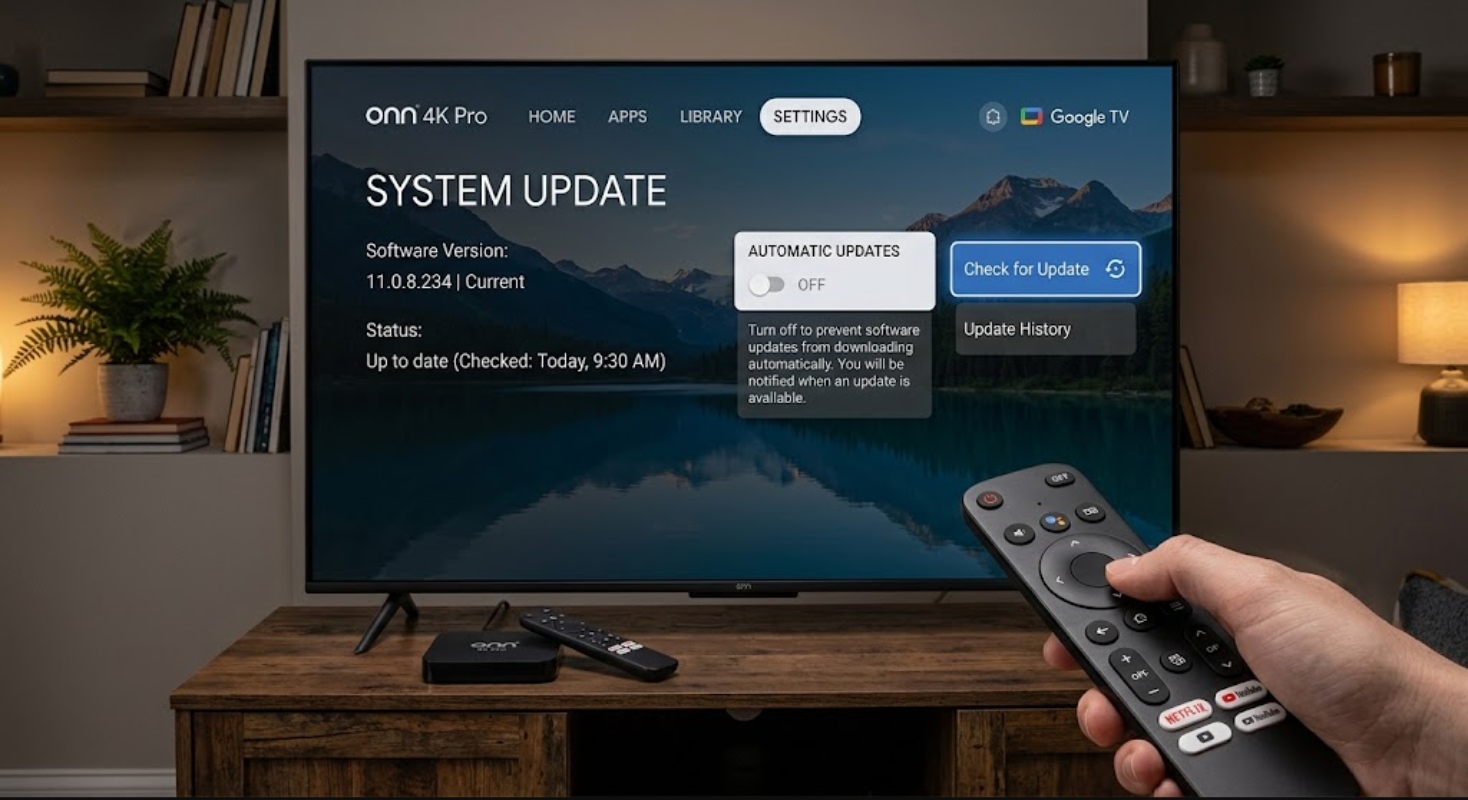
Why disable OS updates on the Onn 4K Pro?
System updates add security fixes and new features, but they do not always work well on every device.
- Prevent boot loops: Recent software rollouts have occasionally caused devices to get stuck on the “Google TV” loading logo.
- Protect sideloaded apps: Updates can change system permissions, breaking third-party apps or custom launchers.
- Maintain performance: If your device works well now, staying on the current version can help you avoid new bugs that might slow it down.
1. Block system updates using ADB (Recommended)
The best way to turn off updates is using Android Debug Bridge (ADB). It might sound technical, but you can do it right on your streaming box with a free app and no computer needed.
Enable Developer Mode
- Click the Gear icon (Settings) in the top-right corner of your home screen.
- Go to System > About.
- Scroll down to Android TV OS build.
- Click the select button on your remote 7 times quickly until a message says, “You are now a developer!”
Turn ON Debugging
- Press the Back button and select Developer options (now visible under System).
- Scroll down and toggle USB debugging to ON.
- Toggle Wireless debugging (or Network debugging) to ON.
Run the Commands
- Open the Google Play Store on your Onn 4K Pro and search for ADB TV (a remote management app).
- Install and launch the app. Allow the permission prompt that asks to connect to your device.
- Open the command terminal within the app and enter this command to disable the system update updater:
pm disable-user –user 0 com.google.android.gms/.update.SystemUpdateService
- Press Enter. This stops the update service, so it won’t run in the background anymore.
If you want to turn updates back on later, just run the command again and change disable-user to enable.
2. Block update domains on your network
If you do not want to change system files on your device, you can block Google’s update servers on your network. This works well if your router has parental controls or if you use a firewall or network filters like Pi-hole or AdGuard Home.
Log into your router’s admin panel and add the following web addresses to your domain blocklist:
- ota.googleapi.com
- android.googleapis.com
- tools.google.com
When your Onn 4K Pro tries to check for updates, your network blocks the connection. The device then thinks there is no update and keeps running as usual.
Do not block all google.com traffic, or the Google Play Store and app downloads won’t work right.
3. Disable app auto-updates
Sometimes it is not the OS but an app or launcher that updates automatically. To stop your apps from updating without your permission:
- Open the Google Play Store app on your device.
- Select your Profile icon in the upper-right corner.
- Go to Settings > Auto-update apps.
- Select “Don’t auto-update apps.”
This way, you control when each streaming app updates. You can check reviews first to ensure new versions are stable.
Updating your device is good for security, but stability is more important. If your Onn 4K Pro works well now, turning off updates with ADB or router filters is the easiest way to keep it fast, reliable, and free of surprise bugs.