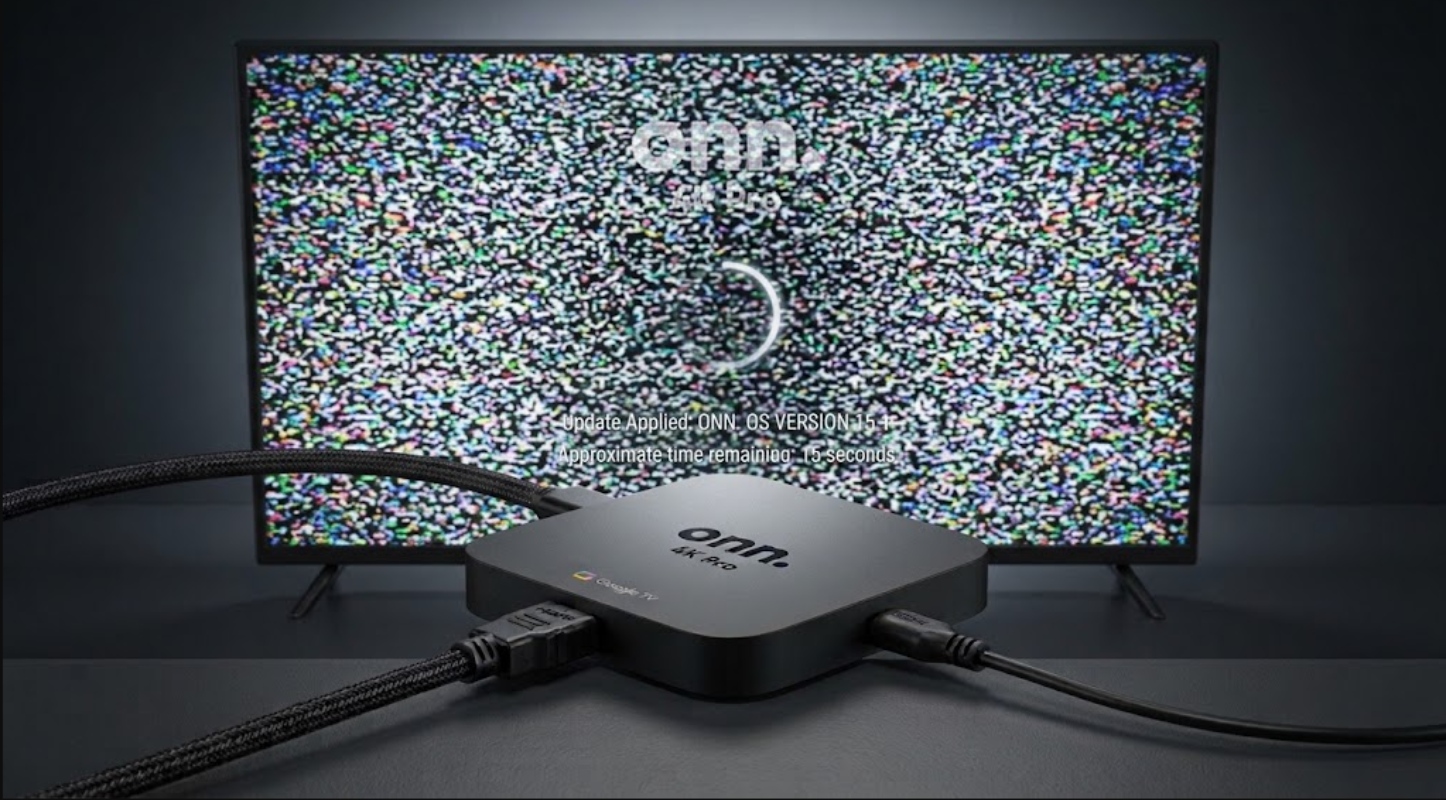
You start your favorite movie or show and notice a static screen, and a loud hum comes from your speakers. A few seconds later, your Onn 4K Pro restarts on its own. This usually means there is a problem with how the player, your TV, and the power supply work together.
This problem often occurs if the device suddenly loses its HDMI connection, experiences a power drop, or the system gets overloaded while handling video and audio. The good news is you do not need to be a tech expert to fix it.
1. Plug directly into a wall outlet
Unstable power is a common cause of streaming players crashing. If your Onn 4K Pro is plugged into a busy power strip, an extension cord, or a USB port on your TV, it might not receive stable power.
When the processor works hard to play high-definition video, even a small drop in power can cause the system to crash. This causes static on the screen and a humming sound before the device turns off.
Unplug the power adapter and plug it directly into a wall outlet. Always use the original power cord and adapter that came with your device, not third-party chargers.
2. Reseat and switch your HDMI connections
If your screen is full of static, sometimes called “snow,” it means your TV and streaming box have lost their HDCP connection. When the video signal stops but the audio keeps playing, the sound can get stuck on a single tone, causing a buzzing or humming noise.
To refresh the physical connection:
- Turn off your television and unplug the Onn 4K Pro.
- Disconnect the HDMI cable from both the streaming box and the TV.
- Wait about 30 seconds to let residual power clear.
- Reconnect the HDMI cable firmly into both devices.
If the problem does not go away, try plugging the cable into a different HDMI port on your TV, like HDMI 1 or HDMI 2. Do not use ports labeled ARC or eARC unless your box is connected directly to a soundbar or receiver.
3. Turn off Match Content Frame Rate
The Onn 4K Pro has a setting that matches its display output to the video’s frame rate. While this should make playback smoother, it often causes display crashes on newer TVs.
Switching between regular video and high-frame-rate content can cause the display driver to freeze and crash.
You can turn off this feature by following these steps:
- Open the Settings menu (the gear icon on your home screen).
- Select Display & Sound.
- Click on Match content frame rate.
- Set the option to Never.
4. Adjust advanced sound settings
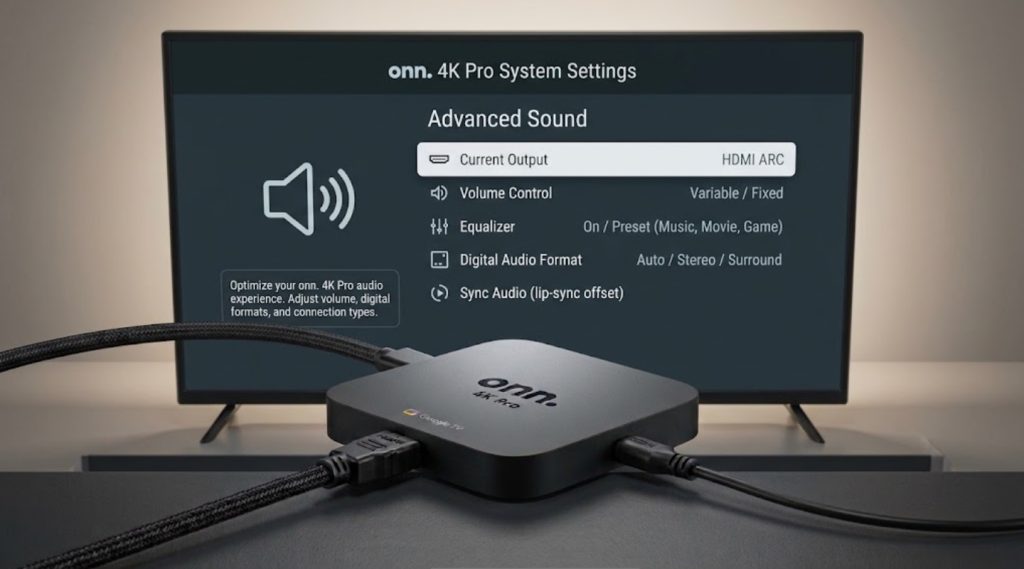
If your streaming box tries to send surround sound formats like Dolby Atmos or DTS that your TV speakers cannot handle, the audio driver can get overloaded. This causes a humming sound, and then the system resets.
To simplify your audio format processing:
- Navigate to Settings > Display & Sound.
- Scroll down and open Advanced sound settings.
- Locate Select formats.
- Change the setting from Automatic to None or Manual to try standard stereo sound.
If your device stops crashing after this change, your TV or soundbar was having trouble automatically handling complex surround sound modes.
5. Install system updates or reset the device
Sometimes new devices have software bugs that make the system unstable. Manufacturers often release updates to fix display problems and memory issues.
- Check for updates by going to Settings > System > About > System update.
- If an update is available, download and install it.
If your device is already up to date and keeps crashing, perform a factory reset.
- Go to Settings > System > About > Reset.
This erases any corrupt files from the initial setup and lets you start fresh.
Most of the time, plugging your player directly into the wall, changing HDMI ports, and turning off frame rate matching will quickly stop screen static and humming sounds.
If you have tried all these steps and your device still crashes often, your unit might have a faulty power chip or memory module.
The Onn 4K Pro comes with a standard warranty, so you can exchange it at your retailer for a working replacement.