You turn on your TV to watch your favorite show, but the Fire TV home screen is blank. When your Fire TV Stick apps disappear, it may seem like everything is deleted.
The good news is your apps are usually not lost. This often happens because of a quick software glitch, a network issue, or a system update on your Fire TV.
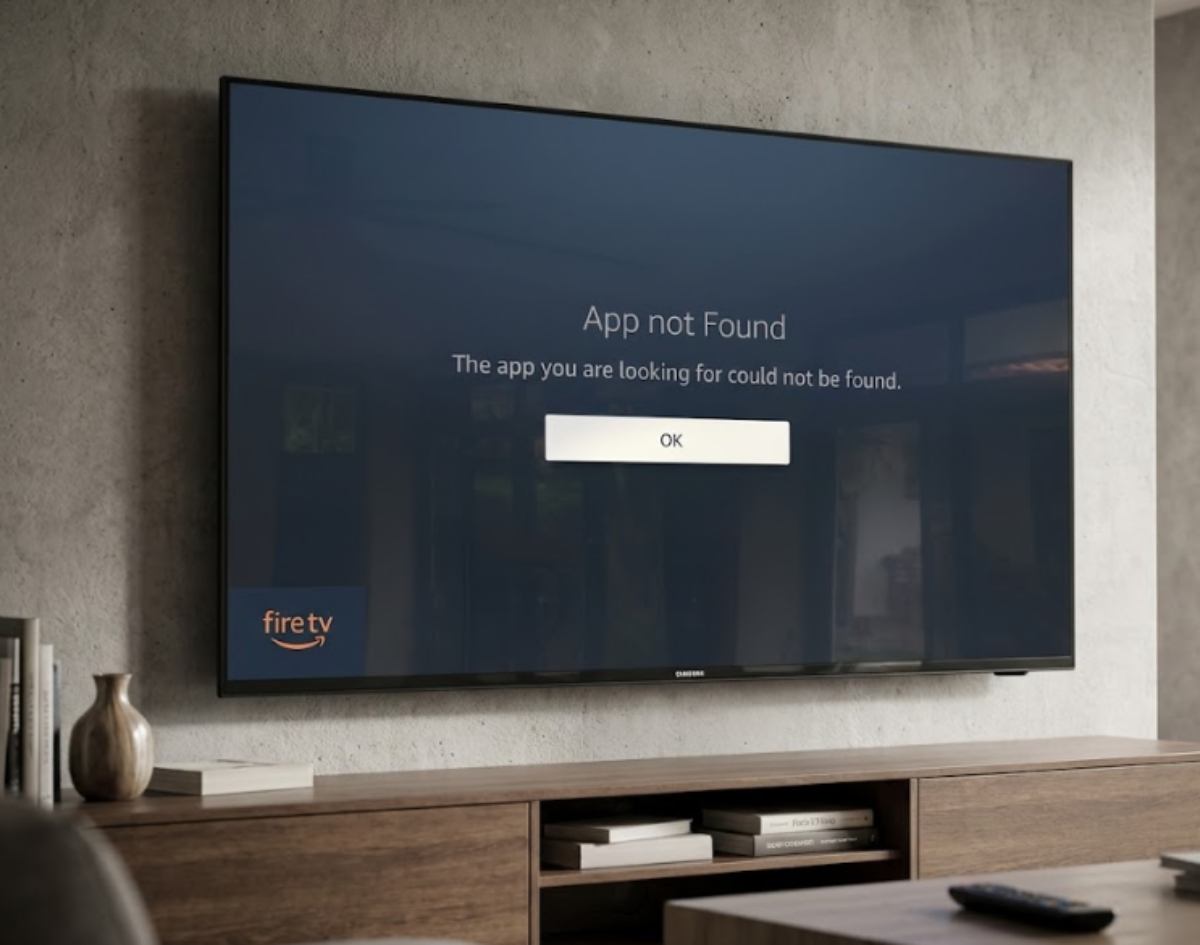
Why do Fire TV Stick apps disappear?
Here are some common reasons why Fire TV Stick apps disappear:
- Interface and software updates
Amazon often updates the system to change the home screen layout. Some recent updates moved app rows, so it may look like your apps are gone when they have just been moved.
- Network interruption
If your Wi-Fi disconnects while the Fire TV Stick is starting, the main menu can’t load app data from Amazon’s servers.
- Account sync glitches
Your apps are linked to your Amazon account. If your device loses connection to your account for a moment, the app icons might disappear.
- Low system storage
If your Fire TV Stick runs out of storage, the home screen might not load your apps correctly.
1. Check if your Fire TV Stick apps are still installed
First, check if your apps are really deleted or just hidden from the home screen.
- Go to Settings.
- Select Applications, then click Manage Installed Applications.
- Scroll through the list.
If you see Netflix, Prime Video, YouTube, or your other channels in this list, your data is safe. The home screen is just not loading them right now. If the list is empty, try the network and account sync steps below.
2. Restart your Fire TV Stick
Restarting your Fire TV Stick clears temporary memory and reloads the home screen.
- To restart with the remote, press and hold the Select button (the center wheel) and the Play/Pause button together for about 5 seconds until the shutdown message appears.
- To restart by unplugging, remove the power adapter from the wall or the back of the stick. Wait 30 seconds, then plug it back in.
Do not use your TV’s USB port to power the Fire TV Stick as it can cause crashes. Always use the original wall adapter.
3. Check your Wi-Fi connection
Your Fire TV Stick needs to be connected to the internet to show app icons on the home screen.
- Go to Settings > Network.
- Highlight your Wi-Fi network and press the Play/Pause button on your remote to test the connection.
- If the signal is weak or disconnected, restart your Wi-Fi router.
After your internet is working again, leave the Fire TV on the home screen for two minutes to let the apps reload.
4. Force sync your Amazon content
If your internet is working but the home screen is still blank, force your device to check your account purchases again.
- Go to Settings > My Account.
- Select Sync Amazon Content.
- Wait 60 seconds, then return to the main home screen.
This step refreshes your app licenses with Amazon’s servers, but won’t change your app settings or passwords.
5. Clear launcher cache and update system software
Sometimes, temporary files in the launcher get corrupted and prevent app icons from showing up.
- Go to Settings > Applications > Manage Installed Applications.
- Look for Amazon Appstore or Fire TV Launcher.
- Select Clear Cache.
- Next, navigate back to Settings > My Fire TV > About.
- Select Check for System Update.
If an update is available, install it and let your device restart.
6. Deregister and re-register your account
If your apps are still missing, disconnect and reconnect your Amazon account. This resets your access but won’t delete your installed apps.
- Go to Settings > My Account > Amazon Account.
- Click Deregister and confirm.
- Select Register and re-enter your Amazon email and password.
After you sign in again, your Fire TV Stick will restore your app permissions and bring your streaming channels back to the home screen.