Has your Fire TV ever started playing random shows or movies by itself? For example, you might be watching a movie on YouTube TV when suddenly the screen blinks and goes black in the middle of an important scene.
Then, out of nowhere, a Netflix movie starts playing. Maybe another night, after an episode ends on your favorite app, Peacock TV suddenly opens and starts a different show without you asking.
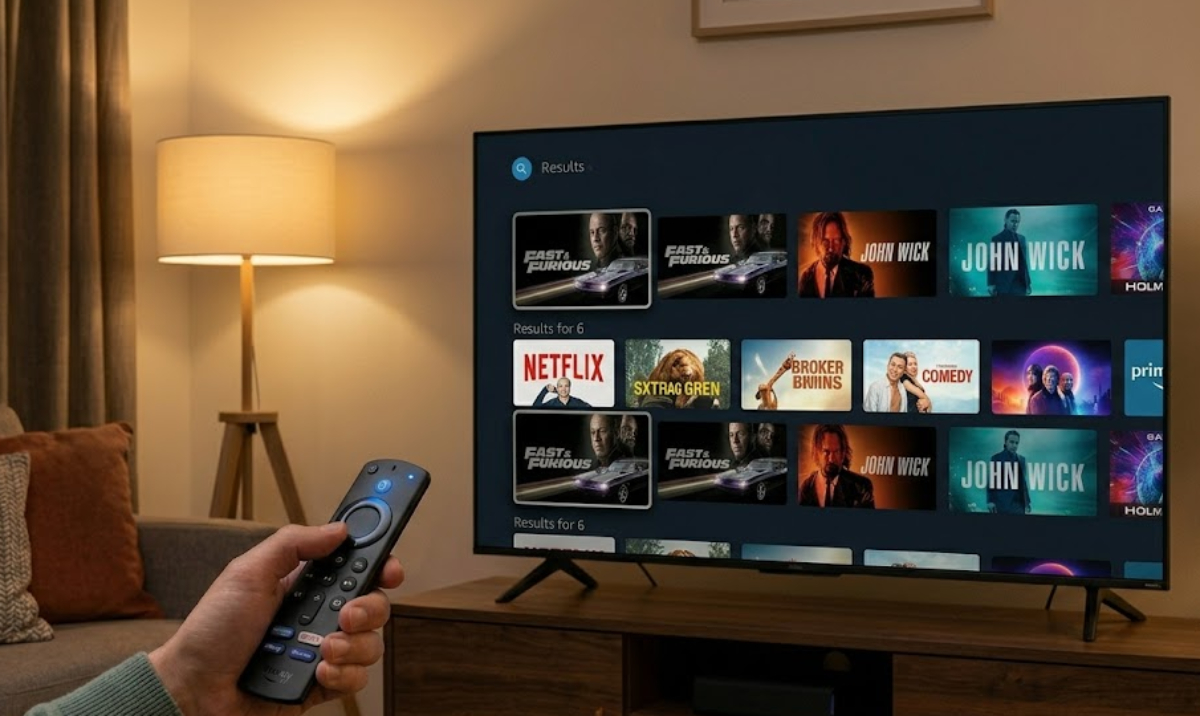
If this has happened in your home, your TV is not haunted, and your remote is not broken. Even if you check your Wi-Fi and see no one else is using it, the issue can still happen.
Why is your Fire TV switching apps?
This problem is caused by recent background software updates from Amazon. Streaming companies often send these updates overnight to add features, change menus, or update ads.
Unfortunately, these updates reset some system settings to their factory defaults without letting you know.
There are two main reasons these reset settings are causing your Fire TV to jump between channels:
- Featured content overrides
Fire TV devices show a lot of “Featured Content” video ads and previews at the top of the home screen. A bug in the latest update makes the TV think you clicked on one of these videos, even if you are using another app.
The system gets stuck, follows the fake command, and suddenly pulls you out of your movie to open the advertised app.
- Playback issues
Streaming apps like Peacock, Sling, and Prime Video do not fully close when you press the home button. Instead, they stay asleep in your device’s temporary memory, called RAM.
If one of these background apps gets a signal from its servers or crashes in the background, it can wake up by accident. When this happens, it takes over your screen and interrupts what you were doing.
How to fix the problem
You can stop this annoying problem for good by changing three simple settings in your Fire TV menu.
1. Shut down video previews
First, stop the home screen from playing video ads automatically, which can overload your device.
- Turn on your TV and navigate to the Settings gear icon on the far-right side of the main home menu.
- Click on Preferences, and then select the option labeled Featured Content.
- Turn OFF the switch for Allow Video Autoplay.
- Turn OFF the switch for Allow Audio Autoplay.
2. Stop background data tracking
Next, stop your device from always sending data to your streaming apps when you are not using them.
- Press the back button on your remote to return to the main Preferences menu.
- Click on the option labeled Privacy Settings.
- Turn OFF the setting for Device Usage Data.
- Turn OFF the setting for Collect App Usage Data.
Turning these options off stops the system from tracking your viewing habits in the background, which helps prevent sleeping apps from starting up.
3. Clear out the app memory cache
Finally, clear out the glitched data stored in the apps that keep popping up on your screen.
- Navigate back to the main Settings page and click on Applications.
- Select Manage Installed Applications to view your full app list.
- Scroll through the list and find the apps that keep acting up.
- Click on the app that is causing problems, then select Force Stop to close it completely.
- Click Clear Cache.
Do not click Clear Data, or you will have to log back into your account.
What about the hard reboot?
After you change these settings and clear the app memory, you need to restart your Fire TV. Just pressing the power button only puts the TV to sleep and won’t fix the glitch.
Instead, unplug the power cable from the wall or the back of your Fire TV Stick. Leave it unplugged for at least thirty seconds. This lets any leftover electricity drain from the system and clears the glitched memory.
Plug the power cable back in and let your Fire TV restart. Now, your new privacy settings and autoplay restrictions are set, so your movie nights should go smoothly.