If your Amazon Fire TV Stick cannot stream live TV channels, it’s usually because of problems with syncing settings, unstable internet, or a corrupted app cache.
This guide will walk you through clear steps to fix live streaming problems on your Fire TV Stick.
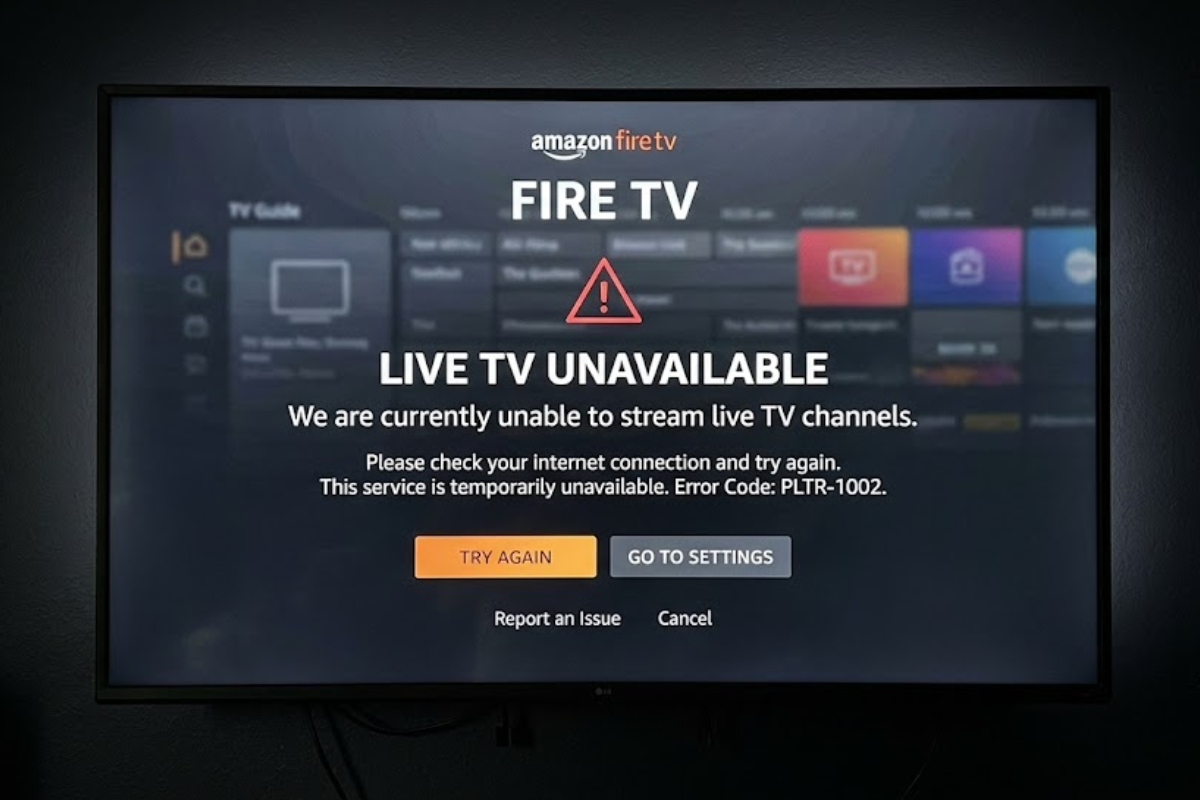
1. Verify internet and network performance
Streaming live TV needs a steady internet connection and low delay, even more than watching on-demand videos.
- Navigate to Settings, then Network on your Fire TV Home screen.
- Highlight your active Wi-Fi connection.
- Press the Play/Pause button on your remote to run a built-in network check.
- Make sure your download speed is at least 8 Mbps for standard definition or 25 Mbps for high definition channels.
If your speed is too low, try restarting your router or switching your Fire TV Stick to a 5 GHz Wi-Fi band to reduce interference.
2. Force sync Live TV sources
If your internet is working but live channels show blank screens, your Fire TV’s live guide might be out of sync with your TV provider.
- Open the Settings menu.
- Select Live TV.
- Click on Sync Sources.
- Choose your live TV provider from the list to refresh the data.
- Wait until you see the “Channel sync started” message disappear from the screen.
Press the Home button to see if your channel guide now shows active channels.
3. Power cycle the Fire TV Stick hardware
Restarting your Fire TV Stick with the remote does not always fix deeper problems. Unplug the Fire TV Stick from the HDMI port and the power cable from the wall to fully reset it.

Leave your Fire TV Stick unplugged for at least 60 seconds to let it fully reset.
Plug everything back in using the original power adapter to make sure your device gets enough power.
4. Clear app cache and data
Temporary files in your streaming apps can sometimes cause problems and stop channels from loading.
- Navigate to Settings > Applications > Manage Installed Applications.
- Select the specific app experiencing live playback failures.
- Select Clear Cache, then Clear Data to remove any corrupted files without deleting the app itself.
If you still cannot watch live TV after clearing data, uninstall the app, restart your Fire TV Stick, and reinstall the app from the Amazon Appstore.
5. Install outstanding Fire OS updates
If your Fire TV Stick’s software is out of date, it might not work well with live TV apps.
- Open Settings, select My Fire TV (or Device & Software depending on your model), and click About.
- Go to Check for System Update and choose Install Update if there is one available.
Let your device finish updating and restart before you try to open your live channel guide again.