It is really frustrating to sit down for your favorite show and have your Amazon Fire TV Stick freeze, lag, or suddenly go to a black screen.
If you have an older Fire TV Stick, these problems are happening more often. Hidden background tracking and large app caches can quickly use up the limited RAM on older devices.
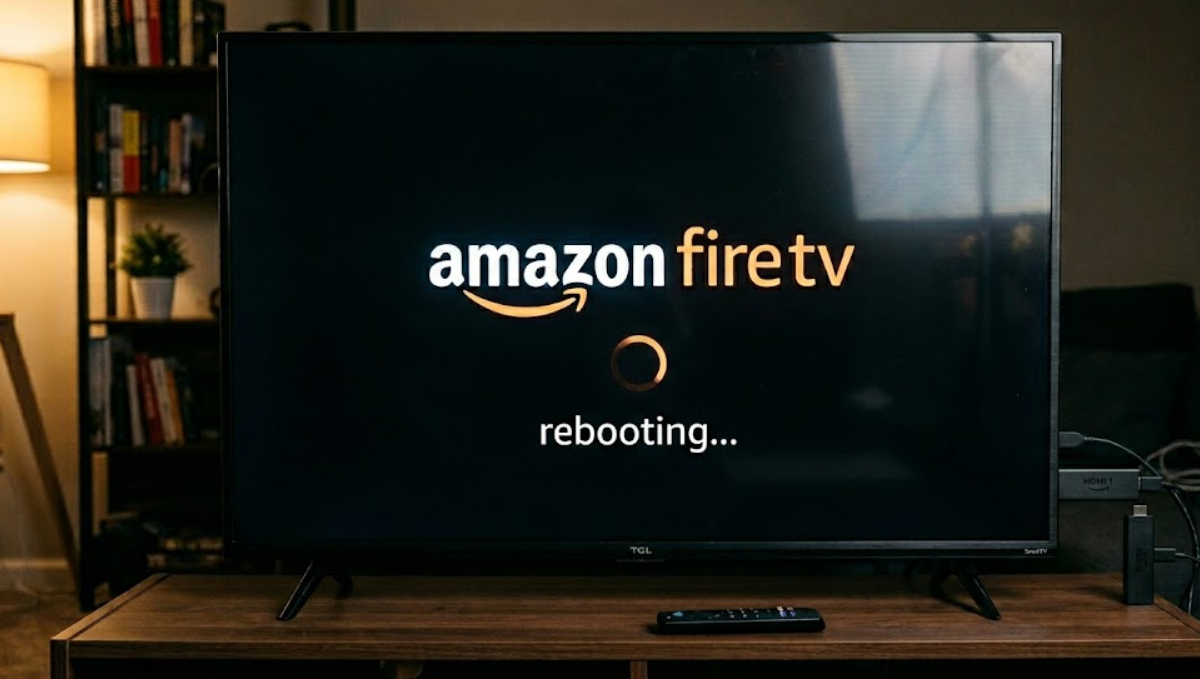
When the device runs out of memory, it has to work much harder. This can cause it to overheat and freeze unexpectedly.
The good news is you do not need to buy a new device yet. Just follow this simple guide to clear storage, cut down on background activity, and get your Fire TV Stick working again.
What causes Fire TV Stick overheating, app lag, and boot loops?
Older Fire TV Sticks have limited hardware, usually less than 1.5 GB of RAM and only 8 GB of storage. Streaming apps like Netflix, YouTube, and Prime Video keep saving temporary data to help things load faster.
Over time, this cache grows a lot. If your storage drops below 1 GB, the Fire TV Stick does not have enough space to work properly.
The processor has to work extra hard to handle all the data, which makes it heat up. If it gets too hot or runs out of memory, the stick may freeze or get stuck on a black screen to avoid damage.
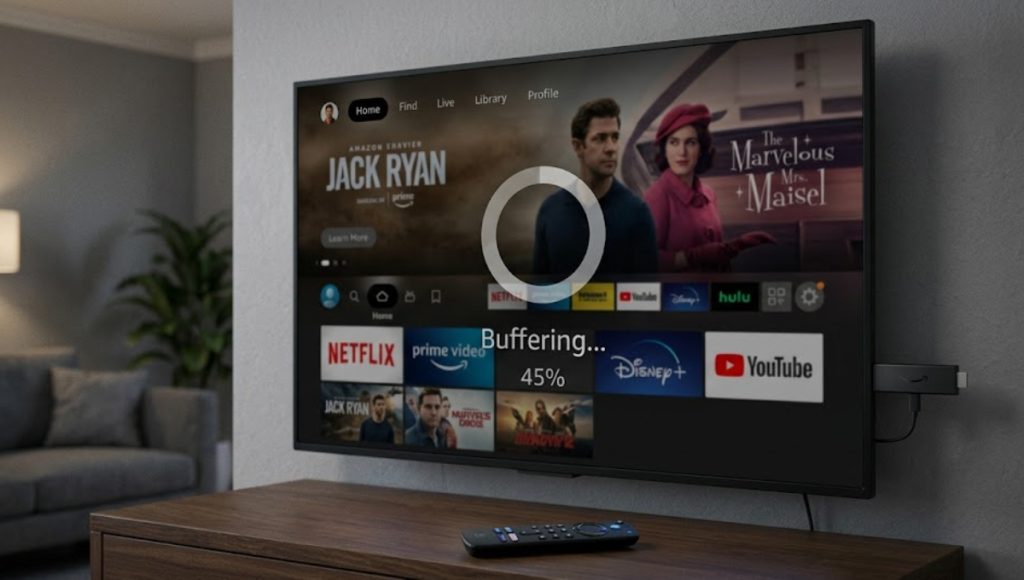
Here is how to fix it.
1. Manually clear app caches
The fastest way to free up your Fire TV Stick’s RAM is to clear the cache for your biggest apps. You’ll need to do this for each app one by one.
- Turn on your Fire TV Stick and navigate to the Settings menu.
- Select Applications, then scroll down and click on Manage Installed Applications.
- Scroll through your list of apps.
- Check the right side of the screen to see how much cache each app is using.
- Click on an app (such as YouTube) and select Clear Cache.
- Do not click Clear Data unless you want to log back into the app from scratch.
Clearing the cache removes temporary files but keeps your account information safe. Do this for all your main streaming apps.
2. Turn off hidden background tracking
Amazon’s Fire OS collects diagnostic and usage data in the background. On older devices, this uses up CPU power and RAM, making the device hotter. Turning these features off will free up resources right away.
- Go back to the main Settings menu.
- Select Preferences, then click on Privacy Settings.
- Turn OFF both Device Usage Data and Collect App Usage Data.
- Return to the Preferences menu.
Select Data Monitoring, and turn it OFF.
3. Prevent overheating with physical adjustments

Fixing software issues helps a lot, but it will not stop all heat buildup. Since the Fire TV Stick plugs into the back of your TV, it can get extra hot from the TV’s own heat.
- Use the HDMI extender
Always use the short HDMI extender cable that came with your Fire TV Stick. This keeps the stick away from the hot TV frame and helps air flow around it.
- Disconnect unused USB power
If your Fire TV Stick gets power from your TV’s USB port instead of a wall outlet, it might not get steady power and could run hotter. It’s best to plug it into a wall outlet.
How to keep your Fire TV Stick fast
To keep boot problems and black screens from coming back, check your storage every few months. Remove any apps you don’t use, since even unused apps can run updates in the background.
If your device still gets stuck in black-screen loops after these steps, you might need to do a factory reset using the My Fire TV > Reset to Factory Defaults menu. This will clear out any deeply corrupted files.
By keeping the cache small and turning off hidden tracking, your older Fire TV Stick should keep streaming smoothly for years.