When you check your Fire TV Stick’s network status, it might say the Wi-Fi signal is “Very Good,” “Excellent,” or “Connected to Wi-Fi.” Yet, you may also see a warning like “Connected with problems,” “Not connected to the internet,” or “No Internet.”
Meanwhile, your phone, computer, and other smart devices can use the same Wi-Fi network without any problems.
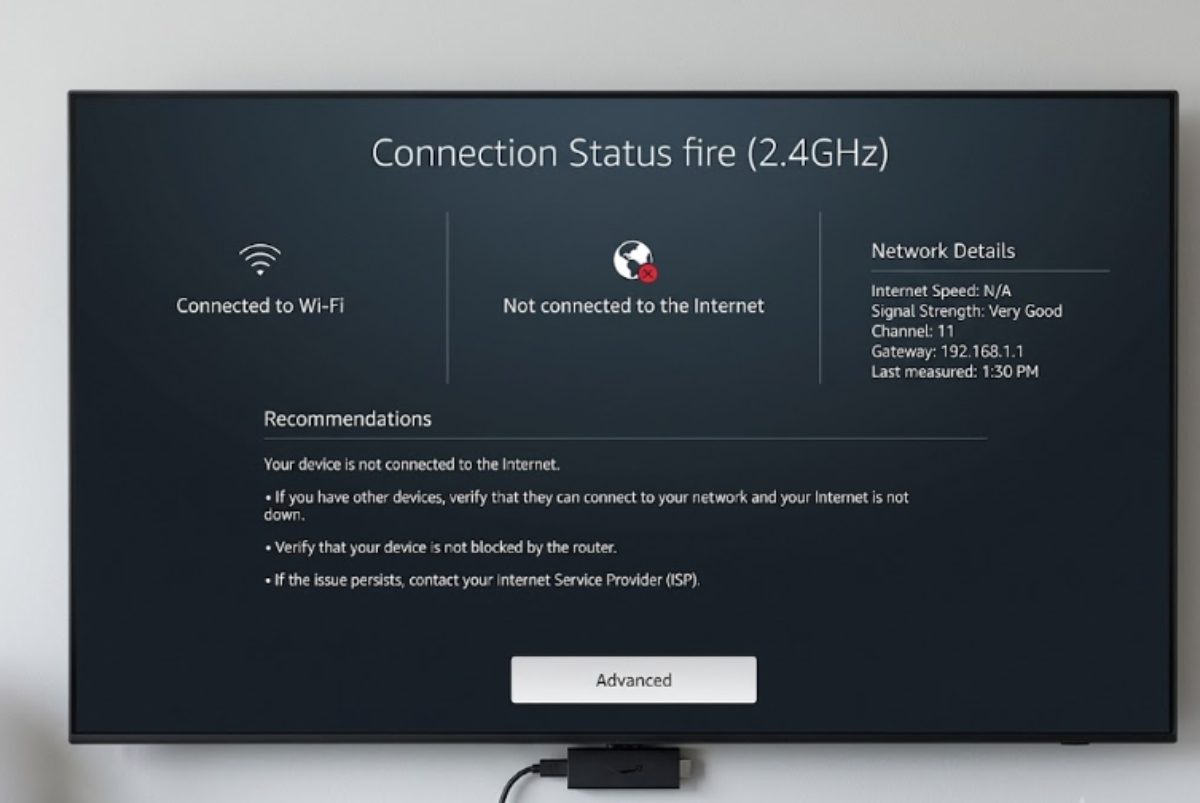
This means your Fire TV Stick is connected to your router, but the router is blocking its internet access.
This problem often happens due to small system glitches, an out-of-sync clock, expired login data, or IP address conflicts.
If you are facing this issue, here is a simple step-by-step guide to help you get your streaming working again.
1. Try the alternative network hop
Before changing major settings, try this simple trick many streaming users recommend. It can help your Fire TV Stick reset its connection.
- Go to Settings > Network on your Fire TV.
- Highlight your current Wi-Fi network and press the Menu button (the three horizontal lines) on your remote.
- Press Select to Forget this Network.
- Turn on the Mobile Hotspot feature on your smartphone.
- Look for your phone’s hotspot network on your Fire TV Stick screen and connect to it.
If your Fire TV Stick connects to the internet using your phone’s hotspot, the problem is likely how your home router handles the device.
After the home screen loads over the hotspot, disconnect from the hotspot and reconnect to your home Wi-Fi. This often fixes the connection problem.
2. Check for expired VPN or security blockers
A common cause of the “No Internet” error is background apps, especially Virtual Private Networks (VPNs). If your VPN subscription has expired or the app has a connection error, it can block your internet traffic.
A VPN, especially if it is not working properly, can block Amazon’s servers from checking your account.
- Go to Settings > Applications > Manage Installed Applications.
- Find your VPN software, select Force Stop, and then click Uninstall.
After removing the app, restart your Fire TV Stick. Unplug the power cord for 10 seconds, then plug it back in and check if the network works. Understand that some new Amazon Fire TV Sticks do not support VPNs.
3. Clear the system network cache
Your Fire TV Stick uses background apps to manage network connections and logins. If their temporary files become corrupted, your device might say it has no internet.
- Open the Settings panel and click on Applications.
- Select Manage Installed Applications and toggle the filter to show All Applications.
- Scroll down until you find Network Rules or CaptivePortalLogin (the exact name varies depending on your Fire OS version).
- Click Force Stop, and then click both Clear Data and Clear Cache.
- Restart your device.
4. Fix your router’s smart Wi-Fi band steering

If you have a modern router from your internet service provider, it likely uses Single Optimization Network (SON) or “Smart Connect.” This merges your 2.4 GHz and 5 GHz wireless frequencies into one Wi-Fi name, automatically pushing devices to the band it thinks is best.
Many Fire TV Stick models have trouble connecting when the router switches them between Wi-Fi bands with the same name. Here’s how to fix this:
- Log in to your home router’s settings page via a web browser on your phone or laptop.
- Look for the wireless network settings and disable band steering / SON.
- Give your 2.4 GHz network and your 5 GHz network completely different names (for example: HomeNet_2G and HomeNet_5G).
- Connect your Fire TV Stick directly to the 5 GHz network if your TV is close to the router, or the 2.4 GHz network if it is several rooms away.
5. Switch to a manual static IP and Google DNS
Sometimes your router’s automatic IP system (DHCP) has problems. It might assign your Fire TV Stick an IP address already used by another device or not provide the correct DNS settings.
You can avoid this by setting up a static IP address manually.
First, check the Wi-Fi settings on your smartphone to find your current IP address. Note down the first three sets of numbers (e.g., 192.168.1.xxx).
- Go to Settings > Network, highlight your Wi-Fi, and choose Forget Network.
- Click on your Wi-Fi network to reconnect, but instead of typing your password immediately, click the Advanced button.
- IP Address: Enter a high, unique number matching your home structure, like 192.168.1.245.
- Gateway: This is your router’s internal address, almost always 192.168.1.1 or 192.168.0.1.
- Network Prefix Length: Type 24 and click next.
- DNS 1: Type 8.8.8.8 (This routes your device through Google’s highly stable Public DNS).
- DNS 2: Type 8.8.4.4.
- Enter your security password and click Connect.
6. Use the physical HDMI extender
Physical interference can cause problems. If your Fire TV Stick is pressed against the back of your TV, the metal can block its antenna.
This can weaken the signal, so your device stays connected to the router but loses internet access.
- Locate the flexible, short HDMI extender cable that came packaged inside your original Fire TV box.
- Plug the extender into your TV.
- Plug the Fire TV Stick into the other end of the extender.
Using the extender moves the stick away from the TV’s back panel and helps improve the wireless signal.
7. Fix out-of-sync device time
If your Fire TV’s clock is out of sync with the internet, which can happen after a power outage or router reboot, Amazon’s servers may block the connection for security. This causes the “No Internet” error.
- Go to Settings > My Fire TV > About.
- Look at the displayed time.
- If it is incorrect, the device is failing to ping a Network Time Protocol (NTP) server.
If you are running an ad-blocker or a custom firewall at the router level (like Pi-hole), temporarily disable it.
- Unplug the power adapter from the wall.
- Wait 15 seconds, and plug it back in.
- Once the stick reboots, let it sit on the home screen for two minutes without pressing any buttons.
This forces an automatic background time-sync that opens the connection gateway.
By systematically walking through these steps, clearing out old VPN hooks, splitting up clashing wireless bands, trying a static IP layout, and fixing out-of-sync device time, you can reliably clear out the software bugs holding your streaming hardware hostage.