This Peacock app troubleshooting guide covers the main problems users face, which devices are affected, and provides clear steps to solve each issue.
If you use the Peacock app, you may have run into bugs. Many users report random errors, frozen screens, and broken video feeds.
Whether you stream on your phone, streaming stick, game console, or smart TV, these glitches can be frustrating. This guide will help you fix them and return to smooth streaming.
1. Audio out of sync after an ad
Sometimes, the audio and video get out of sync, so the sound lags behind the picture. This usually happens right after a commercial break when the main program starts again.
The most affected platforms are Roku Premier/Ultra, Xfinity Flex, Amazon Fire TV, and Samsung Smart TVs.
This is caused by a buffer processing error when the app switches from the ad server back to the main video stream.
The fastest fix is to press the rewind button on your remote to go back 10 seconds. This usually realigns the audio and video. If it doesn’t work, exit to the main Peacock menu and click Resume on your show to reload the stream.
2. Subtitles fail to turn off, and closed captions vanish
Sometimes, closed captions stay on the screen even after you turn them off in the settings. Other times, they disappear if you rewind the show by a few seconds.
The issue happens on Xumo Stream Boxes, Roku TVs, Vizio SmartCast, and desktop browsers.
If the captions refuse to turn off:
- Go to your remote control settings.
- Turn the subtitles ON.
- Wait 5 seconds, and then turn them OFF again.
This resets the player’s display settings.
If you use a Xumo device, this glitch is built into the system. Go to your TV’s main Accessibility settings and turn off closed captioning at the device level rather than inside the Peacock app.
3. “Something Went Wrong” app crash
The app crashes immediately upon opening. It then displays a generic “Something went wrong” message followed by three colored dots that bounce indefinitely. You cannot even reach the profile selection screen.
This issue happens on the Apple TV 4K (all generations), Samsung Tizen OS, and Xbox consoles.
This error happens when the app saves bad login information or account tokens. Deleting the app might not fix it, since the data can stay stored online.
To fix this on Apple TV, perform a factory reset from the system settings to clear the persistent cache.
If you use network-wide ad-blockers like Pi-hole or specific DNS tools, disable them temporarily because they often block Peacock’s authentication checks.
4. Wiped playlists
Your watchlist might be empty or stop showing new shows after a certain point. If you search for a missing show, it may show as saved, but it still won’t appear in your library.
Users on Roku Ultra, Windows 11 PC browsers, and the Peacock mobile app are the most affected.
This is a server bug that limits how many items you can see on some screens. To fix it:
- Log out of your account on all devices.
- Wait two minutes, and log back in.
If you still cannot see the missing titles, open your account on a phone or computer browser. Delete a few older shows you’ve already watched, and the missing ones should show up again.
5. Broken account activation
If you get Peacock for free through your cable or internet provider, you might not be able to activate your account. The page may keep loading or show “Unable to retrieve information,” so you cannot change your subscription.
The issue happens through Xfinity/Spectrum promotional plans accessed via desktop web browsers.
The activation link often fails on desktops because ad-blockers block the script.
Instead of using a PC, copy the activation web address and open it in a mobile browser connected to your home Wi-Fi.
The mobile version bypasses the desktop script errors and lets you link your account immediately.
6. Video stutter and low frame rates during live sports
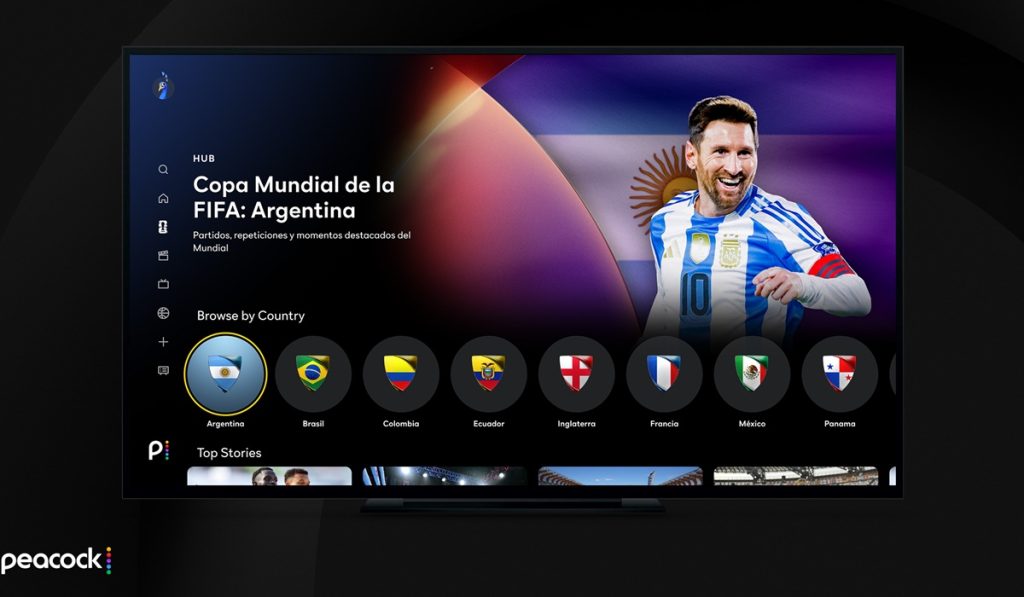
During live games, the video may buffer, drop frames, or flicker. The issue happens on Amazon Fire TV Stick, Chromecast with Google TV, and Roku devices.
The Peacock app sometimes cannot match your TV’s refresh rate during busy live events, causing these problems. To fix it:
- Go to your streaming stick’s display settings menu (outside of the Peacock app).
- Switch your video output from Auto to a manual selection of 4K HDR at 60fps.
If your TV does not support 4K 60Hz, change the resolution to 1080p 50Hz or 1080p 60Hz to keep the video running smoothly.
7. The downloads are full of mobile glitches
If you try to download a movie to watch offline on your phone or tablet, the app might say your download list is full even if it is empty.
This happens because the app thinks you still have downloads from an earlier session. It can also happen if you have reached the download limit for that title.
- Navigate to the Peacock app settings on your phone.
- Tap Clear Data and Clear Cache (on Android) or delete and redownload the app entirely (on iOS).
Log out of the app first so the server can sync your account properly.
8. Random shows are spawning in Continue Watching
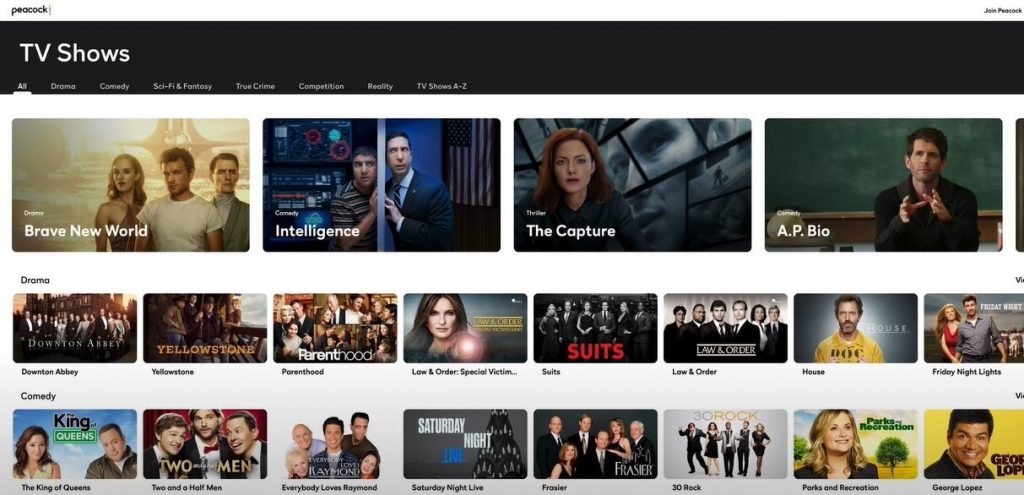
The app sometimes fills your homepage with random shows or foreign-language movies you have not watched or selected.
All smart TV and streaming device platforms, especially Google TV interfaces, have this issue.
Peacock autoplays live channels as you scroll the homepage. If you pause on a live feed, even briefly, the app counts it as watched and adds it to your history.
Since many TV apps lack a “Remove” button, open the Peacock app on your smartphone, tap the three dots next to the unwanted show in “Continue Watching,” and select Remove from Row.
9. Missing 4K Dolby Vision and Atmos Audio
Even if you pay for Premium Plus, 4K movies may play only in 1080p or standard HDR10 with stereo sound, and your AV receiver won’t switch to Dolby Vision or Dolby Atmos.
You will encounter this issue on Apple TV 4K, Google TV Streamer, and TCL Smart TVs running Google OS.
Peacock’s video software has a known bug that does not work well with the Match Dynamic Range feature on some streaming boxes.
On Apple TV, manually go into the system video settings, turn Match Dynamic Range OFF, and force Dolby Vision ON permanently.
This makes the Peacock app recognize your display and play the correct Atmos audio track.
10. The profile selection loop
When you log in on a computer browser, clicking your profile picture reloads the page and sends you back to the “Who is Watching?” screen, preventing access to your account dashboard.
This loop happens because of bad cookies and cache problems that interfere with Peacock’s login system.
- Clear your browser history and cache specifically for peacocktv.com.
To bypass this issue immediately without losing your browser settings:
- Open a new Incognito or Private Browsing window.
- Navigate to the site, and log in fresh to bypass the loop.
11. Loss of browser progress
When you watch episodes on a desktop browser, the app may forget where you left off if you pause or close the window. Trying to fast-forward might also send you back to the start.
This happens when strict security settings block the cookies Peacock uses to track your progress. To fix it, turn off Strict Shields or tracker blockers for the Peacock website.
If you use Chrome, check settings under Privacy and Security, click Third-Party Cookies, and ensure “Allow third-party cookies” is selected for Peacock.
12. Slow performance on Samsung Smart TV
On some TVs, the app can be slow. The home screen may lag, tiles load slowly, and clicking a show might freeze your TV.
The Tizen OS version of Peacock has memory leaks that fill your TV’s limited RAM.
Since Tizen keeps apps running in the background, force-close the Peacock app to free memory.
Hold down the Back button on your Samsung remote for 5 seconds inside the app until it returns you to the TV home screen.
Alternatively, unplug the TV from the wall, wait 60 seconds, and plug it back in. This clears the system cache.
13. The Vizio -6 Generic Playback Error
The app loads normally, but clicking any title shows a “-6 Generic Playback Error” pop-up and prevents playback.
This error happens when your Vizio TV cannot connect properly to the streaming service’s security system.
- Log out of the app.
- Go to your Vizio TV settings menu.
- Select System.
- Click Reset & Admin.
- Select Soft Power Cycle.
Once the TV reboots, verify your firmware is fully updated, open the app, and log back in.
14. Content Not Available error
When you try to play a video, you might see a “Content Not Available On This Device” error or a black screen, even though the audio still plays.
Peacock uses HDCP to prevent screen recording. If you use an old HDMI cable or cheap USB-C hub to connect your computer to a monitor, the HDCP connection might fail.
To solve this, use an HDCP 2.2-compliant HDMI cable for your external setup. If streaming over a browser with an external display, turn Hardware Acceleration OFF in your browser settings (under system settings in Chrome or Edge) to clear the visual blackout.