It is easy to get local channels on Samsung TV Plus. Just connect an over-the-air antenna to your TV’s coaxial port and run an Auto Program scan in the Settings menu.
After the scan finishes, your local stations like ABC, CBS, NBC, and FOX will show up in the Samsung TV Plus guide along with over 250 streaming channels.

How to add local channels on Samsung TV Plus
To add local channels to Samsung TV Plus, follow these steps:
- Press the Home button on your remote.
- Navigate to Settings.
- Select Broadcasting.
- Click Auto Program.
- Make sure your source is set to Air so you can get free local channels.
When the scan is done, you can switch between streaming channels and live local broadcasts without changing inputs.
Understanding Samsung TV Plus and local integration
Samsung TV Plus is a free streaming service with ads, built into most Samsung Smart TVs made after 2016. It offers hundreds of internet channels for news, movies, and sports.
However, it does not stream your local ABC, CBS, NBC, or FOX stations over the internet. Instead, it brings everything together in one place.
When you connect an antenna, you can watch both regular broadcast channels and streaming channels in the same channel list.
How to scan for local channels on Samsung TV Plus
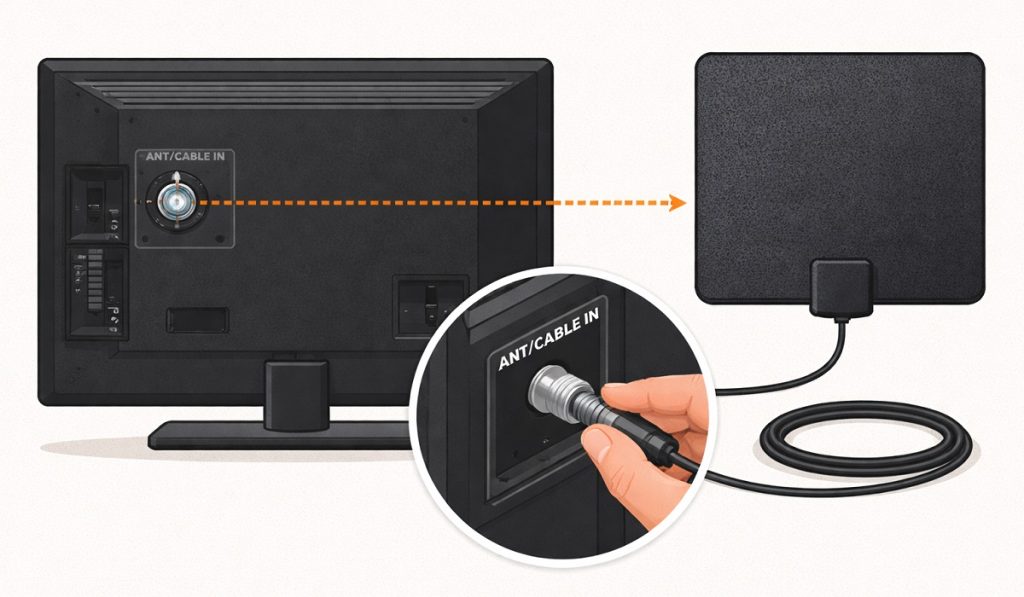
Before you start, make sure you have a digital HD antenna. Put it near a window to get the best signal.
- Connect the antenna’s coaxial cable to the ANT IN port on the back of your Samsung TV or One Connect Box.
- Press the Source button on your remote, then choose TV.
- If your TV is set to an HDMI input, the Broadcasting settings might be greyed out.
- Press the Home button.
- Scroll left to Settings, which looks like a gear icon.
- Select All Settings.
- Choose the Broadcasting tab from the sidebar.
- Select Auto Program and press Start.
- When prompted to choose the signal type, select Air (or “Both” if you have a cable line without a box).
- Wait until the progress bar reaches 100%.
- When it is done, select Close.
How to view local channels in the Samsung TV Plus
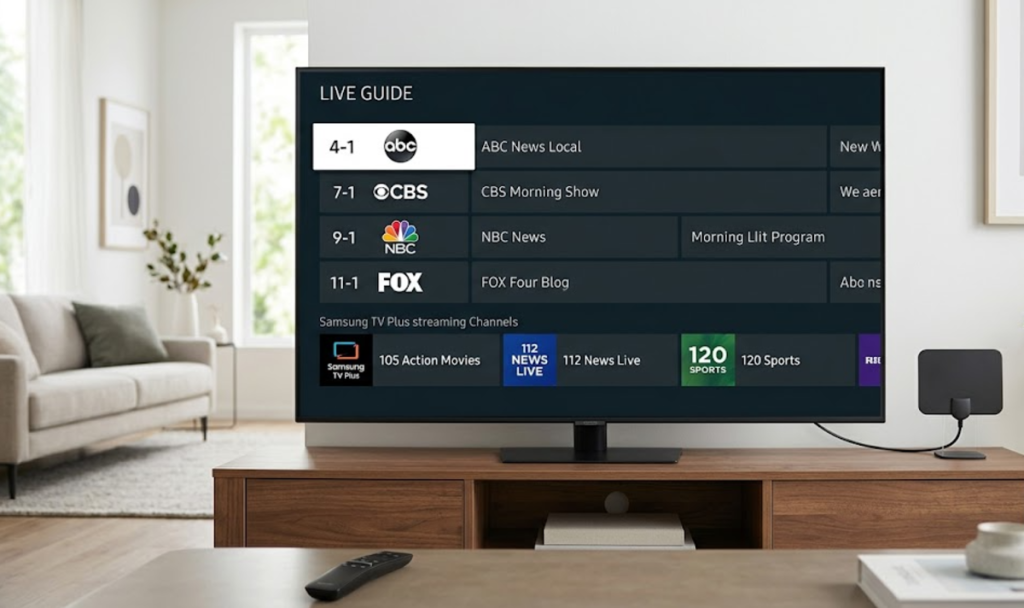
After the scan, your local channels will have numbers like 4.1 or 7.1. To see them with your streaming channels:
- Press the CH button on your Samsung One Remote or the Guide button on a standard remote.
- The guide will now show both your antenna channels and Samsung TV Plus internet channels.
- Use the Filter or Category list on the left side of the guide to switch between All Channels and Samsung TV Plus.
How to access local news on the Samsung TV Plus without an antenna
If you cannot use an antenna because of your location or building rules, you can still get local news with apps on your Samsung TV. Samsung TV Plus also has national news channels like ABC News Live and CBS News that include local segments.
You can also download these apps from the Samsung App Store:
- NewsON: Provides live and on-demand local news broadcasts from over 200 trusted stations across the US.
- Local Now: Uses your IP address to provide localized weather, news, and traffic.
- Haystack News: Allows you to customize a feed based on your specific city and interests.
How to troubleshoot reception issues
If your local channels do not appear after an Auto Program scan, first verify that your antenna is powered (if it is an amplified model). Signal interference from thick walls or electronic devices can also block channels.
If you get no channels after scanning, try moving the antenna and running Auto Program again. Channel availability depends on where you live and how far you are from broadcast towers.