Many YouTube TV Multiview users have run into annoying bugs that break their favorite setups. Sometimes, the picture drops to low resolution or gets stuck loading.
Most split-screen problems are caused by a few common settings issues or software bugs. Since YouTube TV combines these streams on its servers before sending them to you, regular internet fixes do not always work.
This guide will show you how to fix YouTube TV Multiview problems like blurry pictures, frozen audio, and stuck menus, so you can get back to watching your favorite teams without any hassle.
1. Blurry screens and pixelated channels
Sports fans often say that games inside the multi-view grid look bad. While your main feed may be sharp in 1080p, switching to the quad-box can make the channels look pixelated and blurry.
YouTube TV handles split-screen processing on its servers to prevent your device from crashing. If you have features that favor speed over stability, the network may lower your resolution to 480p or less to avoid buffering.
First, turn off the “Decrease Broadcast Delay” setting. While this option reduces the delay between the live game and your screen, it can make multi-view much less stable.
- Open your video player settings.
- Find Broadcast Delay.
- Switch it back to Normal.
Also, avoid letting the app automatically choose your picture quality.
- Click the gear icon on the video player.
- Go to Quality.
- Change it from Auto to 1080p.
If you use an Apple TV 4K, check your system settings. If your video output is set to 30Hz, multi-view will be forced into low resolution.
Go to your Apple TV system settings and ensure your video output is set to 60Hz.
2. Infinite spinning wheel or “Video Not Available” error
Sometimes, multi-view windows will not load at all. You pick your favorite channels, but only see a spinning circle or a message saying the video is not available.
This issue is rarely caused by your home Wi-Fi speed. It usually happens because of a data-caching glitch when the app tries to load several video streams at once. Try these fixes:
- Force close the app by going to your streaming device settings menu, finding your applications list, selecting YouTube TV, and clicking Force Stop.
- Clear the app cache to remove temporary data errors. This will not log you out of your account.
- Do a hard system reboot by unplugging your streaming box or smart TV from the wall.
Leave it unplugged for 60 seconds to let the device fully reset, then plug it back in.
3. Missing channels from “Build a Multiview”
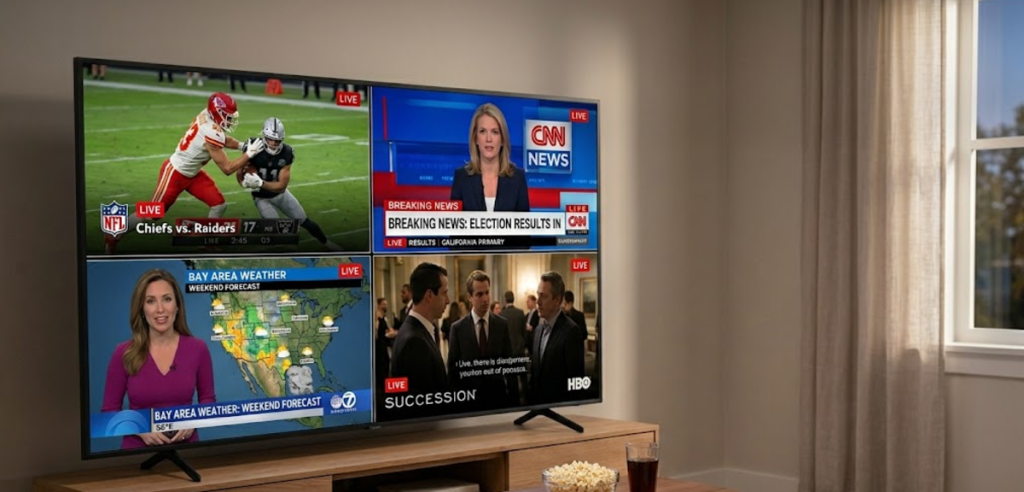
YouTube TV now offers a “Build Your Own” option, letting you pick up to four live programs from a menu. However, some channels may be grayed out or missing from the list.
The custom builder does not let you mix live TV with on-demand shows or DVR recordings. Also, some regional sports networks and premium channels have rules that stop them from showing up with other feeds.
- The custom multi-view menu sorts channels into groups like Sports and News. If you cannot find a channel, check the ‘Other’ tab at the bottom. Many missing channels are listed there.
- You cannot save a custom layout forever. But if you watch the same set of channels for a few days in a row, YouTube TV will automatically create that bundle and show it under your ‘Top Picks’ tab.
4. Samsung TV menu bug
If you use the Samsung smart TV app, you might get stuck in a control loop. When you try to change games with your remote, the “Change Multiview Settings” menu keeps popping up and will not go away.
This happens because of a software conflict between the Samsung Tizen system and the YouTube TV app. The remote’s directional buttons accidentally trigger extra menus.
- Older smart TVs may not have enough power or updated software to run complex features well. To avoid this bug, try using an external streaming device like a Roku, Chromecast, or Apple TV.
If you do not want to buy an external device:
- Go into your Samsung TV system options.
- Select Support.
- Navigate to Device Care.
- Choose Self Diagnosis.
Then, reset your smart hub to clear any app control errors.
5. Optimize your network
If your multi-view stream is lagging but your settings seem fine, your network’s domain lookup speed could be the problem. You can fix this by changing your router’s DNS settings to Google’s public servers.
- Inside your home router configuration panel, change the primary DNS to 8.8.8.8 and the secondary DNS to 8.8.4.4.
This change can speed up your connection and reduce delays when loading complex video layouts.
If you are not sure what to do, try a full power cycle. Unplugging your streaming device from the wall clears the system memory and fixes hidden problems that a normal restart might miss.