You sit down to watch a big match, such as the June 2026 World Cup, but the action on your TV looks blurry. You check your internet connection, run a speed test, and see that you have a fast 1 Gbps fiber connection.
Strangely, when you open a movie app, the picture looks perfect.
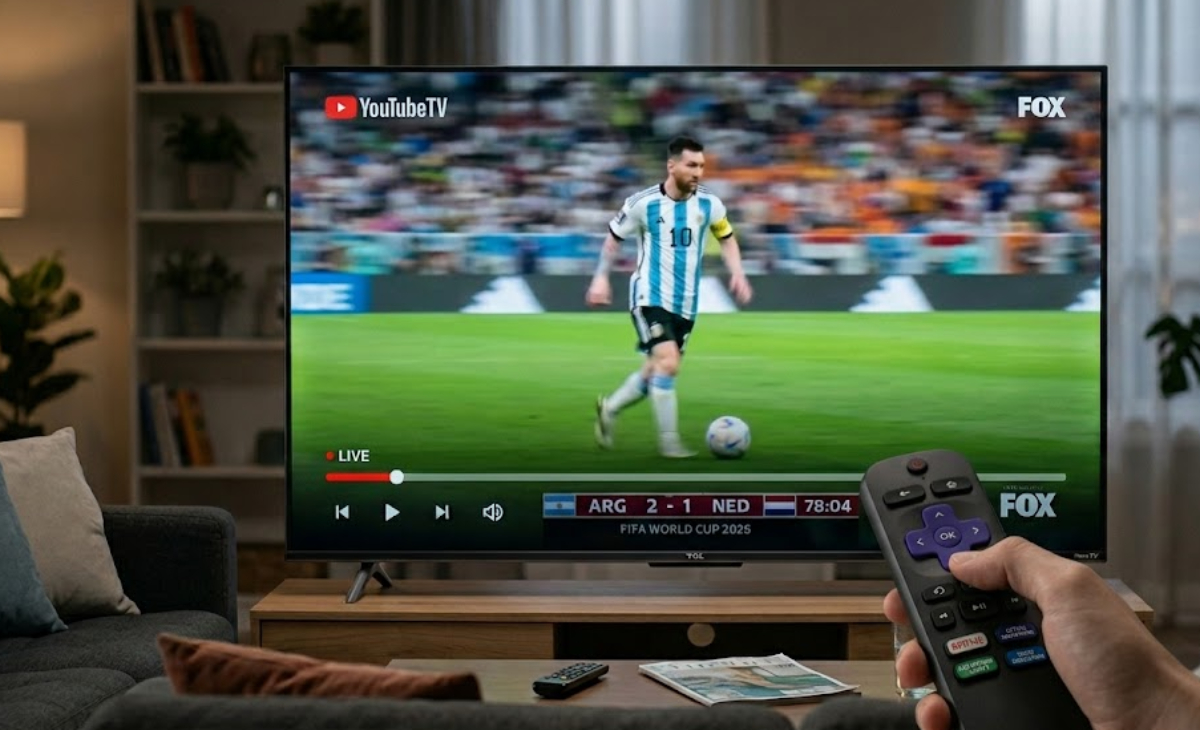
So why does live sports look pixelated, muddy, or have ghosting, even when your hardware and internet are working well?
This is a common problem for people streaming live TV. Luckily, it is usually not caused by your internet speed. The real issue is how live feeds are broadcast and how your TV handles fast motion.
1. Live feeds vs. On-demand movies
The main reason movies look great but live sports don’t is the source material. Apps like Netflix or Prime Video stream pre-made, high-quality video files, often in 1080p or 4K.
Your TV does not have to do much work to improve the image.
On the other hand, major networks stream live sports in 720p or 1080i to keep motion smooth instead of focusing on resolution. Streaming platforms also have to compress these large live signals quickly so millions of people can watch without buffering.
When a compressed 720p or 1080p feed is shown on a big 55-inch or 65-inch 4K TV, the TV has to upscale the image a lot. If the camera moves quickly across the field, your TV can have trouble filling in the missing details.
If you want to fix the blur and get a clearer picture, follow these steps to improve your setup.
2. Turn off Digital Noise Reduction
Digital Noise Reduction (DNR) is meant to clean up grainy, low-quality video. But during fast-moving live sports, your TV might mistake the texture of the field, the ball, or the players for digital “noise.”
The TV blends these pixels to smooth the image, but this can make the picture look muddy and smeared when the camera moves.
- Open your TV’s Picture Settings or Expert Settings menu while the game is playing.
- Look for settings called Noise Reduction or MPEG Noise Reduction and turn them off.
3. Dial back Motion Smoothing (the Soap Opera effect)
Most new TVs have motion interpolation features, like Action Smoothing, Motionflow, or TruMotion. These settings add extra frames between the real ones to make movement look smoother.
This technology can work for slow scenes, but it often fails during fast sports. It can cause a clear “ghosting” or halo effect around players or the ball.
Set your TV’s Action Smoothing or Motion Clarity to Low, or turn them off completely.
4. Lower your Sharpness setting
Turning up your TV’s sharpness can actually make a compressed sports feed look worse. High sharpness adds fake white outlines and jagged edges to things on the screen.
When the camera moves fast, these jagged edges cause artifacts and make the picture look blurry or distorted. Set your Sharpness between 0 and 15% for a more natural image.
5. Avoid Sports Mode presets
It is tempting to use your TV’s built-in “Sports” mode. But manufacturers often set Sports Mode to maximum contrast, brightness, and sharpness.
This combination makes colors too strong and removes the fine details from a compressed stream. Instead, use Movie Mode or Standard Mode on your TV.
Movie Mode usually gives the most accurate picture and keeps extra filters off.
6. Try the native network apps
If your live TV streaming service still has a low-quality stream, try using the network’s own app to watch the game.
For example, if you log into the Fox Sports or ESPN app with your TV provider info, you might get a higher-quality stream or even a special 4K feed for big events.
If you want to see your stream quality on a service like YouTube TV, turn on Stats for Nerds in the player settings to check your resolution and connection speed.