If you watch YouTube on a big screen, YouTube Premium brings upgrades that change how you use the platform on those devices. This isn’t just “no ads”, though that’s huge.
Premium gives you a group of features and device-specific rollouts. Some include AI navigation, higher audio quality, smarter playback controls, and much more.
Below are the YouTube Premium features that affect TV/console streaming. We will also show you how to enable or use them on living-room devices where applicable.
1. True ad-free playback on TVs and consoles
When you’re signed into the YouTube app on a smart TV or game console with a Premium account, most pre-roll, mid-roll, and in-video ads shown by YouTube’s ad system are removed.
No forced waits before a video, far fewer interruptions during long videos, and a cleaner watching experience on large screens.
That single behavior reduces the friction in viewing sessions. No need for rewinding or skipping to avoid ads, and your sessions aren’t interrupted mid-show. You don’t get surprising mid-content ad breaks that are awkward in social viewing.
Tip: If you have a family plan or a subscription, each household account must sign in with a paid account to access ad-free playback on that device.
2. Jump ahead
Jump Ahead is an AI shortcut that marks the next commonly-skipped point on a video’s progress bar and offers to jump you there. On mobile, this reduces the 10+ seconds of scrubbing to find the good part.
On TVs and consoles, where scrubbing with a D-pad or thumbstick can be slow, Jump Ahead moves you to the scene most viewers go to next with one button press. That removes a major pain point of large-screen navigation.
Rollouts in 2025 are expanding Jump Ahead to smart TVs and game consoles, so you’re likely to see it in the TV/console YouTube app now or soon. Here is how to use this feature:
- While a video is playing on your TV or console, press the right arrow. For some models, use your remote’s forward control.
- If a Jump Ahead dot appears on the timeline, press the right arrow again to highlight it.
- Press OK/Enter to jump to that point.
3. Faster and more fine-tuned playback controls
Playback speed control has been 0.25× to 2× historically. It is now expanding in some places to higher speeds for Premium users to let you consume tutorials, long lectures, or walkthroughs much faster.
On TVs and consoles, that can be especially helpful for long-form content you want to finish quickly during a single viewing session.
This feature is available in many smart-TV apps, but not universally on all TV platforms or legacy console apps. YouTube’s support notes explicitly say playback speed may not be available on all smart TVs and streaming devices.
Here is how you change speed on a TV app:
- While a video is playing, open your YouTube Settings by tabbing on the gear icon on your video player.
- Select Speed or Playback speed.
- Choose your desired rate. If you don’t see Speed, your device’s YouTube app likely doesn’t expose this control; check for an app update or use casting from a phone or browser.
4. Better sound for music videos on big speakers
Premium has been expanding higher bitrate audio options for music and music-labeled videos. This high quality pushes 256 kbps AAC/Opus to your speakers.
On a TV connected to a home theater or soundbar, better-tackled audio quality makes a measurable difference for music videos, concert uploads, and audio-heavy documentaries. You’ll get tighter bass, clearer vocals, and better detail compared with standard compressed streams.
How to enable higher audio quality for your signed-in TVs or consoles:
- On the YouTube Music mobile app, navigate to Profile > Settings.
- Find Downloads & Storage, then select Audio Quality.
- Choose High (256 kbps) to set the quality for downloads and streaming.
- If you cast to your TV set, this audio feed will carry that higher-quality stream if supported.
Important: If you have high-quality audio speakers or a setup, we recommend using wired HDMI routing to your receiver or a TV with passthrough. Do not use Bluetooth to avoid codec bottlenecks that undo the higher bitrate.
5. Sign-in continuity and “Continue watching” across devices
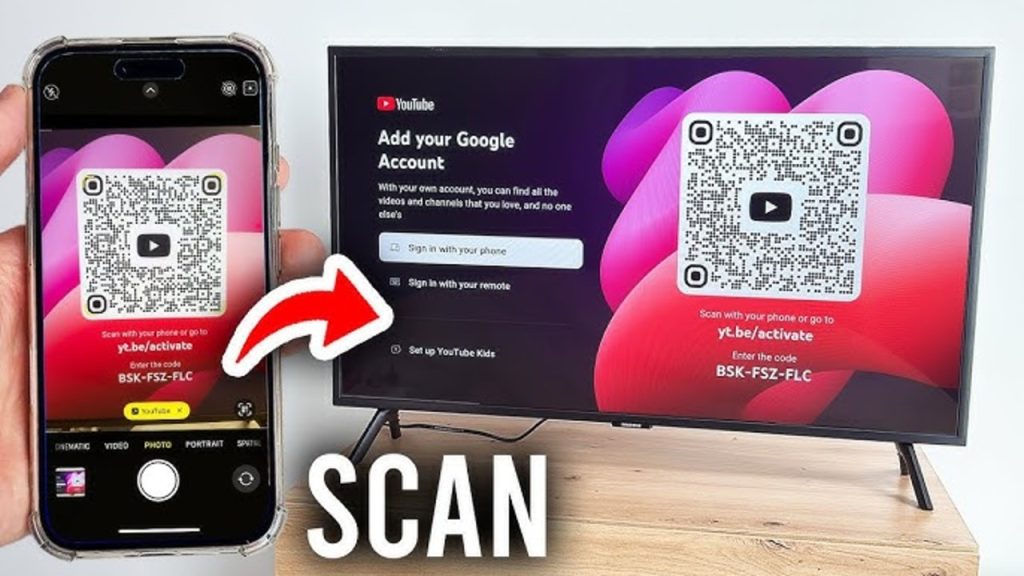
Premium doesn’t introduce this feature. It’s a general YouTube behavior, but Premium subscribers benefit because the experience is smoother and uninterrupted.
When you’re signed into the same Google account on phone, PC, TV, or console, YouTube syncs watch progress, playlists, likes, and “Continue watching” rows so you can start on mobile and finish on the TV or vice versa.
On consoles, this is particularly handy: you can queue a tutorial on your phone and then sign in to the console to finish it without having to search through the channel.
Consoles are often shared and slow to type on; signing in via QR/activation gives instant continuity. This instant continuity is not available on regular YouTube. You will have to go to your “History” tab to check what you played.
But with the premium, once you open the YouTube app, it continues and plays automatically from where you left off on your phone or another device without scrolling.
6. Picture-in-picture, multi-view, and miniplayer
Picture-in-picture (PiP) from YouTube Premium features lets you keep the video in a small floating window while you do something else. On phones, this technology is mature. But, on TV sets, it’s a different story, as most sets do not support it.
YouTube has also been rolling out PiP for Shorts, expanding PiP behavior in its mobile apps, and introducing experimental features. Those improvements often reach TV platforms in various forms in high-end models.
YouTube Live TV supports multiview for some sports and shows. Smart TVs with built-in PiP or multi-window will let you run YouTube in one panel and another app, like a browser or guide, in another.
On consoles, you’ll usually be limited to a single active app. PlayStation and Xbox don’t consistently allow video-in-a-corner while you game.

7. Offline downloads and smart downloads
YouTube Premium’s native downloads are mobile-first. You can download videos and YouTube Music tracks on phones and tablets to watch offline. The benefit for TV users is indirect but real.
You could pre-download content on a mobile device and cast or play it on some TVs, guaranteeing uninterrupted playback when the home network is flaky.
YouTube has also been piloting Smart Downloads. Your gadget will automatically download videos it thinks you might be interested in watching every once in a while. This will come in handy when your network has problems and you are bored and need to cast something to the TV to watch.
8. Family plan, multi-user access, and household sign-in
YouTube Premium features for family plans let you share benefits with household members. This is up to 5 other family members living at the same address.
Multiple profiles in the house can sign in with their accounts and get ad-free playback and other Premium perks without everyone using the same profile.
For shared living rooms, this reduces cross-account confusion and keeps recommendations and watch histories separated. Use this process to set it up:
- Subscribe to YouTube Premium Family on the web or mobile.
- Invite household members via the family management page. Each person must accept and live at the same address as the family manager.
- On the TV/console, each person signs in with their own Google account to get personal Premium benefits.
9. Experimental features and YouTube Labs
YouTube runs “Labs” experiments and member-only trials, such as Jump Ahead, Higher Audio, and new playback controls. Premium members get early access to these features, and YouTube is increasingly expanding experiments to TV and console clients.
If you want these quality-of-life features, Premium increases the chance you’ll see them on your living room app first.
To opt in:
- Visit youtube.com/new or the YouTube app’s experiments/Labs area if available for your account.
- Opt into available features, such as High-quality audio or Jump Ahead, if the toggle is present. Not all experiments show on every account or device.