Some Google TV Streamer owners have opened their new devices and found a frustrating problem. Instead of clear 4K HDR video, they see odd visual issues like green rectangles, random pixels, grid lines at the bottom of the screen, and sudden drops in video quality.
The video may also stutter, freeze, or slowly turn into a blocky grid.
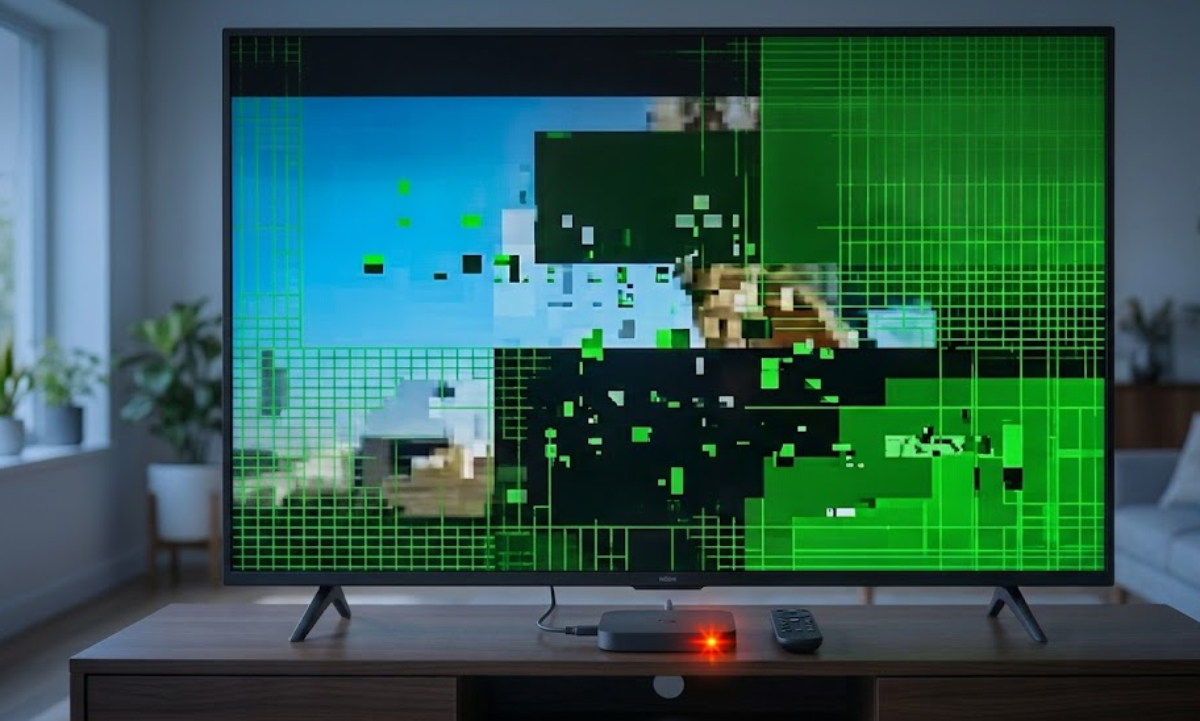
Some units have a known issue that stops them from processing video signals correctly. Here is what causes the green grids and how to check if your device can be fixed.
What is causing the green grids and artifacts?
If your TV screen shows green squares, lines, or small random dots, it usually means the GPU is having problems.
The main chip in your Google TV Streamer, called the System on a Chip (SoC), has a graphics processor (GPU). The GPU’s job is to turn streaming data from apps like Netflix or YouTube into a clear picture.
If the GPU is damaged, overheats, or has faulty memory (RAM), it cannot process image data correctly. This leads to a broken picture with strange shapes and stuttering video.
Sometimes, the problem is not hardware. It can be a software issue between your TV and the streamer, often caused by HDR settings like Dolby Vision or HDR10.
How to test your device
Since hardware failures and software bugs can look the same, you will need to run a few quick tests to find out what’s wrong.
1. Force Standard Definition (SDR)
Handshake errors between your streamer and your TV’s HDR modes often cause color blocks and flashing lines. Switching the device to SDR mode can help test for this problem.
- Use your remote to go to Settings in the top-right corner.
- Navigate to Display & Sound > Advanced display settings.
- Select Dynamic Range Preference and change the setting from Match content to SDR.
- Go to Format selection, choose Manual, and turn off all HDR formats (like Dolby Vision and HDR10).
If the green squares go away and your video plays smoothly, your streamer’s hardware is probably fine. A software bug is likely stopping it from working with your TV’s HDR settings.
2. The cable and port swap
Before you decide the device is broken, try some basic steps. Unplug the HDMI cable and plug it into a different port on your TV. If you have another HDMI 2.1 cable, try using that instead.
You can also try the Google TV Streamer on a different TV in your home. If the green rectangles show up on another TV, the problem is with the streamer, not the television.
3. Perform a hard factory reset
If a bad system update or broken file is causing the video processor to crash, a factory reset can help. Here’s how to do a hard reset on the device:
- Make sure the Google TV Streamer is plugged into power and turned on.
- Press and hold the physical button located on the back of the streamer unit.
- Hold it down for 10 to 12 seconds.
- You will see the LED light on the unit start blinking yellow.
- Release the button when the light turns solid white.
The device will reboot and guide you through the setup process again.
When to return your Google TV Streamer
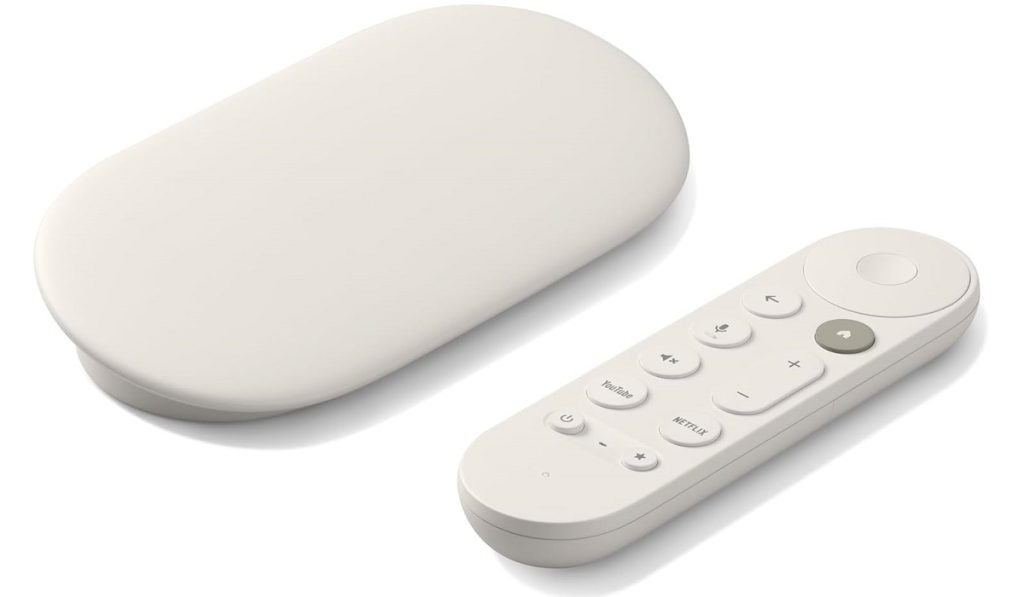
If you have tried new HDMI cables, turned off HDR, and done a factory reset but still see green grids or stuttering video, it’s time to stop troubleshooting.
You should not have to put up with a broken screen on a new device. If you just bought your Google TV Streamer, pack it up and return it to the store for an exchange or a refund.
A working Google TV Streamer should give you a clear, fast, and great-looking picture as soon as you set it up.