NextGen TV, also called ATSC 3.0, is the biggest improvement to free over-the-air broadcasting in years. It delivers sharp 4K video, High Dynamic Range (HDR), and Dolby Atmos audio to your home, all without a monthly fee.
But since NextGen TV uses a local broadcast signal that your TV antenna picks up, setting it up for your whole home works differently than just opening a streaming app.
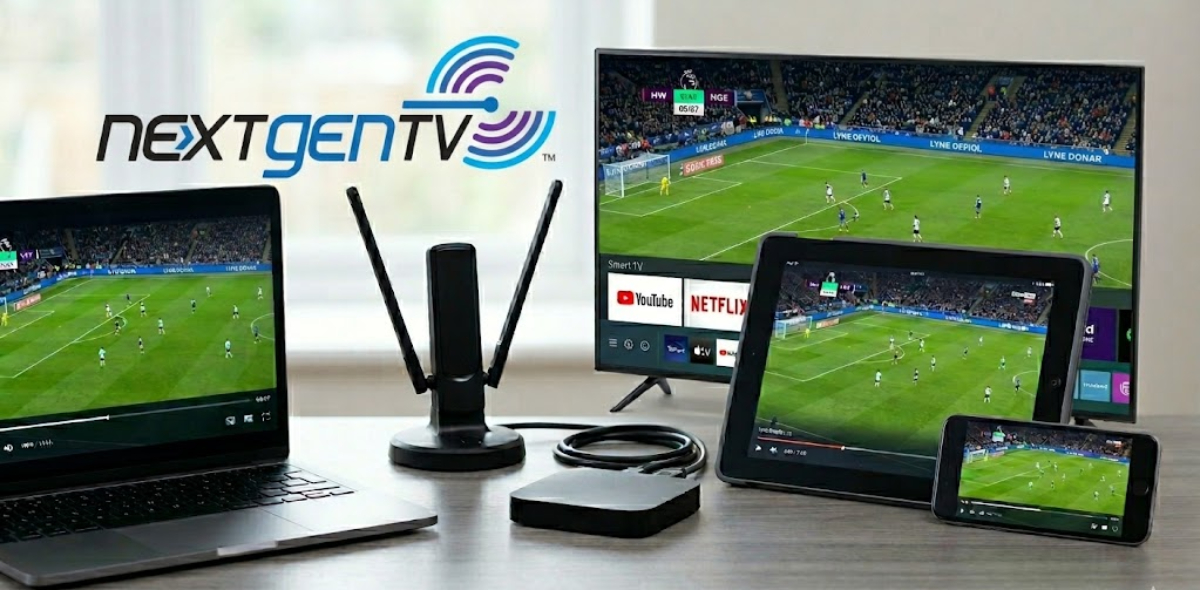
You cannot just sign in on your phone or streaming device to watch these channels.
To watch this free over-the-air signal on your phones, tablets, smart TVs, and streaming sticks at the same time, you will need a home network tuner setup.
Understanding the network tuner solution
Normally, you connect a digital antenna straight to one TV. This works for that TV, but it means your other devices cannot get the signal.
It is not practical to move the antenna around or run long cables through your home to every room.
This is where a network tuner helps. Instead of connecting the antenna to a TV, you plug it into a separate network tuner box.
This device connects directly to your home Wi-Fi router via an Ethernet cable. It captures the live over-the-air broadcast, converts the signal into data packets, and streams it over your local home network.
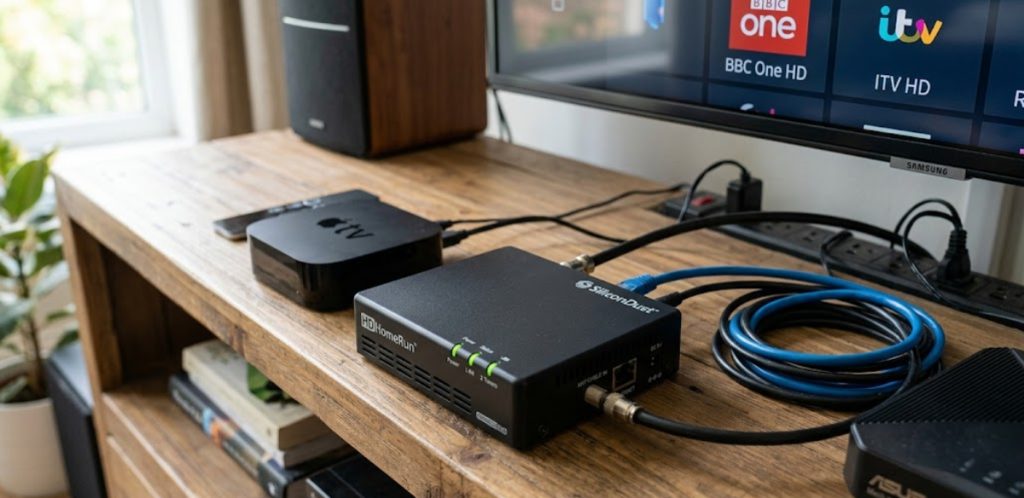
Once the signal is on your network, any device connected to your Wi-Fi—like an iPad in the kitchen, a phone in bed, or a Fire TV Stick in the guest room—can watch using a special app.
What you need to watch NextGen TV on multiple devices
To set up streaming on multiple devices, you will need three things:
- HD antenna
You do not need a special NextGen TV antenna. Any good digital TV antenna will work. Just make sure to place it where it has a clear view of your local broadcast towers.
- ATSC 3.0 network tuner
This is the core engine of your setup. The industry standard for this application is the HDHomeRun FLEX 4K by SiliconDust.
It has four tuners built in. Two work with ATSC 3.0 (NextGen TV), and the other two support regular ATSC 1.0 signals.
This multi-tuner configuration ensures that multiple household members can watch entirely different channels at the exact same time.
- Home Wi-Fi network
Since 4K and HDR broadcasts use a lot of data, you need a reliable home router to stream video smoothly.
How to set up your network tuner to watch NextGen TV
You can set up your network tuner in under fifteen minutes, and you do not need any special technical skills.
- Put your antenna in a good spot, like near a window or high on an outside wall.
- Take the coaxial cable extending from the antenna and screw it securely into the “Antenna In” port on the back of your network tuner box.
- Plug one end of an Ethernet cable into the network port on your tuner.
- Plug the other end into an open LAN port on your Wi-Fi router.
After connecting the cables, plug in the tuner’s power adapter to turn it on.
- Go to the app store on your devices, like iPhones, Android tablets, Apple TV, Fire TV, or Roku.
- Search for and download the official companion app, like the free HDHomeRun app.
- Open the app on any device connected to your home Wi-Fi.
- The app will automatically scan your network to find the tuner.
- Follow the instructions on the screen to start a channel scan.
The tuner will find all the NextGen TV and regular digital channels in your area and organize them in a grid guide.
What about the DRM restriction?
Setting up a network tuner is easy, but there is one thing to watch out for: Digital Rights Management (DRM).
Many local TV stations have started encrypting their NextGen TV signals to protect their content. This can sometimes stop third-party tuners or older apps from showing the video, which may cause a blank screen or error message on some devices.
To avoid this problem, make sure your network tuner and media apps are set to update automatically.
Manufacturers keep releasing software updates and keys to help your devices decode these secure channels. Keeping everything updated will make sure your system works with as many screens as possible.