If you see error code 3304 while watching Paramount Plus, the stream stops and you get stuck on an error screen instead of your show or movie.
The good news is that error code 3304 is usually easy to fix once you know what causes it.
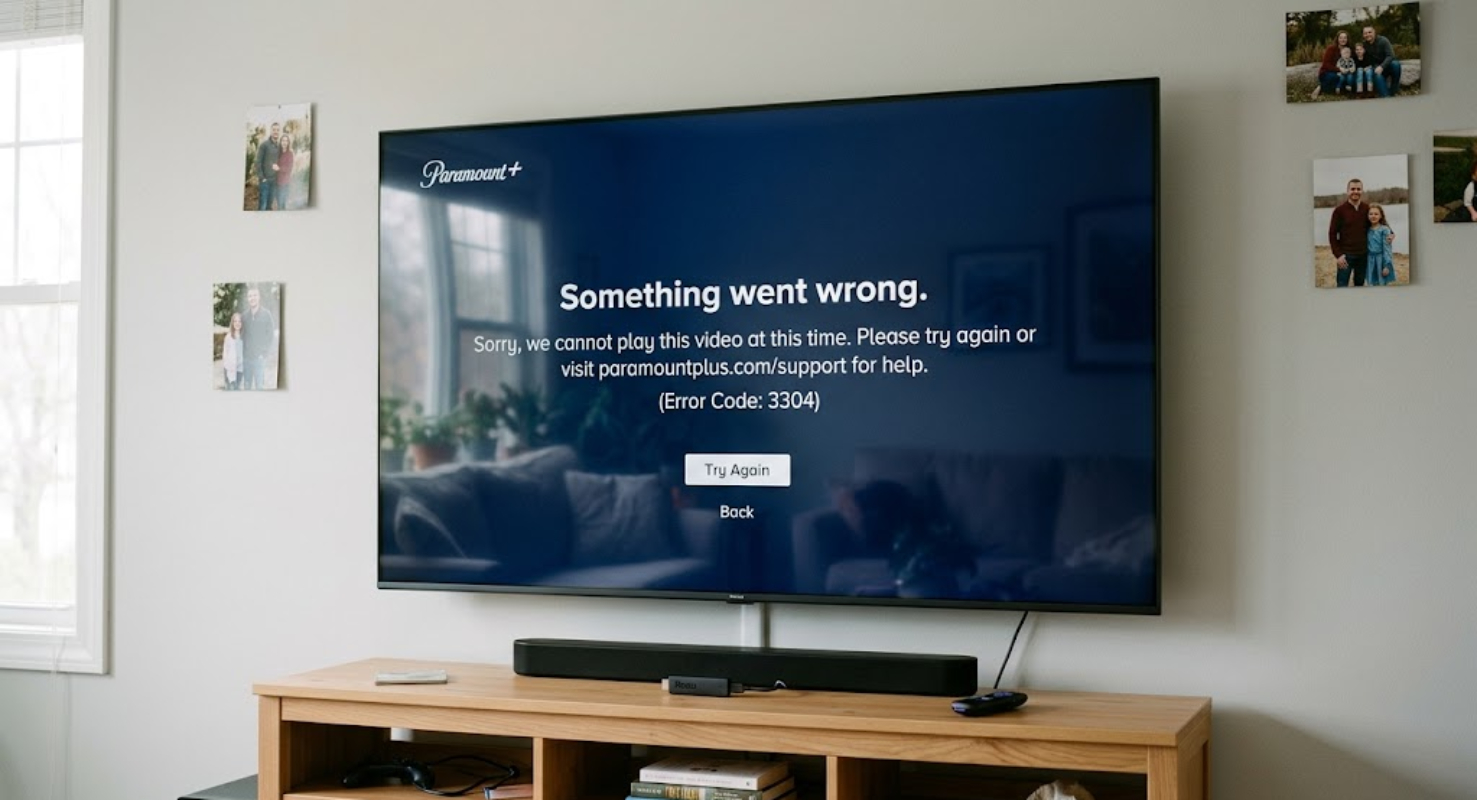
What does Paramount Plus error code 3304 mean?
Error code 3304 means there’s a problem with your device connecting to Paramount Plus servers. This happens when the app or website can’t make a secure connection to stream your video.
Here are the main reasons this error might happen:
- Active ad blockers
Ad-blocking browser extensions can also block important media scripts that Paramount Plus needs to work.
- Hardware acceleration settings
In browsers like Chrome or Edge, hardware acceleration can sometimes interfere with video playback.
- Network or Wi-Fi disruptions
Slow internet, weak Wi-Fi, or brief router issues can interrupt the video from loading properly.
- Corrupted cache files
Sometimes, temporary files on your browser, smart TV, or streaming device get corrupted and stop videos from playing.
- Outdated apps or systems
Using an outdated app or browser can cause bugs that lead to playback errors.
How to fix Paramount Plus error code 3304
Error code 3304 can show up on computers, phones, or smart TVs, so the fix depends on your device. Try these steps to get your video working again.
1. Turn off your ad blocker
Ad blockers are the main reason for error 3304 on computers. Paramount Plus plays short ads or runs checks before videos start, and ad blockers can get in the way.
- Open your browser settings or extension toolbar.
- Pause or disable your ad blocker for paramountplus.com.
- Refresh the webpage and try playing the video again.
2. Disable hardware acceleration in your browser
If you use Google Chrome, Microsoft Edge, or Mozilla Firefox, hardware acceleration in your browser can sometimes cause playback problems.
- Click the three dots or menu icon in the top-right corner of your browser.
- Go to Settings and look for the System or Advanced tab.
- Locate Use hardware acceleration when available and toggle it OFF.
Restart your browser and relaunch the video.
3. Restart your device and Wi-Fi router
Restarting your device can clear temporary glitches and help restore your connection.
- Turn off your Smart TV, computer, or streaming device.
- Unplug your home Wi-Fi router and modem from the wall.
- Wait at least 30 to 60 seconds.
- Plug the router back in and wait until all internet indicator lights turn green.
Power your streaming device back on and open Paramount Plus.
4. Clear cache and app data
Cache files help apps load quickly, but if they get corrupted, they can stop videos from playing.
- On web browsers: Go to your browser settings, choose Privacy & Security, and clear your browsing cache and cookies.
- On streaming devices: Open Settings > Apps > Paramount Plus. Select Clear Cache, then select Force Stop.
- On mobile devices: Force-close the app, clear the cache through the system storage settings, or reinstall the application.
5. Update your app and browser
Streaming apps get regular updates to fix bugs and keep things secure.
Check your device’s app store for any Paramount Plus updates. If you watch on a computer, make sure your web browser is up to date too.
6. Turn off VPNs or proxies
VPNs send your internet traffic through other servers, and streaming services often block VPNs to protect their content. If you’re using a VPN or proxy, turn it off for now and try playing your show again.
When to contact support
If you’ve tried clearing your cache, turning off ad blockers, and restarting your network but still have problems, check sites like DownDetector to see if Paramount Plus is having a bigger outage.