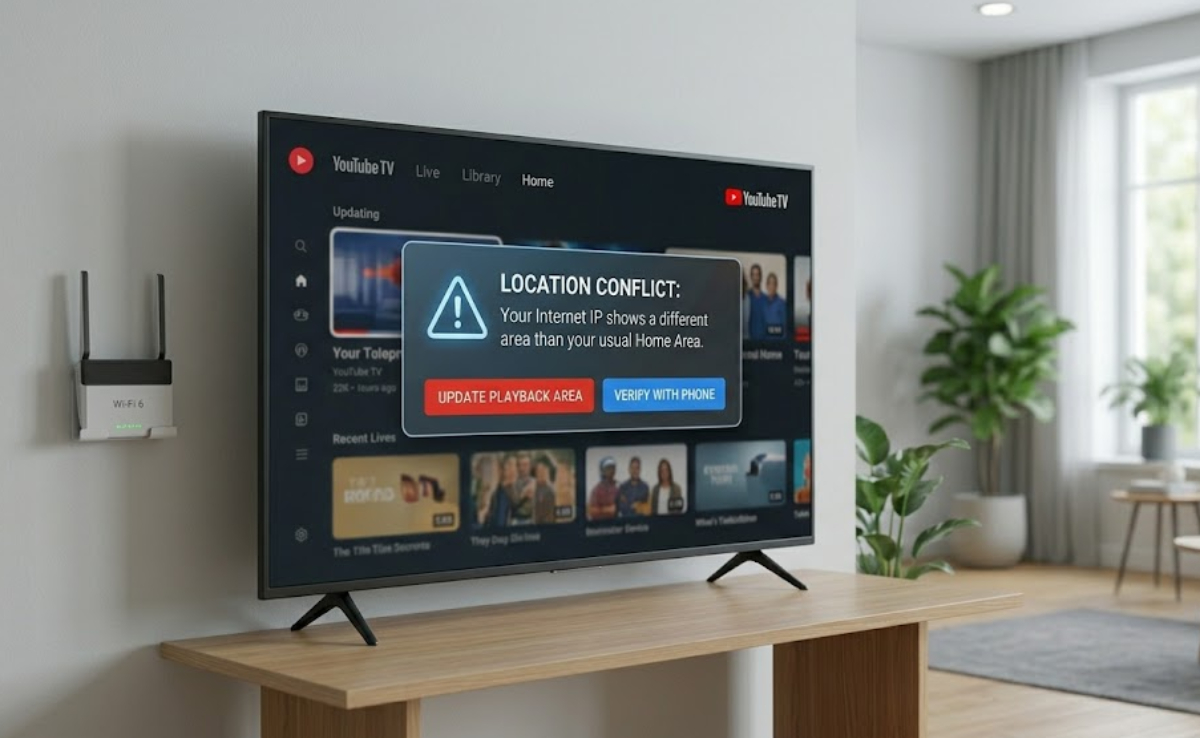
If your YouTube TV viewing area changes on its own, you are not the only one. Many users say their local channels vanish and are replaced by channels from other regions.
The good news is that this problem is not permanent, and you can fix it with your phone.
Why YouTube TV keeps changing your location
The main issue comes from how your devices communicate. Unlike smartphones or tablets, smart TVs, Roku, Amazon Fire TV Stick, and Apple TV do not have built-in GPS chips.
These devices have no way of knowing their exact location. So, the YouTube TV app uses your home internet’s IP address to figure out where you are.
Most home internet plans use something called a Dynamic IP address. This means your provider changes your digital address every few weeks, or sometimes even several times a day.
When your internet provider changes your IP address, the new one might show a location that is 50, 100, or even 500 miles from your real home.
Why 5G home internet makes it worse
People who use 5G home internet, like T-Mobile, Verizon, or AT&T Internet Air, see this location problem much more often.
These systems connect to cell towers instead of underground cables, so your internet traffic often gets sent through faraway network hubs.
Your router might connect to a nearby tower in the morning, but by evening, it could be using a server in another city. YouTube TV notices this change and quickly updates your “Current Playback Area” to match the new location.
How to force YouTube TV to stop changing your location
Since your TV cannot detect its location, you need to use your smartphone’s GPS to fix the problem. YouTube TV lets you connect your phone and TV to update the location and correct the IP address data.
Trigger the location update on your TV
- Turn on your television and open the YouTube TV app.
- Click on your Profile Picture in the top-right corner of the screen.
- Navigate to Settings.
- Select Area.
Look for the Current Playback Area and click on Update.
Prepare your smartphone
You will need your smartphone to make this fix last.
- Grab your phone or tablet.
- Make sure your phone is connected to the same Wi-Fi network as your TV.
Also, check that your phone’s location services (GPS) are turned on in the main settings.
Verify the digital handshake
- Open a web browser on your phone.
- Go directly to tv.youtube.com/verify.
- Sign in to your Google account if asked.
If your browser asks for permission to use your device’s exact location, tap Allow.
After your phone shares its GPS location, the YouTube TV app on your TV will refresh in a few seconds. This should bring back your local channels.
Try these quick fixes if you are still having trouble
If these steps do not fix the location error right away, some common network issues might be causing the problem:
- Turn off your VPN
Virtual Private Networks (VPNs) are designed to hide your real location. If you have a VPN on your phone, laptop, or router, YouTube TV may get confused or block the connection. Turn it off before you try to verify your location.
- Clear the app cache
If you use a Samsung, LG, or Sony Smart TV, the app might still have old location data. Go to your TV’s settings, find the YouTube TV app, and choose Clear Cache or Clear Data before you try the update again.
- Talk to your ISP
If your internet provider changes your IP address so often that you have to reset your location every week, call their customer support. Ask if they can give you a Static IP address for your home network. A static IP does not change, so it will stop the location problem for good.