If your Apple TV overheats, it can suddenly stop your movie or TV show. When this happens, you will see a message on your screen: “Your Apple TV is too hot. Apple TV needs to cool down. As soon as your Apple TV is ready again, this message will disappear.”
If you see this message while just streaming as usual, it means the device is getting hotter inside than it can cool off.
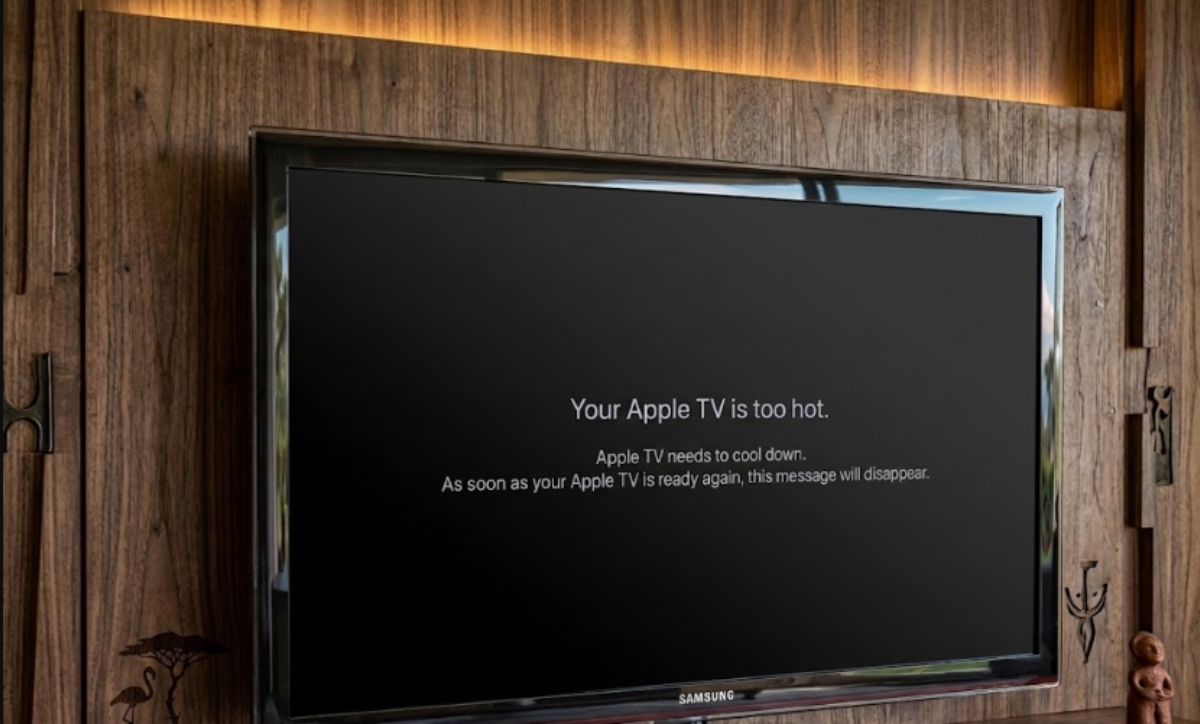
It is normal for the Apple TV to feel warm, but if it locks up or shows a warning, there’s usually a specific cause. Here is why this happens and what you can do to keep your device cool.
How Apple TV manages heat
Recent Apple TV models, such as the 3rd Gen Apple TV 4K, use passive cooling instead of internal fans. Apple took out the fan to make the box smaller, quieter, and more efficient.
The outside shell works as a heat sink. The metal and plastic casing takes in heat from the main processor and lets it out into the air.
Because of this design, the outside of the box naturally feels warm during daily use. However, if air cannot flow freely around the outer body, internal heat spikes quickly, forcing the system to slow its processing speed or display a thermal warning screen to protect internal components.
Primary causes of overheating
If you see a thermal warning while just watching videos, it usually comes from one of four main causes.
1. Blocked airflow and enclosed spaces
The most common reason for high temperatures is where the device is placed. Apple TV pulls in cool air from the bottom and lets heat out through its body.
If you put your Apple TV in a closed cabinet, on a soft surface, or on top of other hot electronics, heat gets trapped. In a tight space, the air heats up fast and the device can’t cool down.
2. Excessive display settings
Your display settings affect how hard the processor works. If you always use HDR or Dolby Vision, the graphics chip has to process every frame in real time.
Streaming in 4K all the time without matching the frame rate puts extra pressure on the processor and creates more heat.
3. Unoptimized apps and background software
How well your apps run affects the device’s temperature. If an app has a bug or uses too much memory, it can make the processor work too hard in the background.
Even if everything looks fine on your TV, a problem app running in the background can make the device overheat in just 20 to 30 minutes.
4. Thermal hardware defects
If your Apple TV keeps overheating but others in the same room work fine, there might be a hardware problem. There’s a special paste between the processor and the heat sink that helps move heat away.
If this paste was put on wrong or has worn out, heat can get stuck on the processor and cause the device to shut down right away.
How to prevent Apple TV overheating
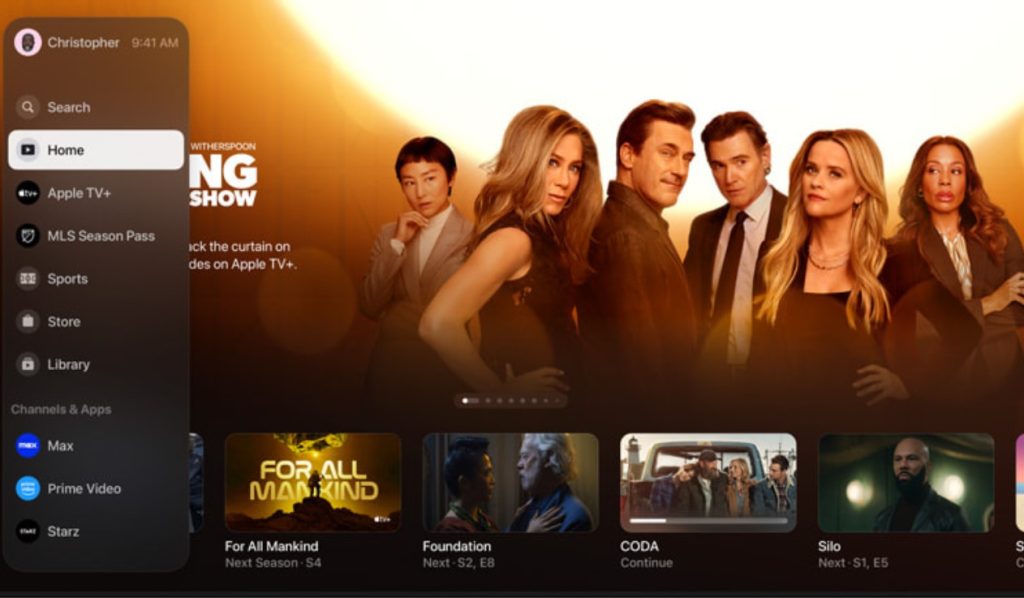
If your Apple TV often freezes or shows a temperature warning, try these quick fixes:
- Improve air circulation
Place your Apple TV on an open, flat surface like a wooden shelf. Keep it out of closed cabinets and away from sunlight or other hot electronics.
- Adjust video output
Open Settings, then go to Video and Audio. Set the format to 4K SDR and turn on both Match Dynamic Range and Match Frame Rate. This way, HDR processing only happens when you watch HDR content.
- Force quit heavy apps
Press the TV button on your remote twice to open the App Switcher. Then swipe up on any apps you’ve used recently to close them.
- Check for system updates
Keep your system software updated to patch background bugs. Navigate to Settings > System > Software Updates to check for new updates.
A warm Apple TV casing is completely normal because the device relies entirely on fanless cooling. However, if your video stops and the screen says the device is too hot and needs to cool down, it means heat is trapped around the internal processor.
Giving your player plenty of room to breathe and optimizing your video settings will keep temperatures down and prevent unexpected streaming interruptions.