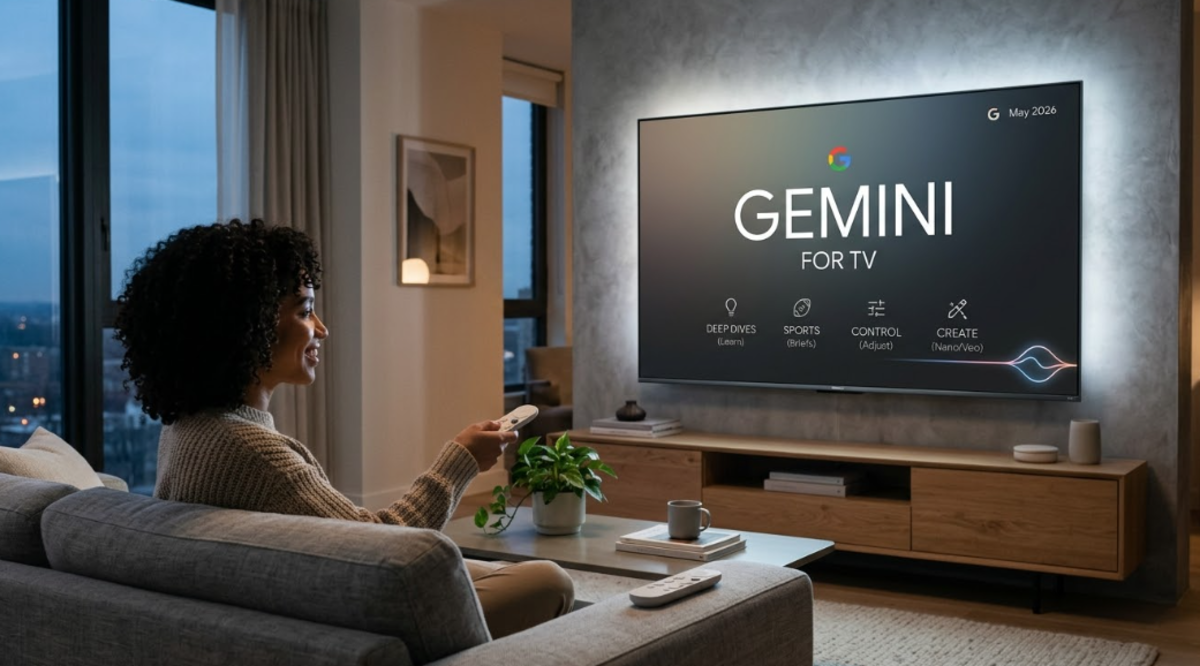
Gemini recently evolved from a basic voice assistant into a core part of the Google TV experience. Gemini for TV shifted from simple commands to a more interactive AI partner.
As of May 2026, these are the key features on Gemini-enabled devices like the Google TV Streamer and select TCL or Hisense models.
Core AI features for your Smart TV
Gemini for TV comes packed with the following AI features.
- Deep dives
Instead of just searching, ask Gemini for “Deep Dives” on educational topics. It generates narrated, visual breakdowns with follow-up questions. This turns your TV into a learning tool for technology, health, or economics.
- Sports briefs
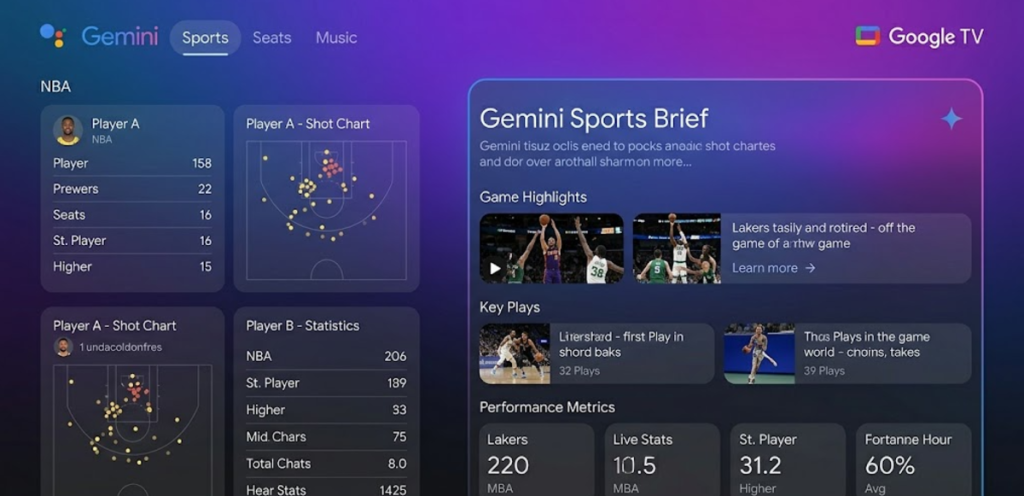
Get timely, narrated overviews of your favorite leagues NFL, NBA, MLB, NHL, and more. Gemini for TV summarizes games and highlights so you can catch up quickly without scrolling through your phone.
- Natural language voice control
You no longer need to navigate deep into menus for settings. Say things like “the screen is too bright” or “the dialogue is lost.” Gemini adjusts brightness or audio clarity in real-time without pausing your show.
- Rich visual answers
When you ask about recipes or sports scores, Gemini provides a mix of text, live scoreboards, and video tutorials directly on the screen.
Gemini for TV has creative tools (Nano Banana and Veo)
Google integrated its latest creative models directly into the TV interface via a new Gemini tab.
- Image and video generation
Using the Nano Banana images and Veo video models, create custom visuals from voice prompts.
- Google Photos remix
Search your Google Photos library using natural language, for example, “Show me photos from the wedding last summer,” then use the Remix tool to apply AI styles like watercolor or oil painting.
- AI screensavers
Generate unique, one-of-a-kind artwork to serve as your TV’s ambient screensaver.
How to use Gemini for TV
- Press the mic button. Most features trigger via the Google Assistant/Gemini button on your remote.
- Navigate to the top of your Google TV home screen to find the dedicated Gemini tab where you can access “Learn” Deep Dives, “Briefs,” and “Create.”
Gemini for TV has specific hardware requirements
Gemini for TV’s power depends on the hardware supporting it. To run these multimodal features effectively, devices generally require Android TV OS 14 or higher and at least 2 GB of RAM.
If your TV is older, consider a dedicated streaming box like the Google TV Streamer to handle the AI load.