Starting in early June 2026, lots of Chromecast with Google TV users began having problems with their remotes. The Chromecast remote keeps losing its Bluetooth connection to the device, so users have to re-pair or restart it often.
These problems usually show up after a software update. The remote might work for a little while, but then it disconnects again, sometimes after the TV has been off for a few hours or when it has not been used.
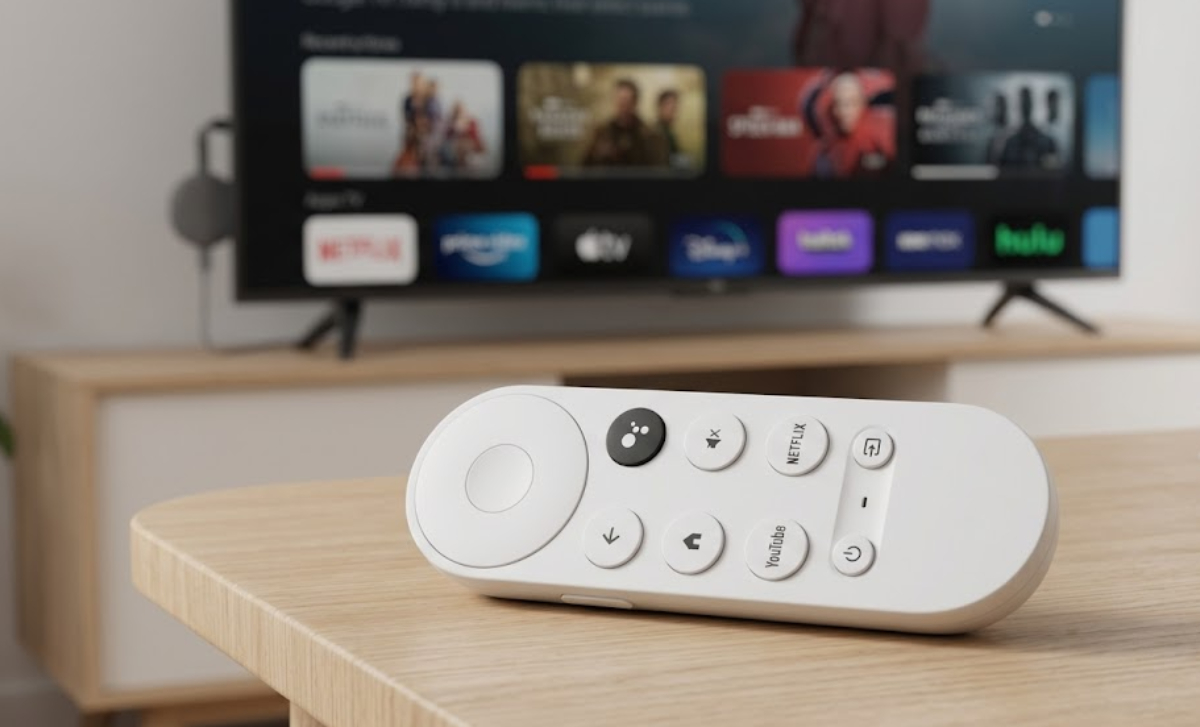
People on Reddit’s r/Chromecast and Google forums are seeing the same issues with both HD and 4K models. Changing remotes, dongles, TVs, or trying HDMI extenders does not always fix the problem.
Google is aware of these reports and is asking users for feedback, especially about whether they use rechargeable or regular alkaline batteries.
Here is a straightforward troubleshooting guide, based on what has worked for users and advice from official support pages.
Check the batteries
Many people have fixed or improved the problem just by changing the batteries. Rechargeable batteries can cause issues because their voltage is different from regular ones.
- Remove both AAA batteries from the remote.
- Wait 5 minutes.
- Insert two fresh alkaline (non-rechargeable) AAA batteries.
- While putting the batteries back in, press and hold the Home button. The LED light should flash or pulse.
- Test the remote.
Several people on Reddit said this fixed the disconnects, at least for a while. If you were using rechargeable batteries, try switching to regular ones for testing.
Restart and re-pair your Chromecast remote
Unplug the Chromecast’s power (USB-C) for at least 1 full minute, then plug it back in.
This step restarts the Bluetooth connection.
On the remote:
- Remove batteries.
- Press and hold the Home button.
- Reinsert batteries.
- Hold until the LED pulses.
- If the remote pairs automatically, press and hold the Back and Home buttons together for 3 seconds.
Some users say that unplugging the dongle often brings back the connection for a few hours. But the problem usually returns unless you try other fixes.
Try using your phone as a temporary remote
Before you can change any settings for a permanent fix, you’ll need a temporary way to control Google TV.
- The easiest option is to use your smartphone or tablet as a remote.
- Download and open the free Google Home app on your mobile device.
- Make sure your phone is connected to the exact same Wi-Fi network as your TV.
- Tap and hold the tile representing your Chromecast device.
- Tap the remote icon on the screen to open the digital remote, which works like your original one.
If your TV supports HDMI-CEC, you may also be able to use your regular TV remote to move through the menus for now.
Factory reset the remote
- Remove batteries and wait 5 minutes.
- Reinsert while holding the Home button until the LED behaves as described (solid then pulsing). Release.
- Use the phone app to select Pair remote or accessory if needed.
Factory reset the Chromecast

This step is more complicated because you will lose your apps and logins, but it has fixed update problems for some users.
- Use the phone app or TV remote (if CEC works) to go to Settings > System > About > Factory Reset.
- Or physically, press and hold the button on the Chromecast until the LED blinks yellow, then turns solid white.
After resetting, set up your Chromecast again. If you think the latest firmware is causing problems, you can pause automatic updates for now. One user suggested turning off DFU Service, but results may vary.
Other tips from users
- Try moving your Chromecast away from other 2.4GHz devices to avoid Bluetooth interference, or check your Wi-Fi settings.
- Reinstall the Google Home app on your phone.
- Make sure your Chromecast has a clear line of sight to the remote. You can also try using an HDMI extender.
- If you see an option to update the remote’s firmware after re-pairing, go ahead and update it.
You can also try using a universal remote, which might work more reliably.