If you recently turned on your TV and saw the YouTube TV Most Watched tab missing from your Library, you are not the only one.
In June 2026, many subscribers went to online forums to complain that their favorite shortcut for tracking shows had suddenly disappeared.
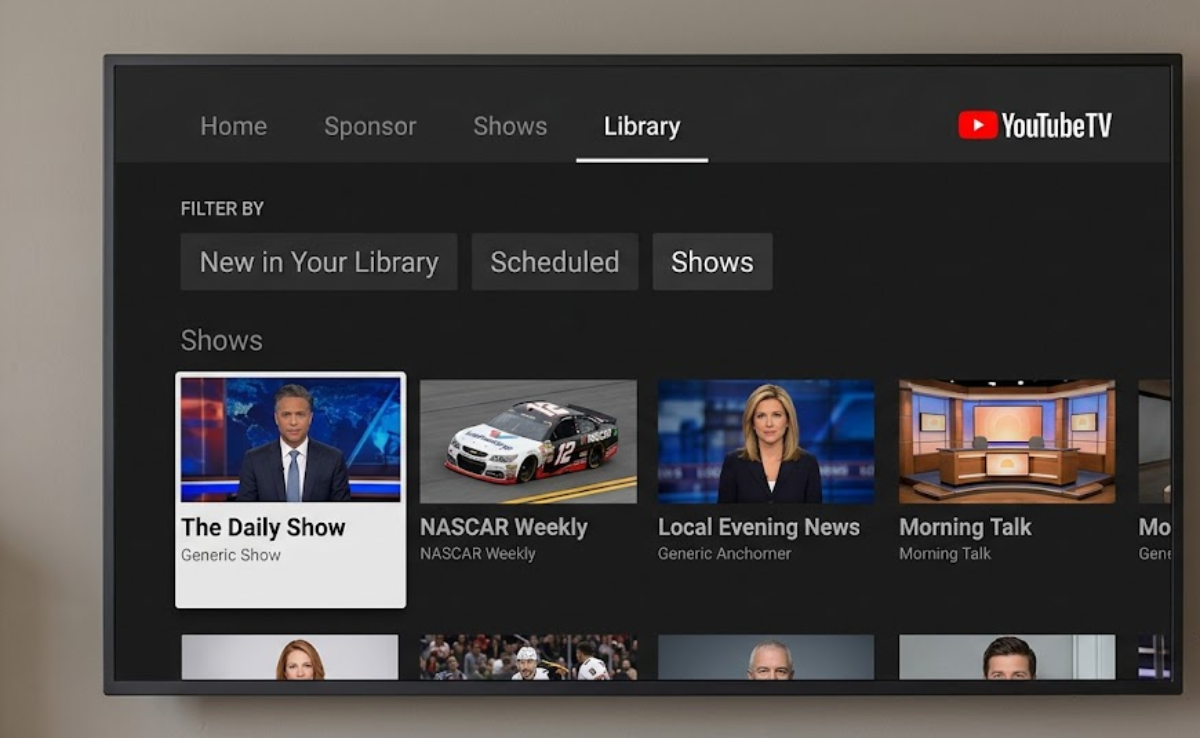
For many people, this interface change caused another problem. The app stopped marking which episodes were already watched, making the DVR look messy.
When users asked support, they were told this is part of a new layout designed to improve navigation. Many viewers still feel losing the quick view of frequently watched shows is a step backward.
If your screen layout has changed, this guide will explain what Google changed and show you how to fix your tracking data and find your favorite programs again.
Why is the YouTube TV “Most Watched” tab gone?
The tab disappeared because of a server-side update that is rolling out to streaming boxes, smart TVs, and mobile devices.
YouTube TV sends these updates in waves, so your app might look different from someone else’s. Some accounts still have the classic tab, but updated accounts see a new layout with filters like A-Z, Z-A, Most Popular, and Trending.
Many viewers feel the new design pushes algorithm-based recommendations instead of focusing on the custom DVR content they pay for.
Besides the new look, a hidden settings issue can worsen things. The updated interface relies on your Google account data. If this data is not syncing, the app may forget what you watch most.
How to fix and navigate the missing tab issue
You cannot make Google bring back the old menu, but you can fix episode tracking and learn to use the new system to find your content quickly. Follow these steps to organize your screen again.
1. Fix your Google Watch History link
The main reason shows disappear or do not mark as “Watched” is your history setting is paused. YouTube TV uses the same database as regular YouTube.
If you paused your history on the main YouTube app to keep your video recommendations clean, you also stopped your TV guide from tracking shows.
- Open the YouTube TV app on your device.
- Select your Profile icon in the top-right corner of the screen.
- Click on Settings, then navigate to Privacy.
- Check the Pause watch history toggle. If it is turned on, turn it off.
- Alternatively, open a web browser, go to your Google My Activity page, and ensure that YouTube History is fully turned on and actively saving your data.
Once you turn history back on, your app will start logging watched episodes again. This helps your library show the correct information.
2. Power cycle and resync your profile
If your history is active but the interface still has problems, a full app cache might stop your profile from syncing with your TV.
- Log out of your profile inside the YouTube TV app.
- Turn off your TV or streaming device (Roku, Apple TV, Fire TV Stick, or Google TV).
- Unplug the power cable from the wall, wait 30 seconds, and plug it back in.
- This clears stuck temporary files completely.
- Relaunch YouTube TV, log back into your primary account, and check if the updated sorting filters populate your saved series.
3. Pivot to the best alternative layout filters
If the update has firmly removed the “Most Watched” tab on your specific device, you will need to utilize the newer filters to avoid manually searching for your shows every evening.
The best replacement is the New in Your Library filter. This filter shows any show with a new live episode or a new on-demand video from the last few days, so your active shows are easy to find.
If your favorite show is in its off-season, use the A-Z Sort. It may take more scrolling but gives you a predictable layout so you will not need to use voice search every time.
Avoid the Most Popular filter if you want a more personal experience. This filter shows what is trending for everyone, not your own viewing habits.
4. What about older streaming hardware?

If you use an older smart TV or early streaming stick, Google released a separate update removing some features on devices with less than 512MB memory to prevent crashes.
If your menu feels slow after the layout change, upgrading your streaming stick can make the new interface load much faster.
Losing a familiar navigation button can be frustrating, but checking your global watch history settings is the best way to ensure the new filters work correctly.
Check your privacy settings today to keep your episodes from resetting to an unread state.