If Disney+ suddenly kicked you out while you were watching a movie, you are not alone. Thousands of viewers recently saw a message saying the app could not connect to their accounts, followed by Error Code 9.
Trying to log back in on devices like Roku, Amazon Fire TV, Apple TV, or Google TV just led to a broken login loop. Switching to a computer browser only showed a generic page saying an “unexpected error has occurred.”

When an app logs you out and will not let you back in, you might think your account was hacked, or your internet failed. But this problem was not caused by your equipment or subscription.
Instead, Disney+ had a major global outage that took down its main account and login servers. Crowdsourced sites like Downdetector reported over 20,000 complaints in a short time as the platform went offline.
What is Error Code 9?
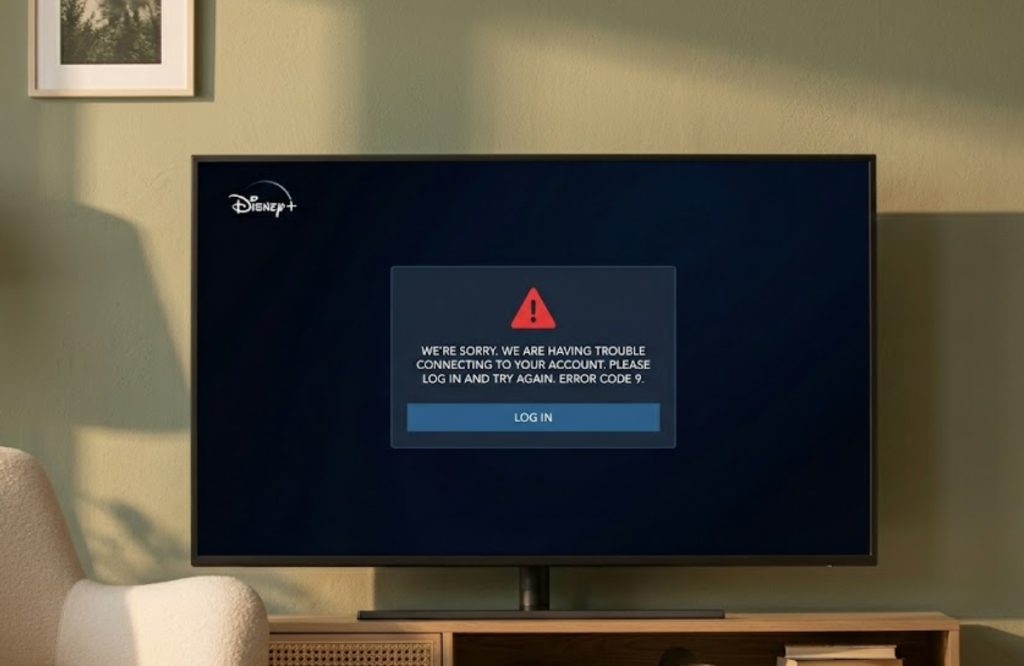
Normally, Disney+ shows Error Code 9 for account authentication or payment problems. This can happen if your credit card expires, your bank rejects a payment, or you enter the wrong billing ZIP code.
During this outage, though, Error Code 9 showed up for a different reason. Disney’s main login servers were offline, so your app could not check with the servers to confirm your subscription.
Because the app could not confirm your identity, it assumed your login details were wrong and showed Error Code 9. Many users also found that the login screen would not let them type, leaving the email field blank.
The official Disney+ Help account later confirmed the problem on social media and said their engineers were working on the login issue. After several hours, Disney fixed the problem and said their account servers were back online.
How to fix Error Code 9 and get back to streaming
Even though Disney has fixed its main servers, your streaming device or web browser might still have issues. Devices often keep old data and failed connection attempts in their temporary memory.
If your app still shows Error Code 9 or keeps looping on the sign-in screen, try these simple troubleshooting steps.
Power cycle your streaming device
Force-quitting an app does not always completely clear its memory. The most effective step is to perform a full power cycle.
- Turn off your smart TV or streaming box (such as a Roku, Fire TV Stick, or Apple TV).
- Unplug the power cable directly from the wall outlet or the back of the device.
- Wait at least 60 seconds to let the device fully reset.
- Plug it back in, and launch the Disney+ app again.
This step helps your device make a fresh connection to the servers.
Clear your web browser’s cache
If you are watching on a laptop or desktop and still see the “unexpected error” message, your browser is probably remembering the broken version of the site.
Go to your browser settings and clear your history, cookies, and cached images. Or, you can open a private or incognito window to skip the old data.
Sign out and log back in
If the app loads but keeps buffering or acting up, find the settings gear or your profile icon and choose Log Out. After you sign out, enter your email and password again.
Now that the authentication servers are working again, your login should go through right away.
System outages can be frustrating, but in this case, a quick device refresh should get your favorite shows playing again.