Are the volume and power buttons on your Apple TV remote not working? You’re not alone! This is a common and widely reported issue for Apple TV users.
The problem can stem from several causes, such as a low battery, a temporary glitch in remote pairing, or even a glitch with the TV itself that affects the TV remote buttons.
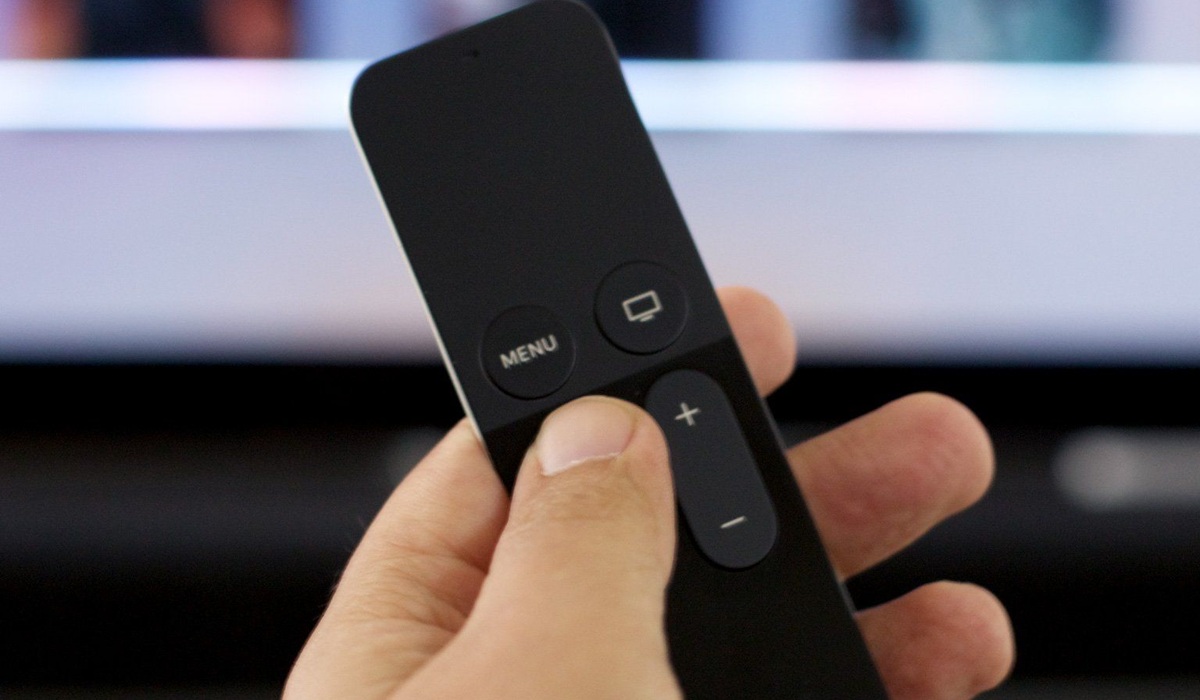
While the issue is frustrating, there are several quick fixes you can use to restore your Apple TV remote’s functionality. Below is a look at them:
1. Check your remote battery level
A low battery is one of the most common reasons the volume and power buttons on your Apple TV remote may not be working.
When the remote’s power falls below a critical threshold, it enters power-saving mode, which shuts off features such as IR volume control, voice commands, and Bluetooth navigation.
Therefore, before doing anything else, you should check your remote control’s battery level. To do this, go to Settings > Remote and Devices > Devices.
If the battery is running low, plug the remote into a charger and let it charge for around 30 minutes, then try using it again.
2. Reset your Apple TV remote
Your Apple TV remote can experience software glitches, bugs, pairing issues, or internal component problems, which can cause the power and volume buttons to stop working.
The good news is that you can easily fix these issues by resetting the remote. A reset clears any memory glitches, resets the internal hardware components, and forces a re-pairing.
To reset your Apple TV remote:
- Press and hold the Volume Down and TV/Control Center buttons simultaneously. Do this for 5 seconds, or until the status light on your TV turns off and then back on.
- Release the buttons, then check your TV screen for a Remote Disconnected/Connection Lost notification, followed by another Remote Connected notification.
- Press the Volume or power button to see if the problem has been fixed.
3. Adjust volume control settings on your TV
If you are having an issue with your remote’s volume button, it could be that your TV settings have accidentally switched off the correct audio output signal. To fix this, go to your TV settings and adjust the volume controls.
To do this:
- Go to Settings on your Apple TV
- Navigate to Remote and Devices > Volume control
- Switch the volume control option from Auto to TV via IR.
- Test the volume button on your remote to see if it is working.
4. Re-pair your Apple TV remote
Your remote control could also have disconnected from the TV, causing the power, Volume, and other buttons to stop working. Re-pairing your remote is a quick fix that will help to fix this issue.
- Ensure your Apple TV is turned on.
- Move the remote close to the TV (3 to 4 inches), ensuring that it is pointed at the front of the TV.
- Press and hold the Back and Volume buttons simultaneously for about 5 seconds.
- Let the remote complete the pairing process, then try using it again.
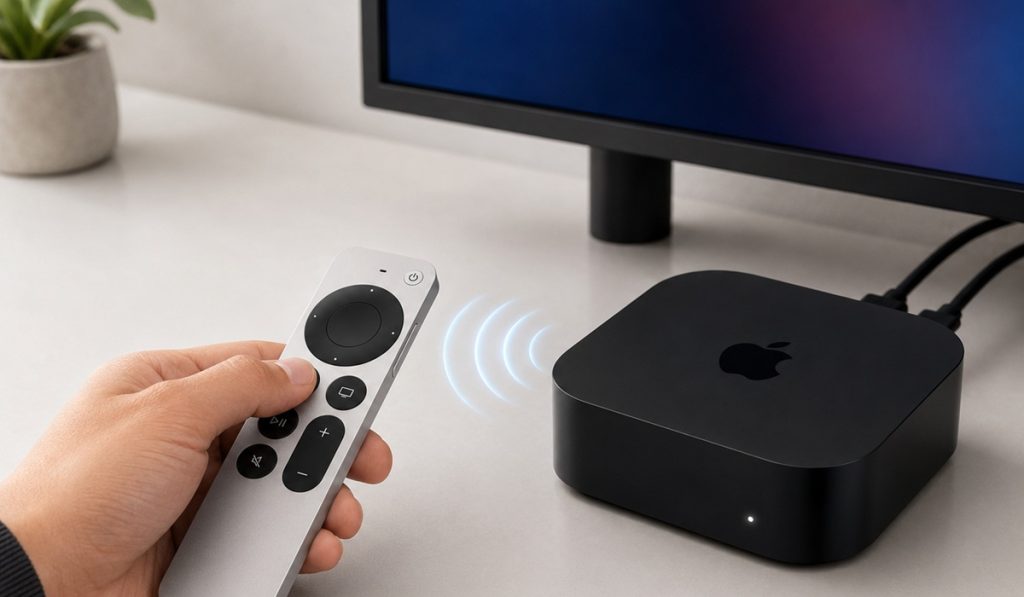
5. Reboot your TV
Your Apple TV can also experience glitches, which can cause the buttons on your remote to stop working. A good example is HDMI-CEC glitches, which can cause a wide range of remote control issues.
You can fix such glitches by rebooting your TV. And one of the easiest ways to reboot it is with a power cycle:
- Unplug the power cable of your Apple TV from the electrical outlet.
- Wait 60 seconds (this allows any residual power to drain from your TV hardware)
- Plug the Apple TV back in, let it boot, and check whether the remote control issue has been fixed.
If your Apple TV is still not working even with the above solutions, you may need to replace it. In the meantime, you can control your TV using your iPhone or iPad.