Error code 100 is a common issue on Paramount+ and often stops video playback unexpectedly. Usually, it does not mean your account is banned or your device is broken.
This error usually happens because of network problems, a full app cache, ad blockers, or outdated software.
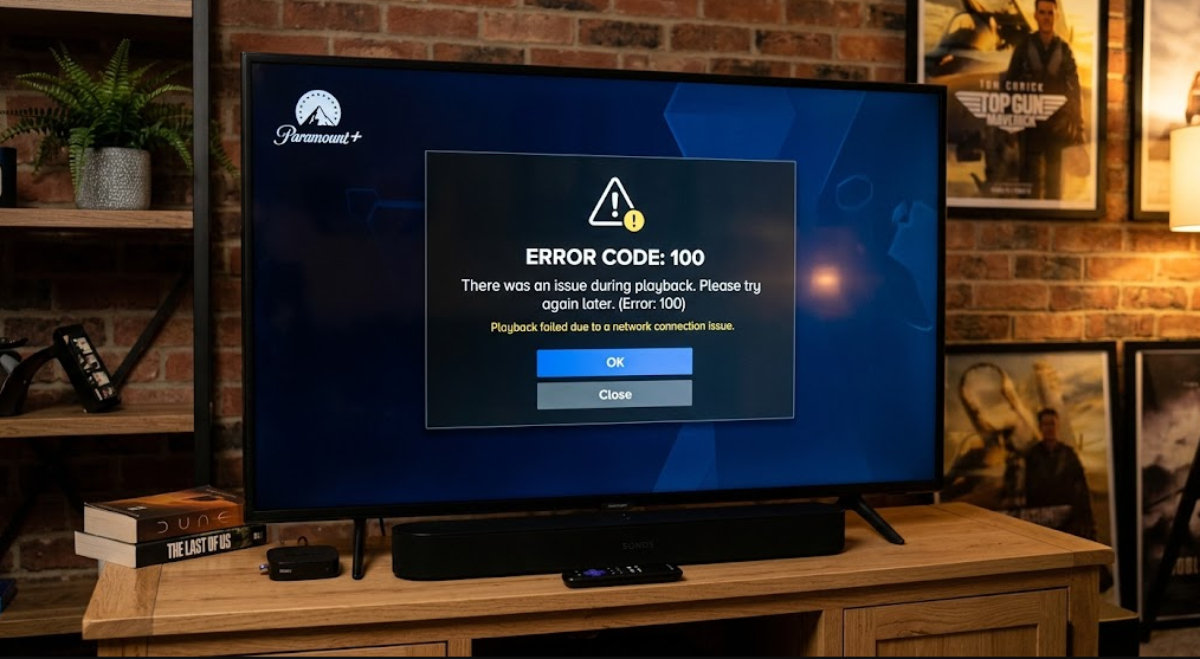
Follow these steps to get Paramount Plus working again.
1. Restart the Paramount Plus app
When an app stays open in the background for days, temporary glitches can pile up. Force closing the app and opening it fresh often clears minor memory errors.
- Smart TVs / Fire TV / Android TV: Go to your TV settings, select Apps or Applications, find Paramount Plus, select Force Stop, and re-open the app.
- Mobile Devices: Swipe up from the bottom of your screen (or double-press the home button) and swipe Paramount Plus off the screen to close it completely.
- Roku: Press the Home button on your remote, highlight the Paramount Plus tile, press the *** (Star) button, and select Close or restart the device.
2. Power cycle your device and home network
Restarting your device clears out temporary files and refreshes your network connection.
- Turn off your TV, streaming stick, phone, or computer.
- Unplug your home Wi-Fi router and modem from the power outlet.
- Wait about 30 seconds.
- Plug the modem and router back in, and wait until all connection lights turn solid green.
- Turn your streaming device back on and launch Paramount Plus.
It also helps to check your internet speed. Paramount Plus needs at least 4-5 Mbps for HD video and more for 4K. You can find official speed recommendations on the Paramount+ Help Center.
3. Clear app cache and data
If the app’s cache gets corrupted, error 100 might keep appearing. Clearing the cache gives the app a fresh start but keeps your subscription details safe.
- On Fire TV / Android TV: Navigate to Settings > Applications > Manage Installed Applications > Paramount+. Click Clear Cache, then click Clear Data.
- On Web Browsers: If watching on a computer, go to browser settings, clear your browsing history, cookies, and cached files, then refresh the page.
- On Mobile / Roku / Apple TV: If your device settings do not offer a direct “Clear Cache” button, uninstalling and reinstalling the app achieves the same result.
4. Turn off ad blockers and VPNs
Ad blockers and Virtual Private Networks (VPNs) frequently interfere with video streaming sites.
Paramount Plus uses background servers to stream video and live TV. Sometimes, ad blockers or security extensions block these connections by mistake, which can cause Error Code 100.
- Disable ad blockers: Turn off extensions such as uBlock Origin, AdGuard, or AdBlock on the Paramount Plus website.
- Disable VPNs: Turn off any active VPN or proxy service on your router, computer, or phone. Paramount Plus limits streaming based on regional licensing, so using an active VPN often causes playback errors.
5. Check for app and system updates
If your app or device software is out of date, it might not connect properly to the servers.
- Open your device’s app, search for Paramount Plus, and select Update if a newer version is available.
- Go to your device’s main system settings and check for system software or firmware updates.
6. Reinstall the Paramount Plus app
If clearing the cache and updating do not work, reinstalling the app usually fixes stubborn software problems.
- Delete or uninstall the Paramount Plus app from your device.
- Restart your streaming device completely.
- Redownload Paramount Plus from the app store and log back in to your account.